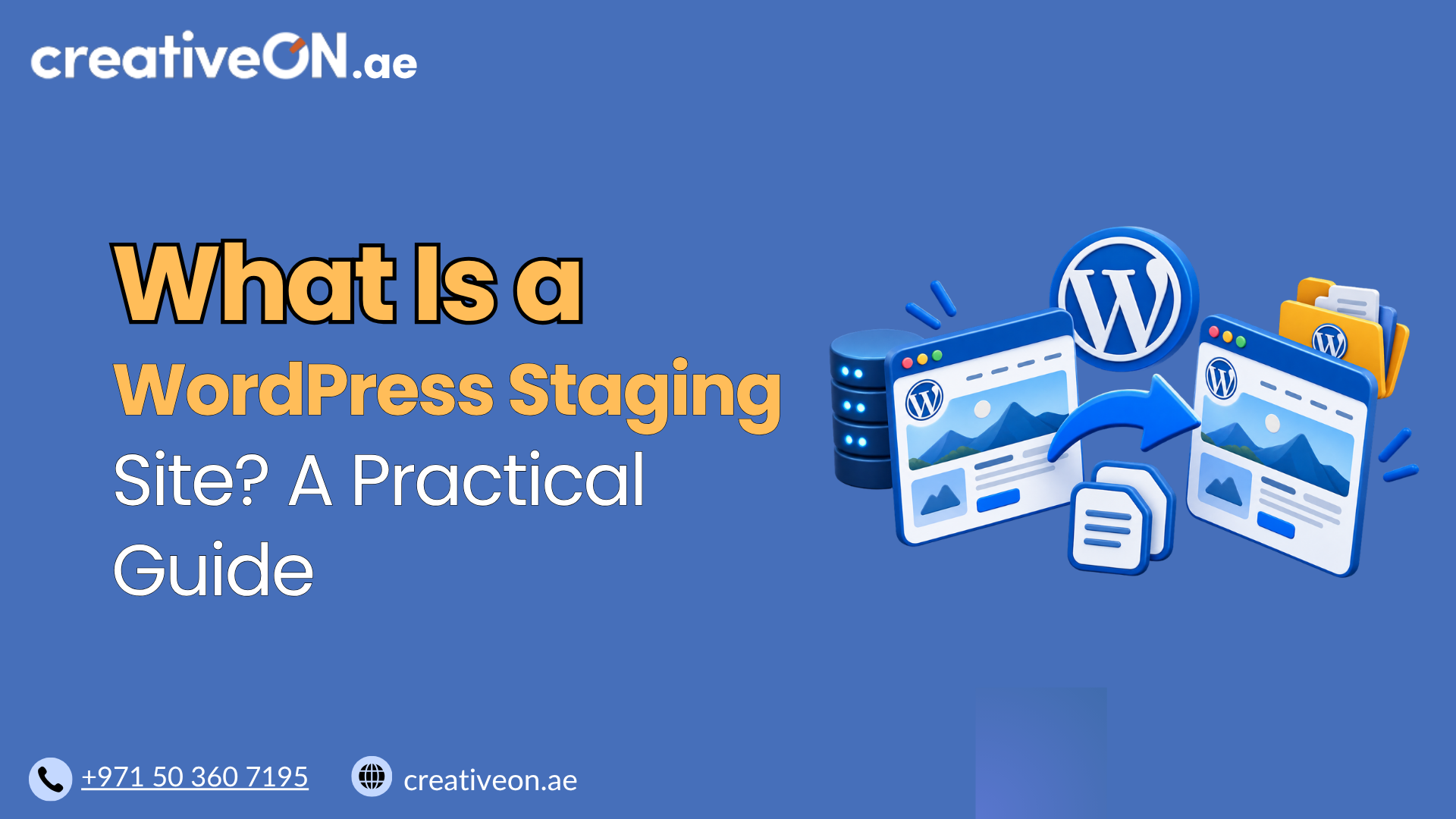
How to Restore WordPress Database and Files
If your WordPress site has crashed, been hacked, or simply broken after an update, knowing how to restore WordPress database and files can be the difference between a five-minute fix and days of downtime. This guide walks you through the practical steps to bring your site back safely, whether you’re restoring from a backup plugin, […]
If your WordPress site has crashed, been hacked, or simply broken after an update, knowing how to restore WordPress database and files can be the difference between a five-minute fix and days of downtime. This guide walks you through the practical steps to bring your site back safely, whether you’re restoring from a backup plugin, your hosting control panel, or manually through phpMyAdmin and FTP.
This article assumes you already have a backup available. If you don’t yet have a backup strategy in place, our WordPress Backup Guide covers how to set one up correctly.
Why Restoring Correctly Matters
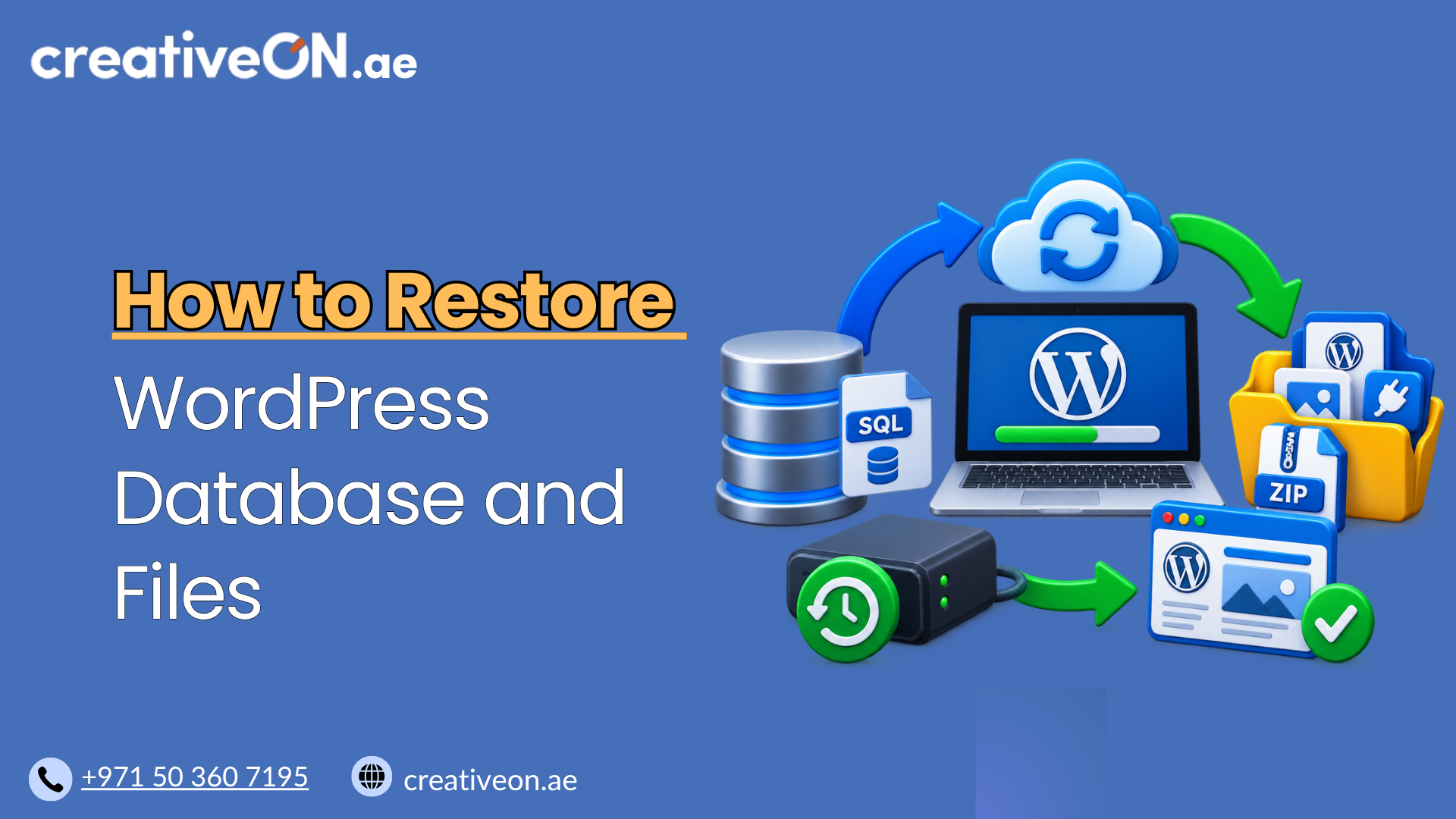
A WordPress site is made up of two parts: the database (posts, pages, settings, and user data) and the files (themes, plugins, media, and core WordPress files). A restore is only successful when both parts are put back in sync. Restoring files without the matching database — or vice versa — often leads to broken links, missing images, or a site that loads with errors.
For UAE-based businesses running eCommerce stores or client-facing websites, even a short outage can mean lost sales or missed inquiries. Doing the restore properly the first time avoids repeat downtime and prevents further data loss.
Before You Restore: What You Need
Before starting, gather the following:
- A recent backup of your WordPress database (usually a .sql file)
- A recent backup of your WordPress files (usually a .zip file containing wp-content, wp-admin, wp-includes, and root files)
- FTP or File Manager access from your hosting control panel
- phpMyAdmin access (or another database management tool) if restoring manually
- Your wp-config.php file, or at least your database name, username, and password
If you’re unsure where your backups are stored, check your hosting dashboard first — many managed WordPress hosting plans keep automatic backups you can restore with a single click.
How to Restore WordPress Database and Files
There are two common approaches: using a backup plugin or your host’s built-in restore tool, or restoring manually. Start with the easier option if it’s available to you.
Option 1: Restore Using a Backup Plugin or Hosting Panel
If you used a backup plugin (such as UpdraftPlus, Duplicator, or a similar tool) or your hosting provider offers automated backups, this is the fastest and safest route.
- Log in to your WordPress dashboard or hosting control panel. If your site is inaccessible, use your host’s backup manager instead.
- Locate your most recent successful backup. Confirm the date and time to make sure it’s from before the issue occurred.
- Select “Restore” and choose both database and files. Most plugins let you restore them together or separately — choose “full restore” whenever possible for consistency.
- Wait for the process to complete without interrupting it. Restores can take several minutes depending on site size.
- Clear your cache and test the site. Check the homepage, a few inner pages, and the admin login to confirm everything loaded correctly.
Option 2: Restore the Database Manually via phpMyAdmin
Use this method if you don’t have a backup plugin, or if the plugin restore fails.
- Log in to phpMyAdmin through your hosting control panel (usually under “Databases”).
- Select your WordPress database from the left-hand menu.
- Back up the current database first, even if it’s broken — this gives you a fallback in case something goes wrong.
- Use the “Import” tab and upload your .sql backup file.
- Click “Go” and wait for confirmation that the import completed successfully.
- Check that table prefixes match your wp-config.php file (commonly wp_). A mismatch here is one of the most common reasons a restore doesn’t work.
Option 3: Restore Files via FTP or File Manager
- Connect to your server using an FTP client (like FileZilla) or your hosting’s File Manager.
- Navigate to your site’s root directory, typically public_html.
- Rename the existing WordPress directory or move the current files to a temporary backup location rather than deleting them. This way, if something goes wrong during the restore, your current site files are still available.
- Upload your backed-up files, including wp-content, wp-admin, and wp-includes. Be careful with root files like wp-config.php and .htaccess — see the note below before overwriting them.
- Set correct file permissions (usually 755 for folders and 644 for files) if your host requires it.
- Reload your site to confirm the files are working alongside the restored database.
Be careful with wp-config.php. If the backup’s wp-config.php belongs to the same hosting environment and database, it’s usually safe to restore. But if you’re restoring the site to a different database or hosting environment — for example, after a migration — keep your current configuration file and verify these values match your active database before going further:
- DB_NAME
- DB_USER
- DB_PASSWORD
- DB_HOST
- $table_prefix
Getting these wrong is a common reason a restored site can’t connect to its database.
Best Practices for a Smooth Restore
- Always restore the database and files together so content, plugin settings, and theme files stay in sync.
- Test on a staging site first if your hosting plan supports it, especially for larger or business-critical sites. Our WordPress Staging Environment Guide explains how to set this up.
- Keep a backup of the broken site before restoring, in case you need to recover something specific later.
- Update passwords after a restore, particularly if the original issue was caused by a security breach.
- Confirm plugin and theme compatibility after restoring, since a backup taken weeks ago may not match your current WordPress version.
Common Mistakes to Avoid
- Restoring only the database or only the files. This is the most frequent cause of a broken site after a restore attempt.
- Using an outdated backup without checking the date first, leading to lost recent content.
- Overlooking a table prefix mismatch in wp-config.php, which can prevent WordPress from finding its own tables and trigger a database connection error.
- Skipping a pre-restore backup of the current (broken) state, removing any chance of recovering unique data.
- Assuming cache is the problem when the site still looks broken after a restore. Clear your cache to rule it out, but if errors persist, check the database connection and file/database sync first.
If your site was compromised rather than just broken, review our WordPress Security Guide after restoring to close any vulnerabilities before they cause another incident.