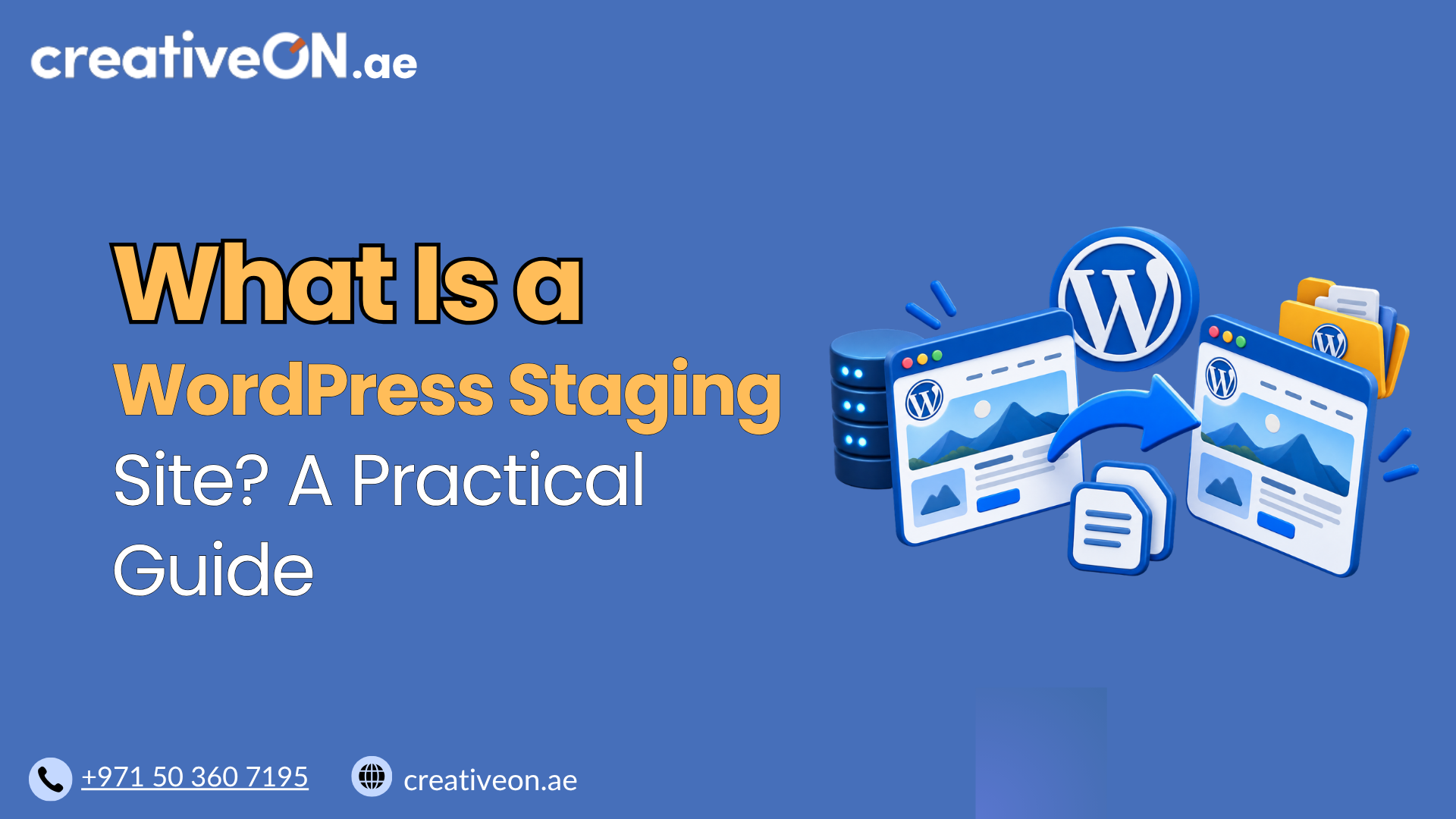
How to Restore a WordPress Backup
If your WordPress site has crashed, been hacked, or broken after a bad update, knowing how to restore a WordPress backup can save you hours of stress. This guide walks you through the exact steps to get your site back online safely, whether you’re using a backup plugin, your hosting control panel, or manual files. […]
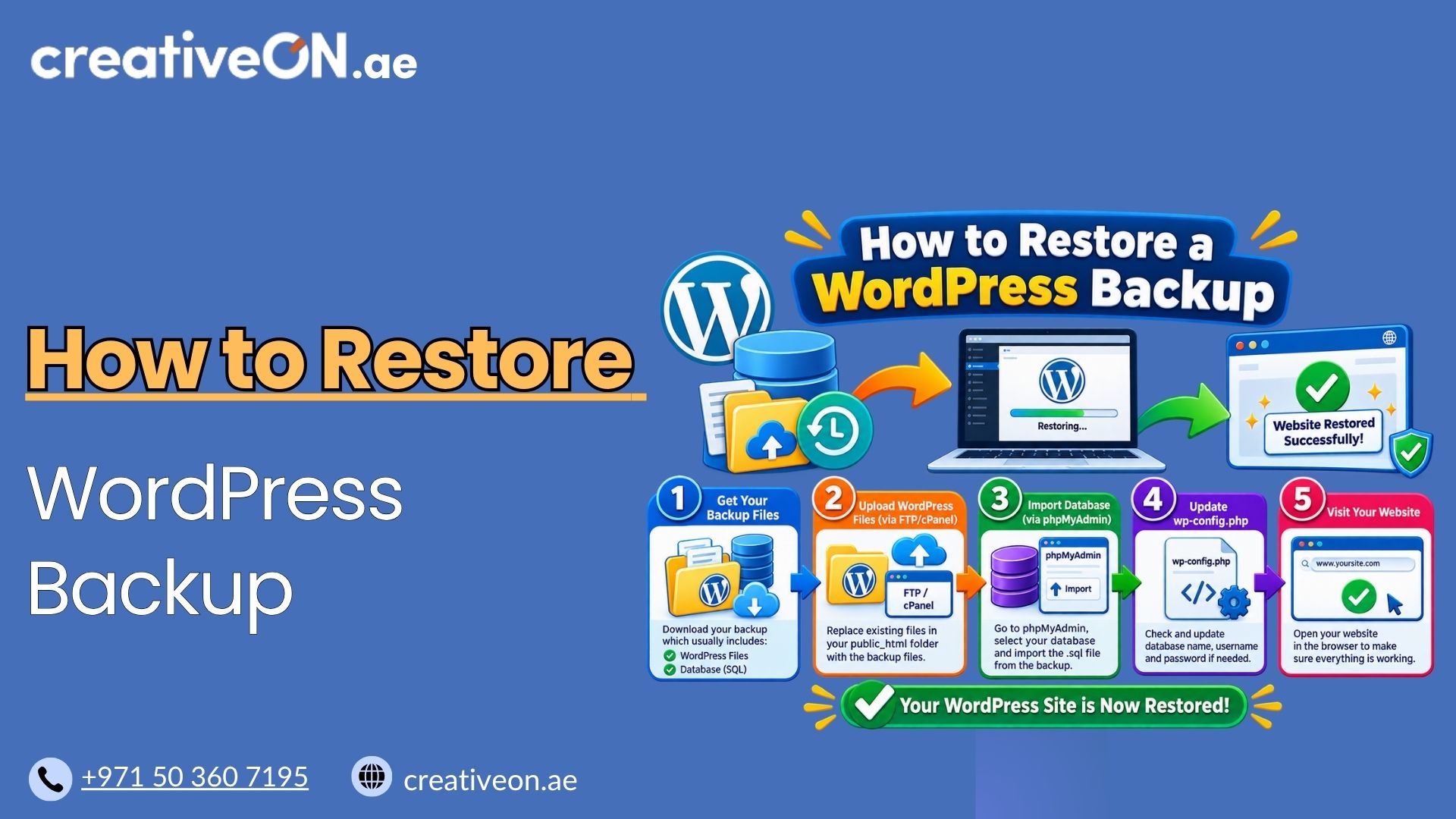
If your WordPress site has crashed, been hacked, or broken after a bad update, knowing how to restore a WordPress backup can save you hours of stress. This guide walks you through the exact steps to get your site back online safely, whether you’re using a backup plugin, your hosting control panel, or manual files.
Restoring a backup isn’t complicated once you understand the process. But doing it the wrong way — overwriting the wrong files, skipping the database, or restoring on a live site without testing — can turn a small problem into a bigger one. This article focuses on one thing: helping you restore your WordPress site safely and get it back to a known working state.
Why Restoring a Backup Correctly Matters
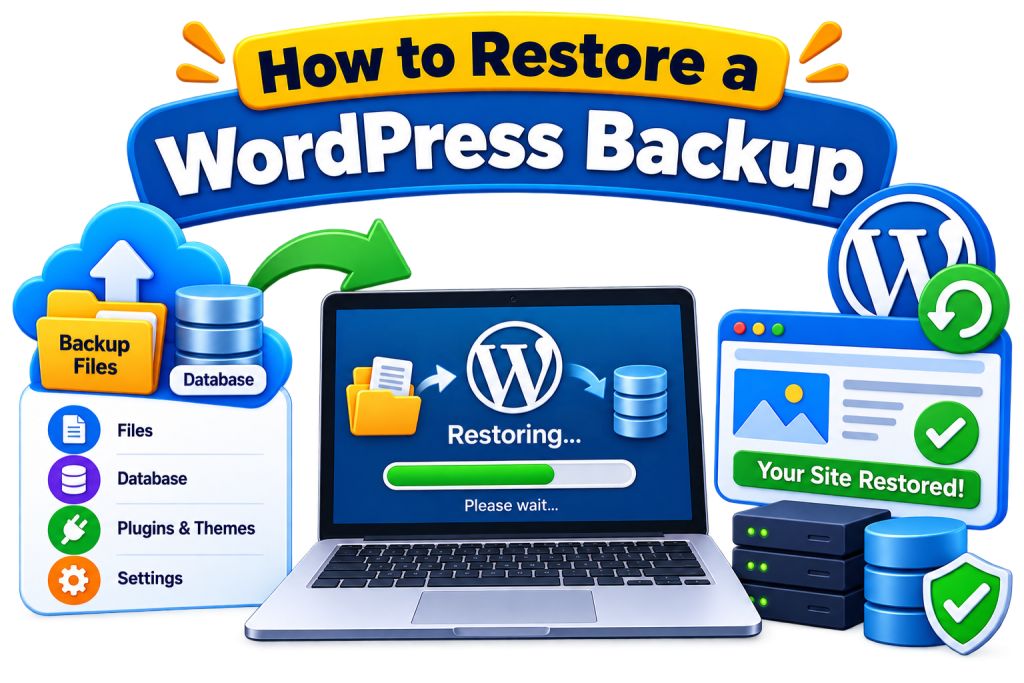
A complete WordPress backup normally includes two main components: your website files (themes, plugins, uploads) and your database (posts, pages, settings, user accounts). A full site restore generally requires both — restoring only one often leads to a broken or mismatched site, for example a site that loads visually but shows old content, or a database that references images that no longer exist.
Getting the restore process right means:
- Less downtime for your visitors or customers
- No data loss from partial restores
- No risk of restoring an outdated or corrupted backup over a working site
For UAE businesses running eCommerce stores or customer-facing websites, even a short outage can affect orders, inquiries, and customer trust. That makes a clean, reliable restore process worth understanding.
Before You Restore: What to Check First
Before touching anything, take a few minutes to prepare. This step is often skipped, and it’s usually where things go wrong.
- Confirm the backup is complete and recent Check the backup date and verify it contains the files and database you expect. If your backup plugin or host provides a summary or integrity status of what’s included, review that as well.
- Take a fresh backup of the current (broken) state Even if your site is broken, back it up before restoring. This gives you a fallback in case the restore doesn’t fix the issue, or you later realize you needed something from the current version.
- Note your WordPress and PHP version If your backup is old, your current hosting environment (PHP version, WordPress core version) may differ. This can occasionally cause compatibility issues after restoring, especially with older plugins.
- Verify the backup is usable Make sure the backup can actually be accessed and contains the required files and database. If your hosting provider or backup plugin offers backup verification or a test restore, use it before overwriting the live site.
- Decide where you’re restoring to Restoring directly on your live site is common, but for a high-risk restore — an old backup, a business-critical site, or one you’re unsure about — test it on staging first. This lets you confirm everything works before pointing your live domain at it. For more on this approach, see our WordPress Staging Environment Guide.
How to Restore a WordPress Backup
There are three common ways to restore a WordPress backup, depending on how the backup was created and what tools you have access to.
Method 1: Restore Using a Backup Plugin
If your backup was created with a plugin (such as UpdraftPlus, Duplicator, or a similar tool), this is usually the simplest method.
- Log in to your WordPress dashboard.
- Go to the backup plugin’s settings page.
- Select the backup you want to restore (by date).
- Choose whether to restore files only, database only, or both — in most cases, select both for a full restore. If you’re trying to undo a specific plugin or theme change, a full restore isn’t always necessary; check whether your plugin supports a more targeted restore first.
- Confirm the restore. The plugin will handle replacing files and importing the database automatically.
- Once complete, clear your cache and check the site thoroughly.
This method works well if your site is still accessible. If WordPress itself won’t load, you’ll need Method 2 or 3.
Method 2: Restore Through Your Hosting Control Panel
Many managed WordPress hosting plans include automatic backups accessible through the hosting panel, separate from any plugin.
- Log in to your hosting account or control panel.
- Find the backup or restore points section.
- Select a backup date, ideally from before the issue started.
- Choose to restore files, the database, or both.
- Confirm and wait for the restoration process to complete — this can take a few minutes depending on site size.
This method is especially useful when your site is completely down, since it doesn’t rely on WordPress being accessible. If you’re unsure whether your hosting plan includes this feature, it’s worth checking with your provider, as backup retention and restore tools vary between managed and unmanaged setups.
Method 3: Manual Restore via FTP and phpMyAdmin
If you don’t have a plugin or panel-based restore option, you can restore manually. This method requires more care.
Restoring files:
- Connect to your server using SFTP where available (or FTP, as with a client like FileZilla).
- Preserve the current site files before replacing anything — don’t delete folders like wp-content outright, since it holds your themes, plugins, and uploaded media.
- Upload the backed-up WordPress files to the correct document root, overwriting existing files as needed.
- Confirm the restored wp-content contains the themes, plugins, and uploads you expect.
Restoring the database:
- Before importing, make sure you have a backup of the current database — this step is destructive and can’t be easily undone.
- Log in to phpMyAdmin through your hosting panel.
- Select your WordPress database.
- Use the “Import” tab and upload your database backup file (usually a .sql file). For large databases, your hosting provider may offer a different import method if phpMyAdmin times out.
- Confirm the import completes without errors.
Reconnect files and database: Check your wp-config.php file to confirm the database name, username, and password match your restored database. If you restored to a new database, update these details accordingly.
Manual restores give you full control but leave more room for error, so this method is best if you’re comfortable working with server files directly.
Common Mistakes to Avoid
- Restoring files without the database (or vice versa). This is the most frequent cause of a “half broken” site after restoring.
- Skipping a fresh backup before restoring. If the restore fails, you’ll have nothing to fall back on.
- Ignoring file permissions. After a manual restore, incorrect permissions on folders like wp-content/uploads can cause images or uploads to stop working.
- Not clearing cache afterward. If you use a caching plugin or your host has server-level caching, old cached pages can make it look like the restore didn’t work even when it did.
- Restoring a very outdated backup without checking plugin compatibility. Old backups may include plugins that conflict with your current WordPress version.
- Restoring the database without understanding what it will overwrite. An older database can remove posts, orders, form submissions, user accounts, or settings created after the backup date — know this before you confirm the restore.
Best Practices After Restoring
Once your site is back up, don’t stop there:
- Check important content, orders, and form submissions against the backup date, so you know which recent data may have been rolled back.
- Test key pages, especially checkout flows if you run an online store.
- Confirm your SSL certificate is still active and pages load over HTTPS. If not, our SSL for WordPress guide covers how to fix this.
- Review your backup schedule. If you were restoring because of data loss, it may be worth increasing how often backups run.
- If the original issue was a hack or malware, don’t assume the newest backup is clean — it may have been created after the compromise and contain the same malicious files or database changes. Pair the restore with a security review. See our WordPress Security Guide for next steps.
What to Do If the Restore Doesn’t Fix the Problem
If your site is still broken after restoring, work through these checks before trying anything more drastic:
- Try an earlier backup — the issue may have already existed in the one you just restored.
- Confirm the problem actually exists in the restored backup, rather than being a caching or DNS artifact.
- Check plugin and theme compatibility with your current WordPress and PHP version.
- Review your server or PHP error logs for specific errors.
- Clear all caching layers (plugin, browser, and server/CDN) before concluding the restore didn’t work.
- If malware was involved, treat this as a security investigation rather than another restore attempt.