Google Workspace Security Checklist for Administrators
SEO Title: Google Workspace Security Checklist for Administrators URL Slug: /google-workspace/security/security-checklist-for-administrators Meta Description: Follow this Google Workspace security checklist to protect admin accounts, review Super Admin access, enforce 2-Step Verification, monitor activity, and improve Workspace security. A compromised Google Workspace administrator account can give an attacker control over users, security settings, email, and company data. […]

SEO Title: Google Workspace Security Checklist for Administrators
URL Slug: /google-workspace/security/security-checklist-for-administrators
Meta Description: Follow this Google Workspace security checklist to protect admin accounts, review Super Admin access, enforce 2-Step Verification, monitor activity, and improve Workspace security.
A compromised Google Workspace administrator account can give an attacker control over users, security settings, email, and company data. That makes administrator security one of the first areas to review when hardening a Google Workspace environment.
This Google Workspace security checklist for administrators focuses on the controls that matter most: administrator accounts, Super Admin access, authentication, recovery, monitoring, device access, sharing, Gmail security, and third-party applications.
Use it when setting up Google Workspace, reviewing an existing environment, or performing a recurring security check. Google provides security checklists and administrator security guidance, but the exact controls available can vary by Workspace edition and administrator permissions.
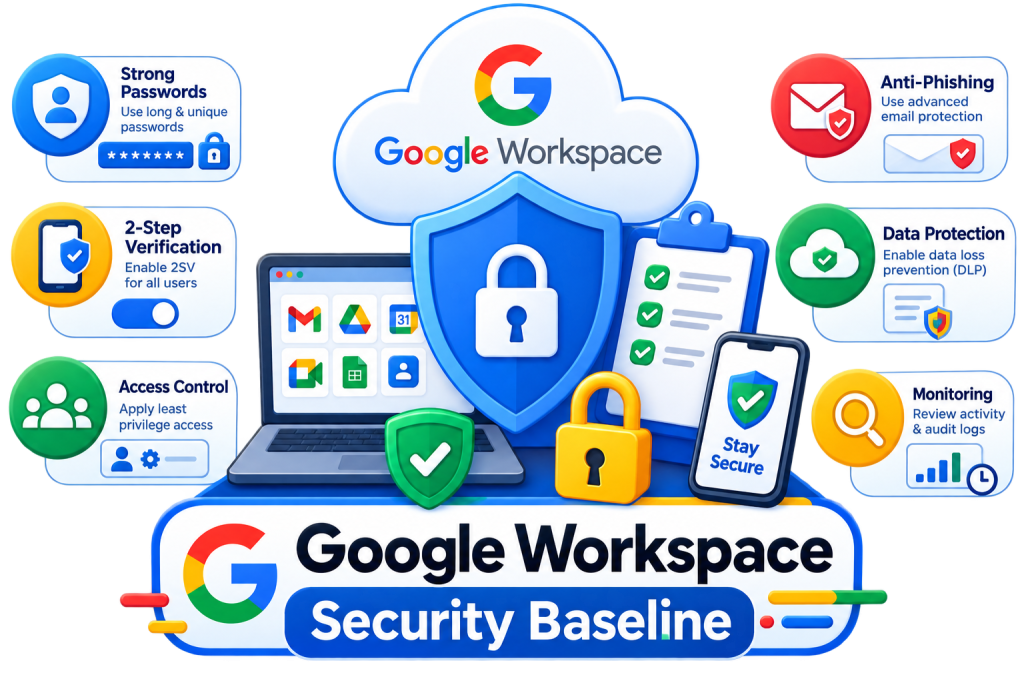
Google Workspace Security Baseline
Before reviewing individual settings, make sure these foundational controls are in place:
Security control | Priority | Recommended action |
2-Step Verification | Critical | Require it for administrators |
Super Admin access | Critical | Keep access limited and maintain more than one Super Admin |
Shared admin accounts | Critical | Never share administrator credentials |
Least privilege | Critical | Give administrators only the permissions they need |
Account recovery | High | Maintain secure recovery options and backup methods |
Admin monitoring | High | Review audit logs and relevant alerts |
External sharing | High | Review access to company data outside the organisation |
Third-party apps | High | Remove unnecessary application access |
Device security | Medium | Review devices accessing business data |
Advanced protection | Advanced | Consider for high-risk administrators and users |
The priorities above are practical recommendations rather than a universal Google-mandated ranking. Your organisation’s risk profile, regulatory obligations, and Google Workspace edition should determine how controls are implemented.
Google Workspace Security Checklist
1. Protect Every Administrator Account
Administrator accounts deserve stronger protection than ordinary user accounts because they can change settings affecting the entire organisation.
- Give every administrator an individual account.
- Never share administrator usernames or passwords.
- Require 2-Step Verification for administrators.
- Use phishing-resistant authentication where appropriate.
- Keep administrator recovery information current.
- Avoid using privileged accounts for routine activities.
- Review administrator access regularly.
Google recommends individual administrator accounts so activity can be attributed to the correct person in audit logs. Google also recommends 2-Step Verification for administrators and identifies security keys as a strong phishing-resistant authentication option.
For higher-risk environments, consider security keys or supported passkey options. Passkeys provide a password alternative based on possession and unlocking of a trusted device.
2. Secure Super Admin Accounts
Super Admin accounts have the highest level of control, so they should be treated as privileged accounts.
- Maintain more than one Super Admin account.
- Have each Super Admin account managed by a separate individual.
- Never share a Super Admin account.
- Use a separate non-Super Admin account for everyday work.
- Sign in to the Super Admin account only when administrative work is required.
- Review Super Admin access periodically.
- Store backup authentication methods securely.
Google recommends having more than one Super Admin account and avoiding shared accounts. It also recommends using non-Super Admin accounts for daily activities and applying the least-privilege approach for routine administration.
Critical: Do not make your organisation dependent on a single Super Admin account. A second independently managed Super Admin can be essential if the primary administrator becomes unavailable or loses access.
3. Review Administrator Roles and Permissions
Not every administrator needs access to every Google Workspace setting.
- Review all users with administrator privileges.
- Review custom administrator roles.
- Remove unnecessary privileges.
- Use delegated administrator roles for routine tasks.
- Avoid granting Super Admin access simply for convenience.
- Recheck permissions whenever someone’s job responsibilities change.
For example, an administrator who creates users and resets passwords may not need permission to modify organisation-wide security settings.
This is the least privilege principle: give each administrator the minimum access required to perform their role.
Google Workspace supports administrator roles and specific privileges so organisations can delegate administrative responsibilities rather than giving everyone full access.
4. Enforce 2-Step Verification
2-Step Verification should be one of the first controls checked in any Google Workspace security review.
- Confirm 2-Step Verification is enabled for all administrators.
- Review your organisation’s 2SV enforcement status.
- Encourage stronger authentication methods for high-risk accounts.
- Review registered authentication methods.
- Remove outdated or unnecessary authentication methods.
- Ensure administrators have a secure backup method.
Google describes 2-Step Verification as an important protection for administrator accounts because a stolen password alone should not be enough to access the account. Google has also been rolling out administrator-specific 2SV requirements in applicable environments.
Security keys are particularly useful for administrators who face elevated phishing risk. Google identifies them as the most secure form of 2SV in its administrator security guidance.
5. Secure Administrator Account Recovery
Strong authentication is only useful if administrators can recover access safely.
Administrator recovery checklist
- Maintain appropriate recovery information.
- Store backup codes securely.
- Enrol a spare security key when security keys are used.
- Document your administrator recovery process.
- Ensure more than one Super Admin can assist with critical recovery.
- Keep access to the organisation’s domain and DNS administration available to authorised personnel.
Google recommends enrolling a spare security key and securely storing backup codes so administrators have another way to authenticate if a primary authentication method is lost.
Super Admin recovery
Super Admin recovery deserves additional planning. Google provides settings that control how Super Admins can recover access, and recovery requirements can depend on the organisation’s configuration and account status. In some recovery situations, administrators may need to verify ownership of the organisation’s domain.
Do not solve account recovery problems by sharing administrator credentials.
6. Monitor Administrator Activity
Preventive controls should be combined with monitoring.
- Configure relevant admin email alerts.
- Review Admin log events.
- Investigate suspicious administrator sign-ins.
- Review unexpected security-setting changes.
- Monitor actions performed by other administrators.
- Investigate unusual activity after administrator role changes.
Google’s administrator guidance recommends using admin email alerts for events such as suspicious sign-in attempts, compromised devices, and changes made by another administrator. Admin log events can show administrative activity, the administrator who performed it, the date, and associated IP information.
This creates an important detect layer after preventative controls such as 2SV and least privilege.
7. Review Security Health and Available Security Controls
If your Google Workspace edition includes the relevant Security Center capabilities, review the available security recommendations and configuration checks.
- Review available Security Health recommendations.
- Check authentication-related settings.
- Review Gmail security configuration.
- Review Drive sharing controls.
- Review device-related security settings.
- Review third-party application access.
- Investigate high-priority recommendations.
Don’t assume every Google Workspace organisation has the same Security Center features. Available security capabilities depend on factors such as your Workspace edition and administrator permissions.
The purpose of this review is not to change every setting automatically. Evaluate each recommendation against your business requirements before applying it.
8. Review Device and Endpoint Security
Users can access company data from work and personal devices, so device access should be part of your security review.
- Review managed devices where available.
- Identify devices that should no longer have access.
- Review unmanaged or non-compliant devices.
- Consider Endpoint Verification where appropriate.
- Review access from personal devices according to company policy.
- Investigate unusual device activity.
Endpoint Verification can provide administrators with device information and help control access based on attributes such as device security status and location.
Keep this review focused on access security. Detailed endpoint-management procedures should be covered in a dedicated device-management guide.
9. Review External Sharing and Data Access
Company information can leave the organisation through legitimate collaboration features, so external sharing should be reviewed regularly.
- Review Google Drive external sharing.
- Check whether users can share files outside the organisation.
- Review publicly accessible content where applicable.
- Review external Google Groups membership and communication.
- Investigate unnecessary external access.
- Remove access that is no longer required.
The objective isn’t necessarily to block all external collaboration. UAE businesses often work with customers, suppliers, agencies, contractors, and partners outside their organisation.
Instead, external access should match the organisation’s business requirements.
10. Review Gmail Security
Email is one of the most important security areas in Google Workspace.
- Verify SPF configuration.
- Verify DKIM signing.
- Review DMARC configuration and policy.
- Review forwarding and routing rules.
- Review spoofing and phishing protections.
- Review Gmail security exceptions.
- Investigate unexpected mail-routing changes.
Google Workspace provides multiple Gmail security controls covering authentication, spoofing, phishing, attachments, links, forwarding, and related settings.
Keep this checklist focused on reviewing the controls. Detailed SPF, DKIM, and DMARC configuration should be handled in dedicated articles to avoid turning this checklist into a separate email-authentication guide.
11. Review Third-Party Apps and Access
Third-party applications can introduce another route to business data.
- Review applications connected to Google Workspace.
- Identify applications with access to sensitive data.
- Remove unnecessary application access.
- Review applications after employees leave.
- Investigate applications requesting excessive permissions.
- Establish an approval process for business applications.
Google Workspace administrators can manage application access and permissions using the controls available to their organisation and edition.
Avoid approving applications simply because they are popular or convenient. Understand what data the application needs and whether that access is still justified.

Prevent → Detect → Respond
A useful way to think about Google Workspace security is as three layers.
Prevent
Focus on stopping unauthorised access before it happens.
- 2-Step Verification
- Super Admin protection
- Least privilege
- Secure recovery
- External sharing controls
- Application access controls
Detect
Look for signs that something has gone wrong.
- Admin log events
- Admin alerts
- Suspicious sign-ins
- Security recommendations
- Unusual device activity
Respond
Act quickly when suspicious activity is discovered.
- Remove unnecessary privileges.
- Secure affected accounts.
- Revoke inappropriate access.
- Review recent administrative activity.
- Recover compromised accounts.
- Document what happened and what was changed.
This approach prevents the checklist from becoming a collection of unrelated settings. It creates a basic security lifecycle for Google Workspace administration.
If You Only Have 30 Minutes
If you’re reviewing an existing Google Workspace environment and have limited time, start here:
- Confirm all administrators use 2-Step Verification.
- Confirm there is more than one independently managed Super Admin.
- Verify that administrator accounts are not shared.
- Check that Super Admins use separate everyday accounts.
- Review all users with administrator privileges.
- Remove unnecessary administrator access.
- Check administrator recovery options.
- Review recent Admin log events.
- Check important admin alerts.
- Review suspicious sign-ins or unexpected security changes.
These checks address the highest-impact areas first.
When an Administrator Leaves the Organisation
Administrator offboarding should be treated as a security event.
- Remove unnecessary administrator privileges.
- Suspend or otherwise offboard the user’s account according to your process.
- Review third-party application access.
- Review recovery information and authentication methods.
- Transfer required administrative responsibilities.
- Review recent administrative activity where appropriate.
- Confirm another authorised administrator owns critical tasks.
Don’t wait for a quarterly security review to remove administrative access from someone who has left the organisation.
Common Google Workspace Security Mistakes
Avoid these common administrative mistakes:
- Giving too many people Super Admin access.
- Sharing administrator credentials.
- Using a Super Admin account for everyday work.
- Relying on passwords without strong authentication.
- Maintaining only one Super Admin.
- Ignoring admin alerts.
- Never reviewing Admin log events.
- Leaving unnecessary administrator privileges in place.
- Approving third-party applications without reviewing their access.
- Allowing external sharing without a clear business requirement.
- Treating security configuration as a one-time project.
Another common mistake is assuming that every security setting must be maximised. Security controls should be balanced against business requirements, usability, and the capabilities of the organisation’s Google Workspace edition.
How Often Should You Review Google Workspace Security?
Google does not prescribe one universal review schedule for every organisation. The right frequency depends on your business size, risk profile, regulatory requirements, and administrative complexity.
A practical starting point is:
Monthly
- Review administrator accounts.
- Review suspicious activity and important alerts.
- Check recent administrative changes.
- Investigate unusual sign-ins.
Quarterly
- Audit Super Admin access.
- Review delegated administrator roles.
- Review external sharing.
- Review third-party application access.
- Review available security recommendations.
After Staff Changes
- Remove unnecessary administrator privileges.
- Review authentication and recovery methods.
- Review application access.
- Transfer administrative responsibilities.
- Check relevant administrative activity.
For organisations with higher security requirements, more frequent monitoring may be appropriate.