Gmail Compliance Settings: A Practical Guide for Google Workspace Admins
Gmail compliance settings give Google Workspace administrators more control over how business email is handled. They can be used to inspect messages, restrict certain content, route specific emails, control delivery, and apply organizational email policies. For a business using Google Workspace, these controls can help enforce internal email policies without requiring users to manage everything […]

Gmail compliance settings give Google Workspace administrators more control over how business email is handled. They can be used to inspect messages, restrict certain content, route specific emails, control delivery, and apply organizational email policies.
For a business using Google Workspace, these controls can help enforce internal email policies without requiring users to manage everything themselves.
This guide explains what Gmail compliance settings do, where to find them, and which settings administrators should understand.
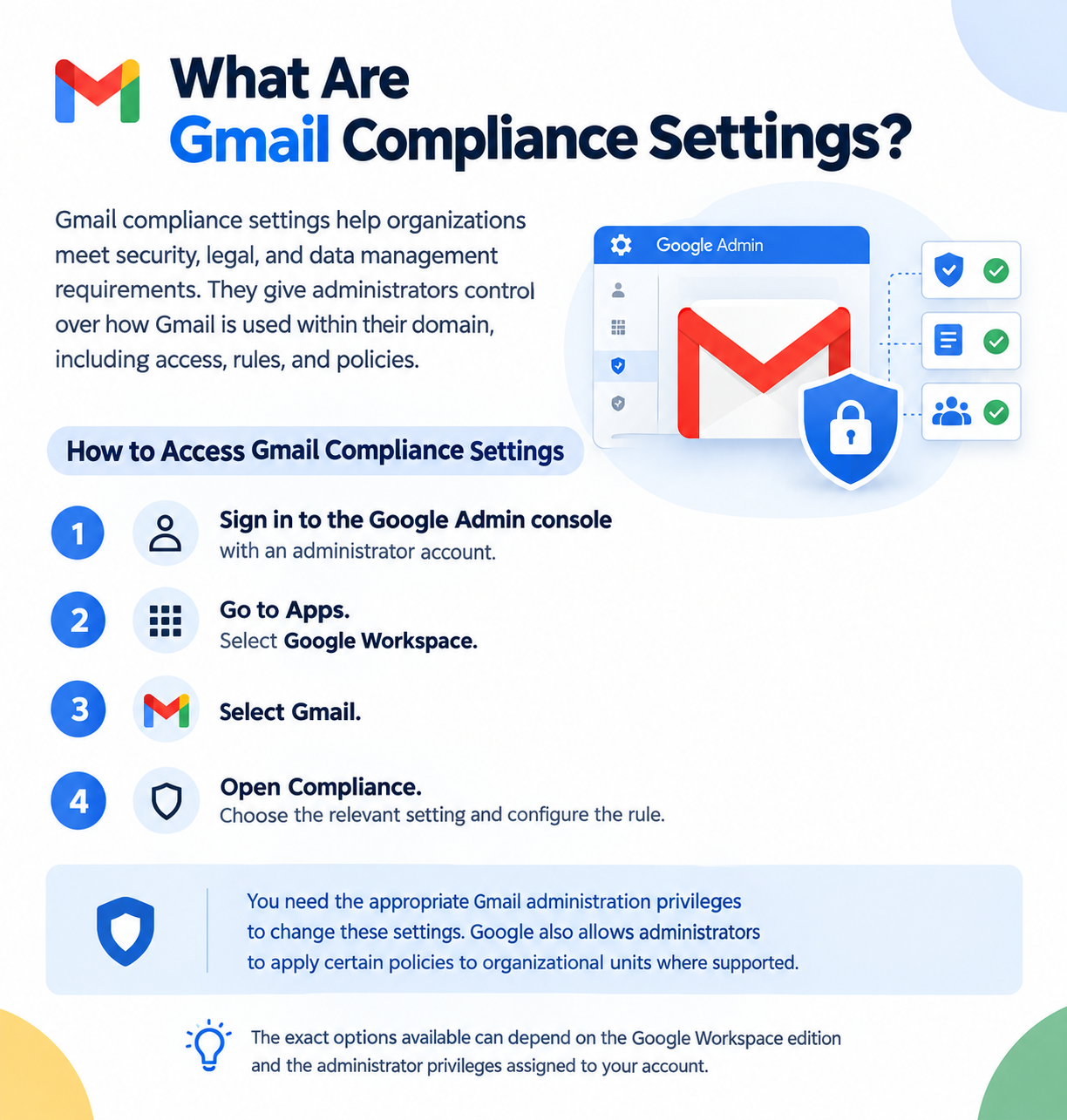
Where Are Gmail Compliance Settings?
To access Gmail compliance controls:
- Sign in to the Google Admin console with an administrator account.
- Go to Apps.
- Select Google Workspace.
- Select Gmail.
- Open Compliance.
- Choose the relevant setting and configure the rule.
You need the appropriate Gmail administration privileges to change these settings. Google also allows administrators to apply certain policies to organizational units where supported.
The exact options available can depend on the Google Workspace edition and the administrator privileges assigned to your account.

What Can You Control With Gmail Compliance Settings?
Gmail compliance is not a single rule. It includes several types of administrative controls designed for different email-management requirements.
1. Content Compliance
Content compliance lets administrators create rules that look for specific content within email messages.
For example, a company could create a rule that looks for:
- Confidential business information
- Specific words or phrases
- Certain numerical patterns
- Information contained in supported attachments
When a message matches a rule, the administrator can configure an appropriate action.
Depending on the configuration, Gmail can reject the message, quarantine it for administrator review, or modify the message.
This makes content compliance useful when an organization needs to enforce an internal email policy based on what a message contains.
2. Attachment Compliance
Organizations may also need to control emails based on their attachments.
For example, an administrator might create a rule related to specific attachment types or content.
This can be useful when a company wants additional controls around documents being sent through Gmail.
Attachment-related rules should be designed carefully. Blocking too many legitimate file types can interfere with normal business communication.
3. Secure Transport and TLS
Some organizations require email to use a secure connection when communicating with specific domains or mail systems.
Google Workspace provides controls for TLS compliance, allowing administrators to establish requirements for secure email transport.
This can be particularly relevant when communicating with business partners, suppliers, financial institutions, or other organizations that require encrypted mail transport.
Before enforcing a TLS requirement, verify that the receiving mail server supports the required configuration. Otherwise, legitimate messages may fail to deliver.
4. Restrict Delivery
Gmail compliance settings can also be used to restrict where messages are delivered.
For example, an organization might need to prevent certain users from sending email to external recipients or restrict messages involving specific domains.
Google Workspace administrators can create rules that apply to inbound, outbound, or internal messages depending on the requirement.
This can be useful for organizations that need tighter control over external email communication.
5. Email and Chat Auto-Deletion
Google Workspace also provides an Email and chat auto-deletion setting within Gmail compliance settings.
Administrators can configure a period after which messages are automatically deleted. Google currently documents a minimum storage period of 30 days for this setting. Messages can either be moved to Trash or deleted permanently, depending on the selected configuration.
However, this setting should not automatically be treated as a legal retention system.
If your organization has legal, regulatory, or investigation requirements, Google recommends considering Google Vault rather than relying on the email auto-deletion setting for those purposes.
Example: Blocking Sensitive Information in Outgoing Email
Consider a UAE company that does not want employees to accidentally send certain confidential information outside the organization.
An administrator could create a content compliance rule that:
- Applies to outgoing messages.
- Looks for specific words, phrases, or patterns.
- Matches the relevant message content.
- Applies an action such as quarantine or rejection.
- Provides an exception where legitimate business communication requires it.
This approach allows the organization to enforce a specific policy without manually reviewing every outgoing message.
The important point is to define the rule narrowly enough to avoid blocking legitimate email.
Gmail Compliance vs. Gmail Routing
Gmail compliance and routing can sometimes appear similar because both can influence how messages are processed.
A useful distinction is:
Content compliance is primarily useful when the decision depends on the content or characteristics of an email.
Routing is generally more appropriate when the main requirement is controlling where messages are delivered or how they are routed.
Google specifically recommends using routing settings for general routing use cases, such as delivery-related configurations, while content compliance is intended for content-related rules.
Choosing the appropriate control makes your Gmail configuration easier to understand and maintain.
Best Practices for Gmail Compliance Rules
Creating a compliance rule is relatively straightforward. Designing a good rule requires more care.
Start With One Clearly Defined Requirement
Do not create a complicated rule simply because Gmail allows multiple conditions.
First define:
- What problem are you solving?
- Which messages should be affected?
- Which users or groups should be included?
- What should happen when a message matches?
- Which legitimate messages should be excluded?
Apply Rules to the Correct Message Direction
Determine whether the rule should affect:
- Incoming messages
- Outgoing messages
- Internal messages
Applying an outbound rule to all traffic, for example, can create unnecessary problems.
Use Exceptions Carefully
Some users, departments, or business partners may need different treatment.
Use exceptions where there is a genuine business requirement rather than creating overly broad rules.
Test Before Enforcing
A compliance rule that rejects messages can interrupt business communication.
Before applying a strict policy, test it with representative messages and verify that legitimate emails continue to work.
Document Important Rules
For each significant compliance rule, document:
- Purpose
- Scope
- Trigger conditions
- Action
- Exceptions
- Owner
- Date created or reviewed
This becomes especially useful when another administrator takes responsibility for the Google Workspace environment.
Common Mistakes to Avoid
Creating Rules Without Testing
A small mistake in a matching condition can affect more messages than expected.
Making Rules Too Broad
A rule intended to protect confidential information should not accidentally block ordinary business communication.
Confusing Compliance With Retention
Email compliance rules and email retention are different administrative requirements.
If your organization needs formal retention or legal hold capabilities, investigate Google Vault rather than relying solely on Gmail auto-deletion settings.
Using Compliance for Every Routing Requirement
If the requirement is primarily about where an email should go, review Gmail routing options instead of forcing the requirement into a content compliance rule.
Gmail Compliance Settings Checklist
Before activating a new Gmail compliance rule, check:
- The business requirement is clearly defined.
- The affected message direction is correct.
- The rule applies to the intended users or organizational scope.
- Matching conditions are specific enough.
- Legitimate exceptions have been considered.
- The action has been tested.
- The rule does not duplicate an existing routing or security policy.
- Administrators understand how the rule affects users.
- The rule has been documented.
- Retention requirements have been considered separately.