Managing Spam and Phishing Protection in Google Workspace
A single phishing email that slips past your filters can cost a business far more than a few minutes of cleanup. It can lead to compromised accounts, stolen credentials, or a finance team wiring money to the wrong account. For companies running Gmail through Google Workspace, spam and phishing protection isn’t something you set once […]

A single phishing email that slips past your filters can cost a business far more than a few minutes of cleanup. It can lead to compromised accounts, stolen credentials, or a finance team wiring money to the wrong account. For companies running Gmail through Google Workspace, spam and phishing protection isn’t something you set once and forget — it’s a combination of built-in defenses, admin configuration, and everyday user habits.
This article walks through how spam and phishing protection works in Google Workspace, what admins can configure, and what best practices keep inboxes clean without blocking legitimate email.
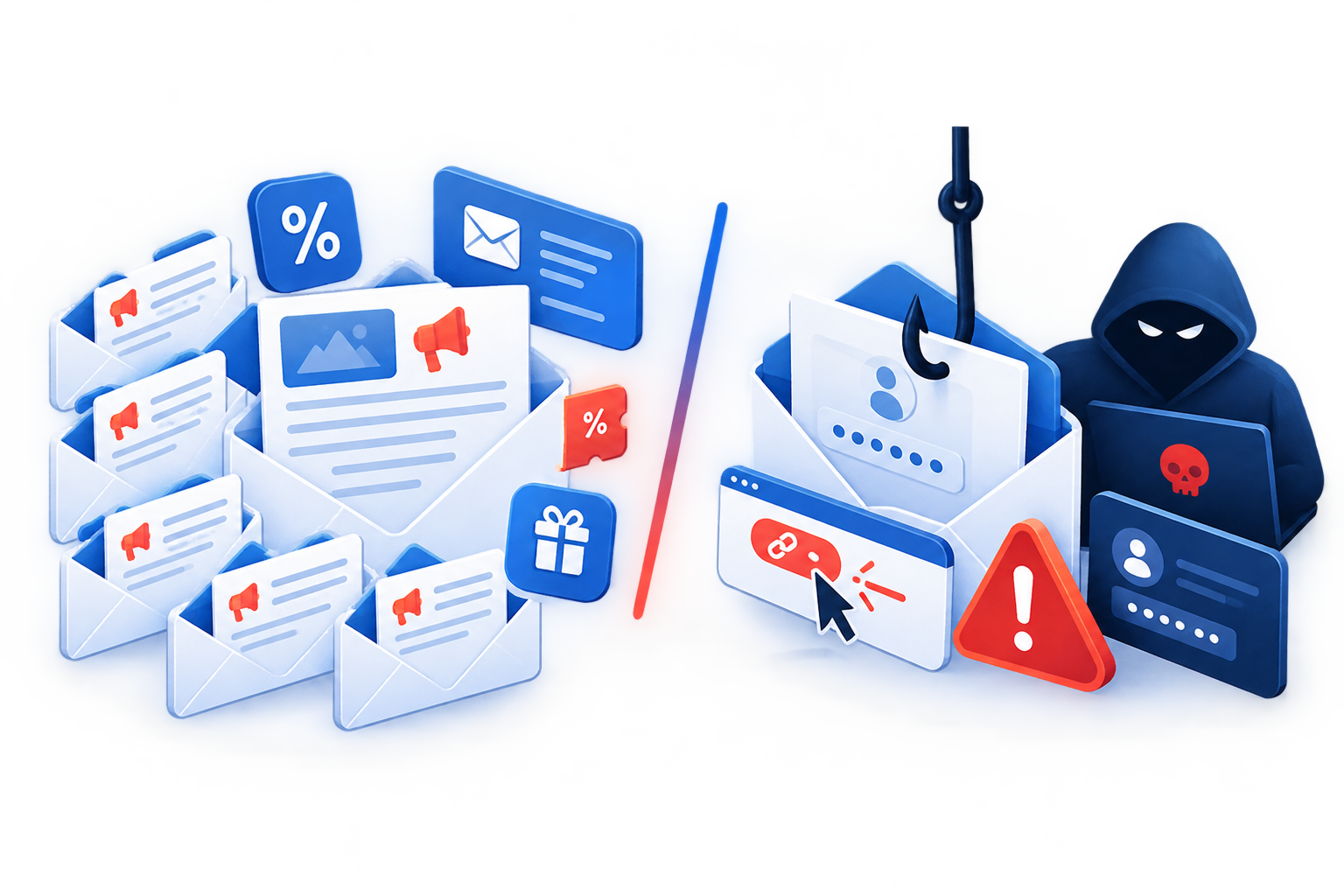
What Counts as Spam vs. Phishing
Spam and phishing are related but not identical problems, and understanding the difference helps you apply the right protection.
- Spam is unsolicited bulk email — promotional messages, newsletters you never signed up for, or low-value commercial content. It’s annoying but usually not dangerous.
- Phishing is a deliberate attempt to trick a recipient into revealing credentials, clicking a malicious link, or transferring funds. Phishing emails often impersonate a trusted sender, such as a colleague, bank, or software vendor.
Google Workspace treats these differently under the hood, which is why phishing detection relies on more advanced signals — sender reputation, link analysis, and behavioral patterns — rather than just keyword filtering.
What Google Handles Automatically vs. What Admins Configure
Before diving into settings, it helps to separate two layers of protection.
Gmail’s core spam, phishing, and malware detection runs automatically for every message, whether or not an admin has changed a single setting. Google’s own security documentation states that its combined protections block more than 99.9% of spam, phishing, and malware from reaching Gmail inboxes.
Admin-level settings sit on top of this. They let an organization decide how to handle the messages Gmail already flags as risky — deliver with a warning, move to spam, or quarantine for review — and add extra checks for specific threats like spoofed domains or malicious attachments.
The practical implication: admins shouldn’t try to rebuild spam filtering from scratch with dozens of custom rules. The goal is to fine-tune how existing protections behave for your organization, not replace them.
How Gmail’s Built-In Protection Works
Gmail applies several layers of automated defense before a message ever reaches an inbox.
Machine learning-based filtering. Gmail analyzes incoming mail using models trained to detect spam and phishing patterns, catching the vast majority of malicious messages before they’re delivered.
Authentication checks (SPF, DKIM, DMARC). These are email authentication standards that verify a message actually came from the domain it claims to be from. When these records are properly configured for your domain, Gmail can more confidently flag spoofed senders.
Link and attachment scanning. Gmail checks URLs and file attachments against known threat databases, warning users before they open something risky.
Unusual activity warnings. If a message looks like it’s impersonating a contact or uses suspicious formatting patterns common in phishing, Gmail will often display a warning banner directly in the message.
These protections are active by default, but Workspace admins have additional controls that go further than what’s available in a standard Gmail account.
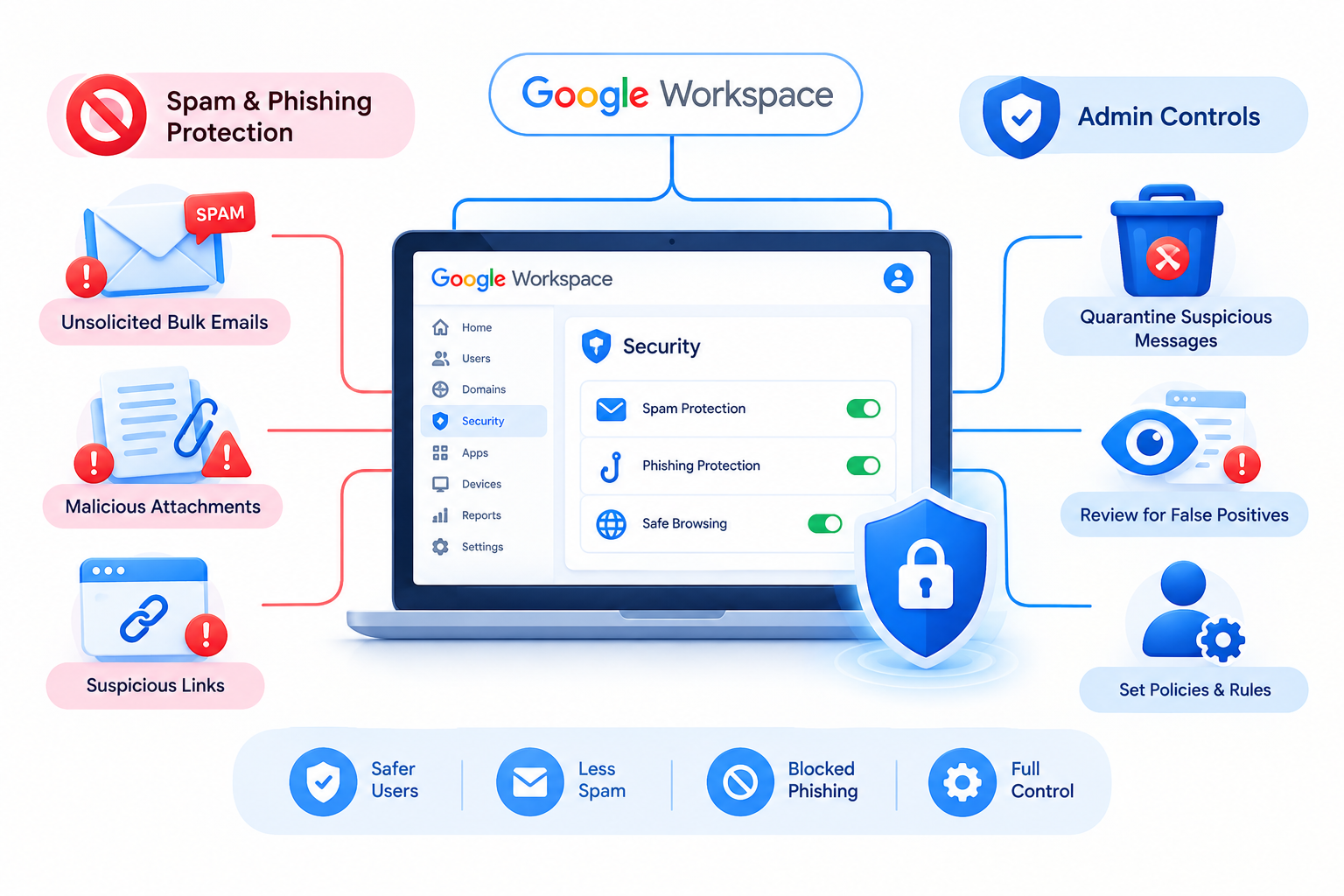
Admin Console Settings for Spam and Phishing Protection
Google Workspace administrators manage these protections centrally through the Admin console. The relevant controls are split across two areas, so it’s worth knowing which is which.
Safety Settings (Apps > Google Workspace > Gmail > Safety)
This section covers three categories, each of which can be set to warn the user, move the message to spam, or quarantine it for admin review:
- Attachments — protection against encrypted attachments from untrusted senders, scripts embedded in attachments, and file types that are unusual for your domain.
- Links and external images — identifying links hidden behind shortened URLs, scanning linked images for malicious content, and warning users before they click links to untrusted domains.
- Spoofing and authentication — flagging or quarantining messages that fail authentication checks, appear to spoof your own domain, or impersonate an internal employee’s name from an external address.
Spam, Phishing and Malware Settings (Apps > Google Workspace > Gmail > Spam, Phishing and Malware)
A separate section handles two more advanced protections:
- Enhanced pre-delivery message scanning — when Gmail detects suspicious content, it briefly delays delivery to run deeper checks, rather than delivering the message immediately with only a warning.
- Gmail Security Sandbox — scans incoming attachments inside an isolated virtual environment to catch malware that file-type or sender-based rules might miss. This is a more resource-intensive check, which is why it’s available only on specific Workspace editions (Frontline Plus, Business Standard and Plus, and Enterprise Standard and Plus) and is off by default.
Both sections are configured once at the domain level, so IT administrators overseeing multiple Emirates or office locations can apply consistent protection across the entire organization without configuring each user individually.
Quarantine: Why It’s Useful
Quarantine holds a suspicious message for admin review instead of rejecting or delivering it outright. This is useful when an organization wants a human check before a borderline message either reaches an inbox or disappears entirely — it reduces the risk of losing legitimate business email to an overly aggressive filter.
The trade-off is administrative workload: someone needs to review quarantined messages regularly, or genuine emails can sit unseen for days. Available quarantine options can also vary slightly depending on your Workspace edition.
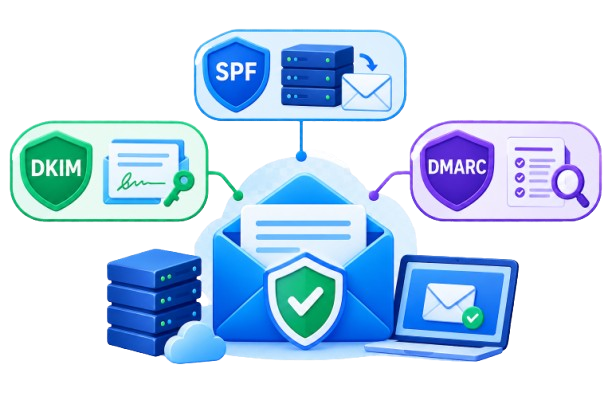
SPF, DKIM, and DMARC
Email authentication plays an important role in protecting your domain from spoofing. SPF, DKIM, and DMARC work together to help receiving mail systems verify whether a message is genuinely authorized to use your domain:
| Record | Purpose |
| SPF | Specifies which mail servers are authorized to send email on behalf of your domain |
| DKIM | Adds a digital signature to outgoing mail, verifying it wasn’t altered in transit |
| DMARC | Publishes a policy telling receiving servers what to do with messages that fail authentication and alignment, and provides reporting on the results |
These records are configured at the DNS level for businesses running custom domains through Google Workspace. For a full walkthrough of setting each one up correctly, see our dedicated guide to configuring SPF, DKIM, and DMARC.
Sender Reputation Matters Too
Authentication isn’t the only factor in whether your outgoing mail lands in an inbox or a spam folder. Gmail also weighs signals like sending patterns, spam complaint rates, and recipient engagement. Organizations that send a high volume of email — through Workspace, a CRM, a marketing platform, or website forms — can use Google Postmaster Tools to monitor their domain’s reputation, spam rate, and authentication status over time.
Best Practices for Reducing Spam and Phishing Risk
Technical settings do most of the work, but a few operational habits significantly reduce risk:
- Review quarantined messages regularly so legitimate email isn’t permanently lost.
- Train employees to recognize phishing indicators — urgent language, unexpected attachments, or requests to change payment details.
- Enable 2-Step Verification across the organization so a compromised password alone isn’t enough to access an account.
- Report phishing attempts using Gmail’s built-in “Report phishing” option, which helps improve detection for the entire domain.
- Keep authentication records updated whenever you add new email-sending tools, such as marketing platforms or CRM systems.
Common Mistakes to Avoid
- Leaving SPF/DKIM/DMARC incomplete or misconfigured, which makes it harder for receiving mail systems to verify messages sent from your domain and increases the risk of spoofing and delivery problems.
- Over-blocking attachment types, which can disrupt normal business operations if applied without reviewing what the organization actually needs to send and receive.
- Ignoring quarantine reports, allowing both false positives and real threats to go unnoticed.
- Assuming default settings are enough for organizations handling sensitive data, such as finance, healthcare, or real estate businesses, where a single successful phishing attempt can be costly.