What Is WP-CLI? A Beginner’s Guide
Managing WordPress through the dashboard is convenient for most everyday tasks. But when you manage multiple websites, perform repetitive maintenance, or need to work directly from a hosting server, the dashboard is not always the most efficient option. WP-CLI (WordPress Command-Line Interface) is a tool that lets you manage WordPress from a command-line terminal instead […]
Managing WordPress through the dashboard is convenient for most everyday tasks. But when you manage multiple websites, perform repetitive maintenance, or need to work directly from a hosting server, the dashboard is not always the most efficient option.
WP-CLI (WordPress Command-Line Interface) is a tool that lets you manage WordPress from a command-line terminal instead of relying entirely on the WordPress dashboard. It can be used for tasks such as managing plugins and themes, checking WordPress versions, managing users, changing site options, and automating repetitive administration tasks.
For WordPress users with suitable hosting and terminal access, learning a few basic WP-CLI commands can make website administration faster and more efficient.
What Is WP-CLI?
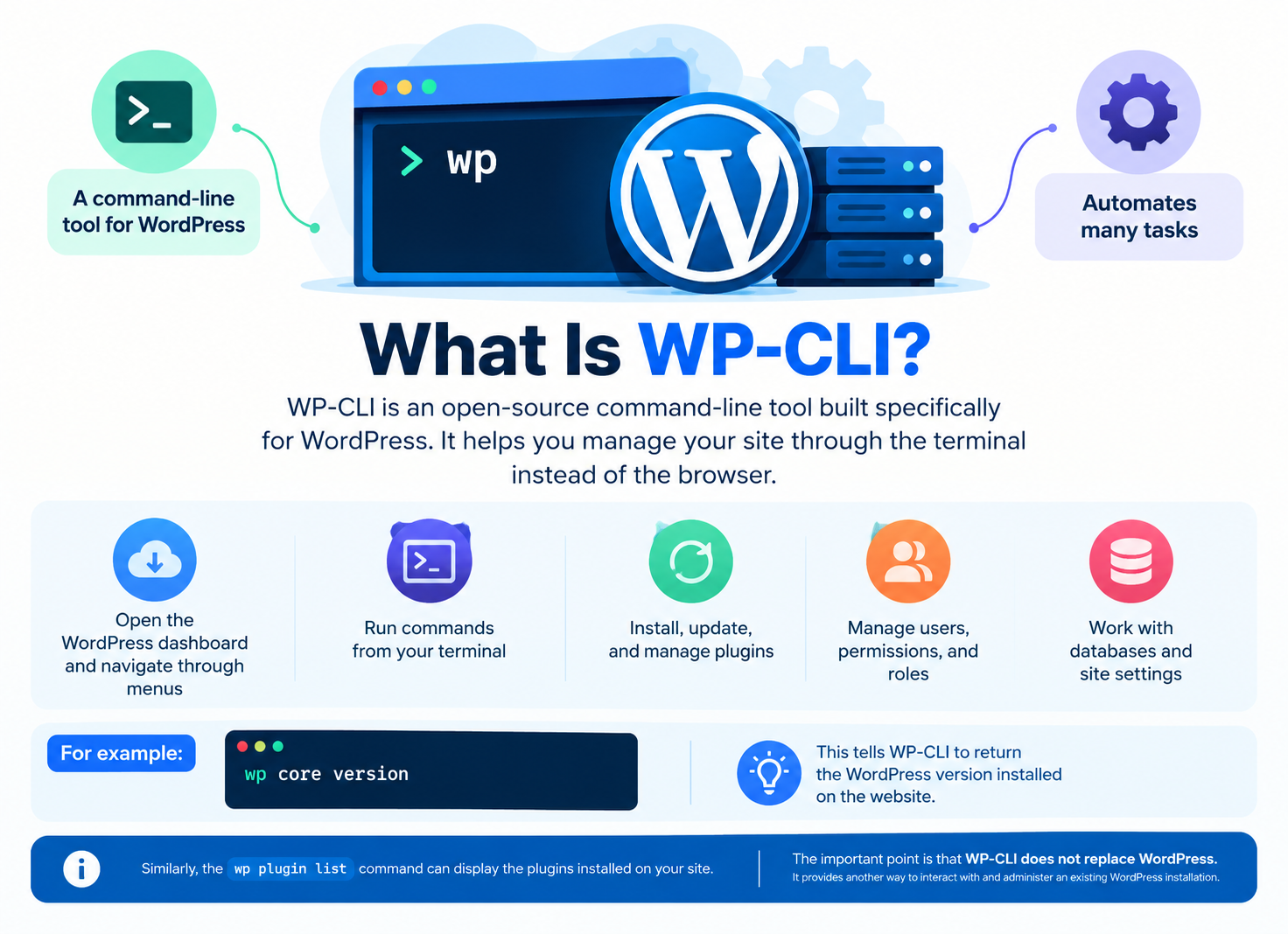
WP-CLI stands for WordPress Command-Line Interface.
It is an open-source command-line tool built specifically for WordPress. Its goal is to provide a programmatic alternative to many tasks normally performed through the WordPress admin area.
Instead of opening the WordPress dashboard and navigating through several menus, you can enter a command in a terminal.
For example:
wp core version
This tells WP-CLI to return the WordPress version installed on the website.
Similarly:
wp plugin list
can display the plugins installed on the WordPress site.
The important point is that WP-CLI does not replace WordPress. It provides another way to interact with and administer an existing WordPress installation.
WP-CLI in Simple Terms
Think of WP-CLI as a command-line version of many actions available in the WordPress dashboard.
For example, activating a plugin through the dashboard might involve:
Dashboard → Plugins → Installed Plugins → Activate
With WP-CLI, the same type of task can be performed with a command:
wp plugin activate plugin-name
This approach becomes particularly useful when you repeatedly perform the same task or manage several WordPress websites.
You don’t need to memorize hundreds of commands. Understanding the basic structure of WP-CLI is enough to get started.
How Does WP-CLI Work?
WP-CLI runs from a command-line environment and interacts with a WordPress installation.
A basic command looks like this:
wp <command> <subcommand>
For example:
wp plugin list
Here:
- wp starts WP-CLI.
- plugin identifies the WordPress feature being managed.
- list tells WP-CLI what action to perform.
WP-CLI then loads the WordPress installation and executes the requested operation.
Commands are normally run from the server where WordPress is installed, although WP-CLI also supports remote operations through SSH and other methods.
WP-CLI and SSH Are Not the Same
Beginners sometimes confuse WP-CLI with SSH.
SSH (Secure Shell) is a method for connecting securely to a remote server.
WP-CLI is a command-line tool specifically designed to manage WordPress.
For example, you might use SSH to connect to your WordPress hosting server and then run WP-CLI commands from that server.
WP-CLI also supports a –ssh global parameter for performing operations against a remote server.
What Can You Do With WP-CLI?
WP-CLI supports a wide range of WordPress administration tasks. The official command reference includes commands for WordPress core, plugins, themes, users, options, cache, databases, media, posts, multisite and more.
For beginners, the most useful areas are these.
Manage WordPress Core
You can check information about the installed WordPress version and perform various core management tasks.
For example:
wp core version
This is useful when you need to quickly confirm which WordPress version a website is running.
WP-CLI also provides commands for core downloads, updates, installation and other core-related operations.
For detailed WordPress update procedures, it is better to use a dedicated WordPress maintenance guide rather than treating this beginner article as a complete update tutorial.
Manage Plugins
WP-CLI can list, install, activate, deactivate and update WordPress plugins.
For example:
wp plugin list
This can quickly show which plugins are installed on a website.
A command such as:
wp plugin update plugin-name
can then be used to update a particular plugin.
This becomes particularly useful for administrators and agencies managing multiple WordPress websites.
Manage Themes
WP-CLI can also manage WordPress themes.
For example:
wp theme list
displays the themes installed on the website.
WP-CLI provides commands for installing, activating and updating themes as well.
Manage Users
You can inspect WordPress users directly from the command line.
For example:
wp user list
This is useful for administrators who need a quick overview of accounts without navigating through the WordPress dashboard.
Manage WordPress Options
WP-CLI can retrieve and change WordPress site options.
For example:
wp option get siteurl
returns the configured site URL. The official wp option command supports retrieving, adding, updating and deleting options.
Because changing options can affect how a website works, beginners should avoid modifying unfamiliar settings without understanding their purpose.
Work With the WordPress Object Cache
WP-CLI also provides commands for the WordPress Object Cache.
For example:
wp cache flush
can be used to flush the WordPress object cache.
It is important to understand what this means.
wp cache works with the WordPress object cache. It does not automatically clear every caching layer used by a hosting environment. Page caching, server-level caching, CDN caching and browser caching can be separate systems.
If you want to understand WordPress caching in greater detail, use a dedicated WordPress Caching Guide rather than mixing the subject into this WP-CLI introduction.

WP-CLI vs WordPress Dashboard
Both methods can be useful, but they are suited to different workflows.
| WordPress Dashboard | WP-CLI |
| Graphical interface | Command-line interface |
| Easy for most beginners | Requires basic terminal knowledge |
| Good for visual administration | Efficient for repetitive tasks |
| Usually requires a browser | Runs from a terminal |
| Convenient for individual tasks | Useful for automation and bulk operations |
| Limited by the dashboard interface | Provides extensive command-based control |
For a single website owner, the WordPress dashboard may be all that is needed.
For developers, hosting administrators, agencies and users managing multiple websites, WP-CLI can significantly simplify repetitive tasks.
Who Should Use WP-CLI?
You don’t need WP-CLI simply because you use WordPress.
It becomes more useful when you:
- Manage multiple WordPress websites
- Frequently perform maintenance tasks
- Work with staging websites
- Have SSH or terminal access
- Need to automate repetitive tasks
- Manage WordPress professionally
- Work directly with a hosting server
If you manage one small website and rarely perform technical maintenance, the WordPress dashboard may be easier and more appropriate.
WP-CLI is best viewed as an additional tool rather than something every WordPress user must learn.
Basic WP-CLI Commands for Beginners
You only need a handful of commands to begin exploring WP-CLI.
Check WP-CLI
wp –info
This displays information about the WP-CLI environment.
Check the WordPress Version
wp core version
This returns the installed WordPress version.
List Plugins
wp plugin list
This displays installed plugins and their status.
List Themes
wp theme list
This displays installed themes.
List Users
wp user list
This displays WordPress users.
Get Help
One of the most useful commands for beginners is:
wp –help
You can also request help for a specific command:
wp plugin –help
or:
wp plugin list –help
This is a better way to learn WP-CLI than trying to memorize commands. You can discover available options directly from the command line.
Is WP-CLI Safe to Use?
Yes, but WP-CLI is powerful enough that incorrect commands can make significant changes to a website.
Before running an unfamiliar or potentially destructive command:
- Create a current backup.
- Confirm that you are working on the correct website.
- Check the command’s documentation.
- Test important changes on staging when possible.
- Use appropriate server permissions.
- Avoid copying commands from untrusted sources without understanding them.
This is particularly important when working with the WordPress database, configuration files or commands that delete or modify data.
For broader protection practices, see our WordPress Security Best Practices guide.
Does WP-CLI Work With WordPress Hosting?
Yes. WP-CLI can be especially useful on WordPress hosting environments that provide SSH or terminal access.
Depending on the hosting environment, you may be able to use WP-CLI to:
- Check WordPress versions
- Manage plugins
- Manage themes
- Inspect users
- Manage WordPress options
- Perform maintenance tasks
- Automate repetitive operations
However, WP-CLI availability depends on the hosting environment and the permissions provided by the hosting provider.
If WP-CLI is important to your workflow, check whether your WordPress hosting plan provides the necessary command-line or SSH access before choosing a hosting environment.
For businesses that need hands-on WordPress management, you may also want to compare the features of Managed WordPress Hosting.
How to Install WP-CLI
Installing WP-CLI requires a compatible PHP environment. The official documentation currently lists PHP 7.2.24 or later as a requirement.
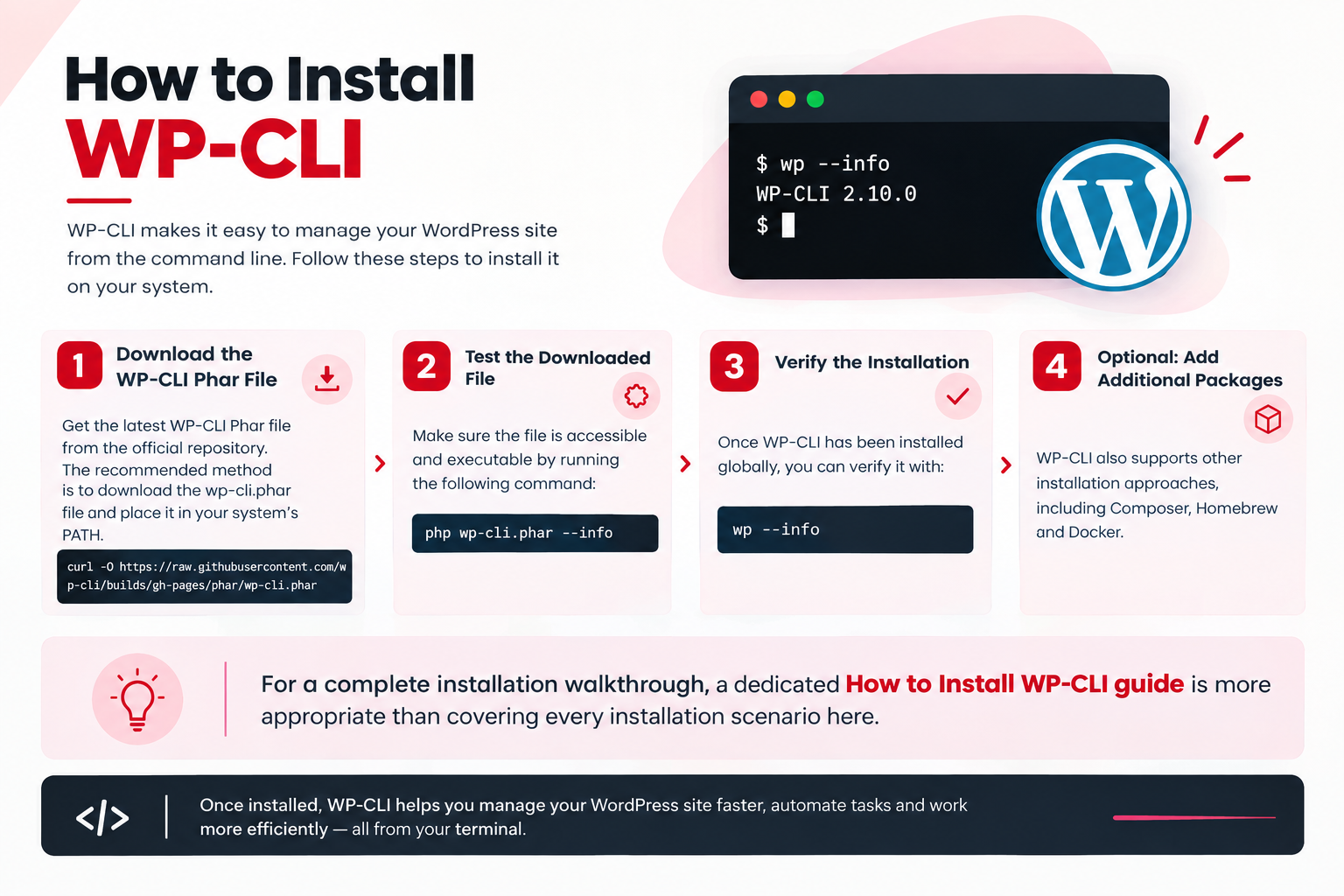
The recommended installation method is to download the WP-CLI Phar file, make it executable, and place it somewhere in your system’s PATH.
For example:
curl -O https://raw.githubusercontent.com/wp-cli/builds/gh-pages/phar/wp-cli.phar
You can then test the downloaded file:
php wp-cli.phar –info
Once WP-CLI has been installed globally, you can normally verify it with:
wp –info
WP-CLI also supports other installation approaches, including Composer, Homebrew and Docker.
For a complete installation walkthrough, a dedicated How to Install WP-CLI guide is more appropriate than covering every installation scenario here.
Common WP-CLI Mistakes Beginners Should Avoid
Running Commands From the Wrong WordPress Installation
WP-CLI needs to know which WordPress installation it should operate on.
If you are managing several websites on the same server, always confirm the current directory or specify the WordPress path when necessary.
For example:
wp –path=/path/to/wordpress core version
Running Destructive Commands Without a Backup
Some WP-CLI operations can change or remove important data.
Create a reliable backup before performing potentially destructive operations.
You can learn more about backup planning in our WordPress Backup Best Practices guide.
Assuming WP-CLI Clears Every Type of Cache
Remember that:
wp cache flush
deals with the WordPress object cache.
It does not automatically clear every page, server or CDN cache.
Copying Commands Without Understanding Them
A command found in a forum, blog post or tutorial may have been written for a different environment.
Always check the official WP-CLI documentation and understand what a command will do before running it on a production website.
Forgetting About Permissions
Your hosting account or server user may not have permission to perform every operation.
If a command fails because of permissions, check the hosting environment and user privileges rather than repeatedly running the same command with elevated permissions.