Gmail Admin Settings Explained
Introduction If you’re managing Gmail for your organisation, the Google Admin console is where the real configuration happens. Gmail admin settings influence how messages are delivered, filtered, routed, and protected, as well as which Gmail features are available to users. For admins new to Google Workspace, the number of Gmail-related settings in the Admin console […]

Introduction
If you’re managing Gmail for your organisation, the Google Admin console is where the real configuration happens. Gmail admin settings influence how messages are delivered, filtered, routed, and protected, as well as which Gmail features are available to users.
For admins new to Google Workspace, the number of Gmail-related settings in the Admin console can feel overwhelming. This guide breaks down the core Gmail admin settings you need to know, what each one controls, and where to find it.
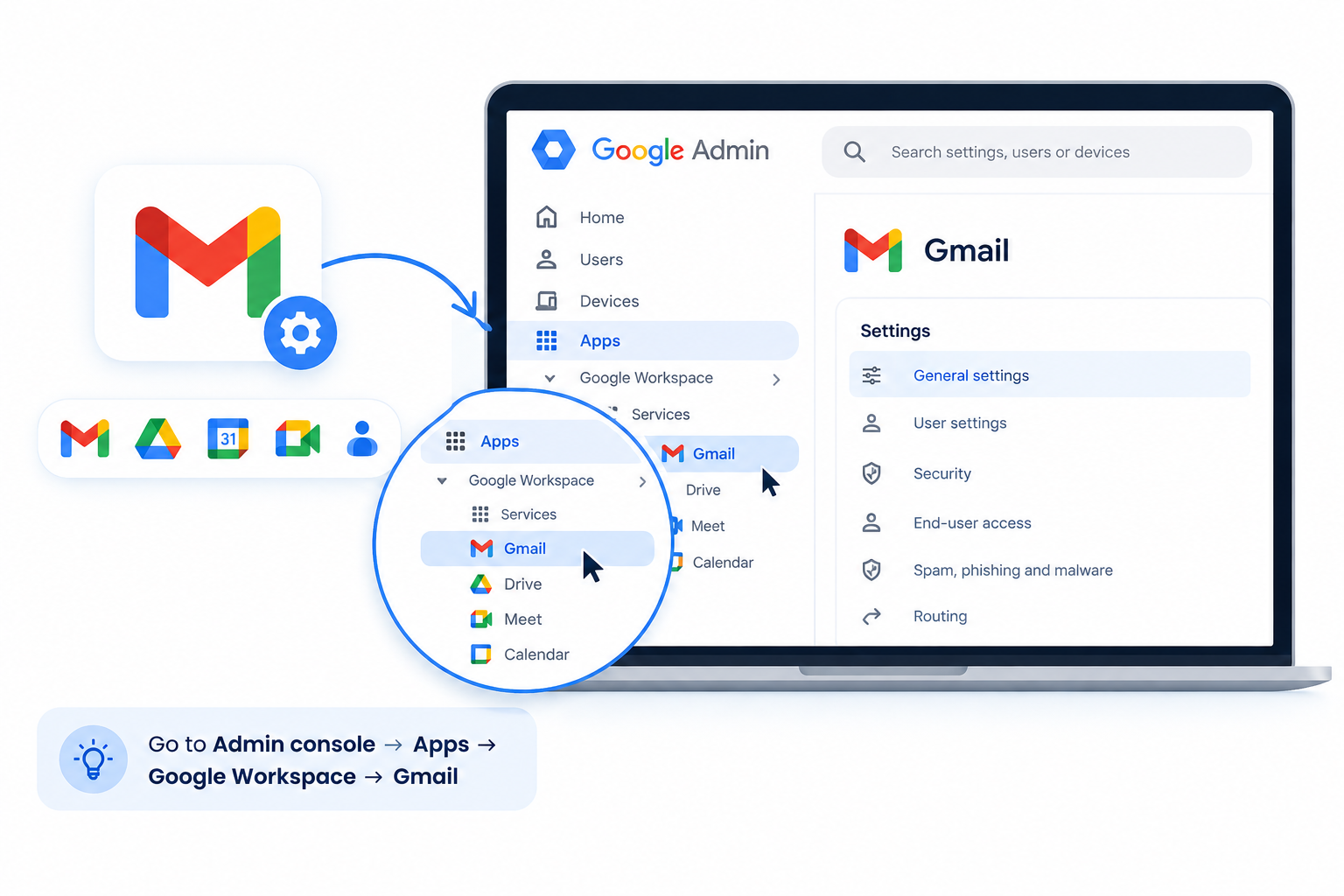
Where to Find Gmail Admin Settings
Gmail admin settings live inside the Google Admin console (admin.google.com), under Apps > Google Workspace > Gmail. This is separate from the Gmail interface end users see, and only admins with the relevant privileges can access it.
Depending on the setting, policies can be applied:
- Organisation-wide — the default for all users
- At the organisational unit (OU) level — an OU initially inherits its parent’s settings, and an admin can choose to override, save, or inherit that value
- Through configuration groups, for settings that support them — a user’s group setting always takes priority over their OU setting
This layered model lets a UAE business with multiple departments or offices apply different Gmail policies without changing settings for the entire company.
Gmail Admin Settings vs. User Gmail Settings
It’s worth drawing a clear line here. Admins control organisation-level Gmail policy through the Admin console — routing, security, and which features are available. Users manage personal preferences directly inside Gmail, such as signatures, inbox layout, labels, and filters.
This distinction matters for troubleshooting: a user complaint about a personal preference usually doesn’t need an admin-level change, while anything involving security, routing, or feature availability generally does.
Core Gmail Admin Settings
1. Compliance and Routing
Compliance settings control how email content is filtered, archived, or routed before reaching a mailbox:
- Content compliance rules — scan for specific keywords, attachments, or patterns
- Routing rules — redirect or reject messages based on sender, recipient, or content
- Objectionable content filters — flag or block inappropriate material
These are especially relevant for regulated industries such as finance and healthcare, where email content often needs to be monitored or archived for audit purposes.
2. Spam, Phishing, and Malware Protection
Gmail includes built-in protection, and admins can strengthen it further. Depending on your Google Workspace edition, available controls may include:
- Enhanced pre-delivery message scanning
- Attachment protection for unusual file types
- Link protection that scans URLs at click time
- Spoofing and authentication protection
Configuring these correctly reduces the risk of phishing reaching employee inboxes — a growing concern as email-based fraud attempts become more sophisticated.
3. Gmail User Access and Features
Admins can control which Gmail capabilities are visible to users, including Smart Compose and Smart Reply, Confidential Mode, Gmail add-ons, and Chat/Meet integration inside Gmail. This helps standardise the Gmail experience across teams.
4. POP and IMAP Access
Admins control whether users can access Gmail through third-party mail clients using POP or IMAP, and can restrict IMAP to approved OAuth-based clients. If POP or IMAP is turned off at the admin level, the related settings disappear from the user’s own Gmail — it isn’t just a preference users can re-enable themselves.
5. Email Forwarding and Delegation
- Automatic forwarding — admins can allow or block users from auto-forwarding mail to external addresses, an important control against accidental or intentional data leakage
- Delegation — Gmail lets users grant delegates access to their mailbox; admin-level policy governs whether and how this is available within your organisation
6. Gmail Storage and Retention
Gmail administration also intersects with storage management and Google Vault. Admins can monitor mailbox storage usage, while Vault provides separate retention and legal-hold capabilities for supported editions. Detailed storage troubleshooting and Vault configuration are broad enough topics to deserve their own guides.
Email Authentication for Google Workspace
SPF, DKIM, and DMARC aren’t Admin Console Gmail settings in themselves — they’re DNS records published through your domain host, alongside a DKIM key generated in Google Workspace. They work alongside your Gmail admin configuration to:
- Improve deliverability
- Prevent domain spoofing
- Build sender reputation
If your organisation hasn’t set these up yet, it’s worth treating as a dedicated project rather than a single checkbox — see our full authentication setup guide.
Best Practices for Configuring Gmail Admin Settings
- Apply settings at the OU level, not just domain-wide, so departments with different needs (e.g., HR vs. Sales) aren’t forced into identical policies
- Review routing and compliance rules quarterly, since business needs and compliance requirements change over time
- Test changes on a small OU first before rolling them out organisation-wide
- Document every change, especially routing rules, so future admins understand why a policy exists
- Pair Gmail settings with broader Google Workspace security policies rather than configuring Gmail in isolation
Common Mistakes to Avoid
- Applying overly broad content compliance rules that block legitimate business emails
- Leaving automatic forwarding enabled domain-wide, increasing data exfiltration risk
- Assuming a setting is universally available rather than checking your Workspace edition
- Granting Gmail settings access to admins who don’t need it, instead of using delegated admin roles
- Forgetting that an OU can inherit or override settings from its parent — and that configuration groups take priority over both


