Understanding Security Alerts in Google Workspace
A Google Workspace security alert is a signal that an administrator should review—not automatically proof that an account or system has been compromised. Google Workspace can generate alerts for suspicious sign-ins, administrator activity, device events, data protection rules, and other activities that may require attention. Administrators can review these events through the Alert Center in […]
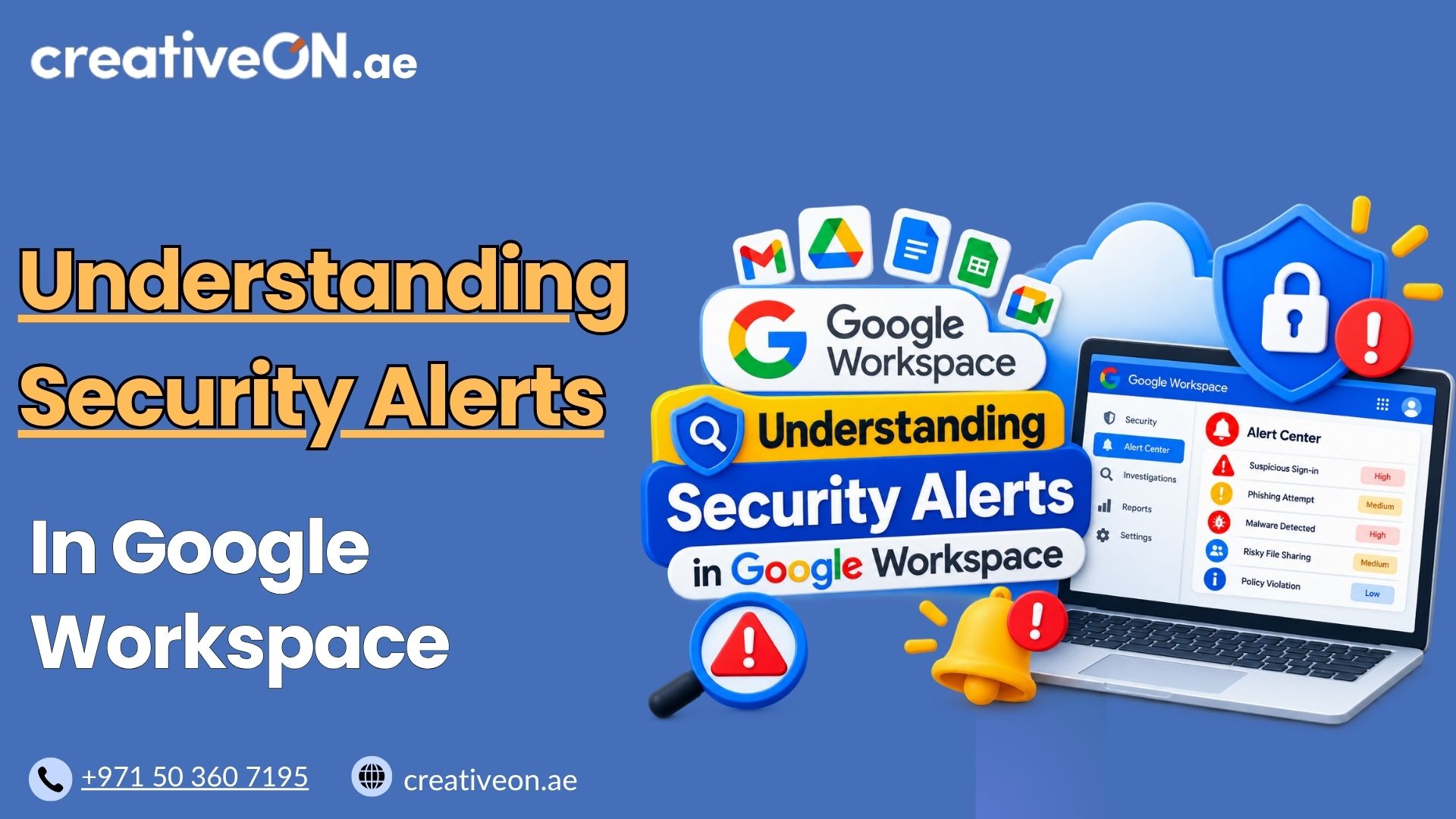
A Google Workspace security alert is a signal that an administrator should review—not automatically proof that an account or system has been compromised.
Google Workspace can generate alerts for suspicious sign-ins, administrator activity, device events, data protection rules, and other activities that may require attention. Administrators can review these events through the Alert Center in the Google Admin console, assess their severity, and investigate related activity when the available Workspace edition supports it.
This guide explains what Google Workspace security alerts mean, how to interpret them, and how administrators can respond without treating every alert as a confirmed security incident.
What Are Google Workspace Security Alerts?
Google Workspace security alerts notify administrators about activity that may be unusual, risky, or relevant to the organisation’s security and administration.
These alerts are surfaced through the Google Workspace Alert Center, although the Alert Center covers more than security events alone. It can also contain administrative, Gmail, user, device, and policy-related alerts.
Examples include:
- Suspicious login activity
- Suspicious login attempts that were blocked
- Administrator changes
- User account activity
- Device-related events
- Gmail-related security or abuse activity
- Data Loss Prevention (DLP) rule violations
- Activity detected by administrator-created rules
The exact alerts available depend on the Google Workspace edition, enabled services, and configured rules.
The key point is simple: an alert is a signal for review, not necessarily evidence of a confirmed security breach.
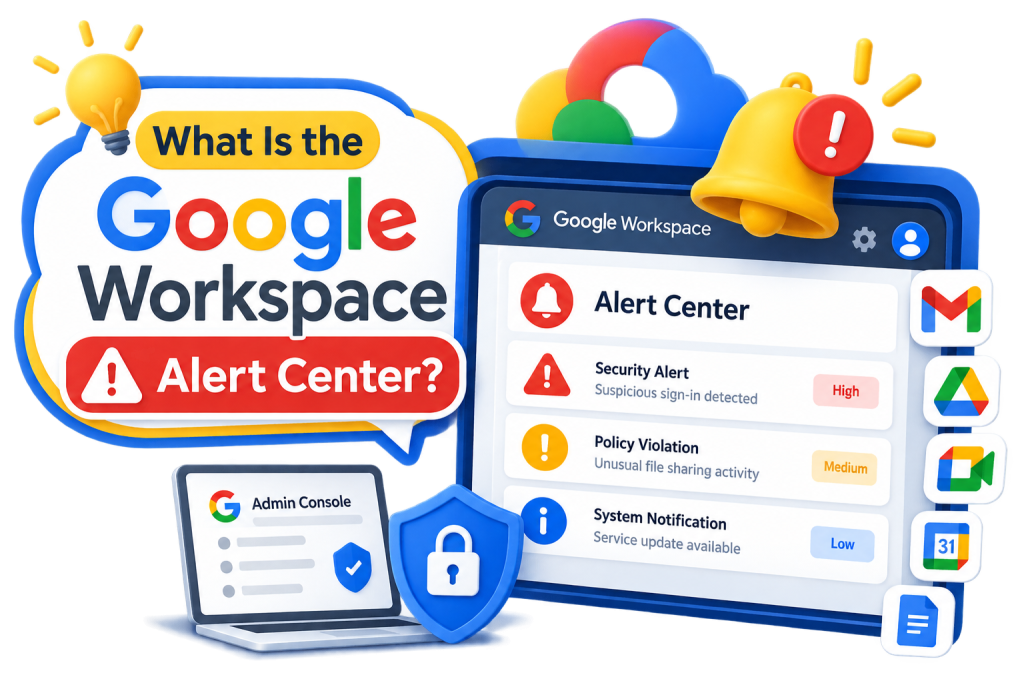
What Is the Google Workspace Alert Center?
The Alert Center is the main place for Google Workspace administrators to review alerts generated by Google and configured administrator rules.
To open it:
Google Admin console → Security → Alert center
Administrators can review alert details, filter alerts, assign alerts to administrators, change certain alert properties, and take other actions depending on the alert type and Workspace edition. (Google Workspace Admin Help)
The Alert Center can therefore be viewed as the first stage of security alert triage:
Alert → Review → Verify → Investigate → Respond
Not every alert requires the same response. The purpose of the Alert Center is to help administrators identify which events need attention and determine what should happen next.
What Information Does a Security Alert Show?
The information available depends on the type of alert.
Depending on the event, an alert may contain details such as:
- Affected user
- Date and time
- IP address
- Administrator or actor involved
- Event description
- Related Gmail messages
- Files or documents
- Recipients
- Alert severity
- Other event-specific information
For example, suspicious-login alerts may provide information about the affected user and the IP address associated with the activity, while administrator or user-related alerts can contain different event details. (Google Workspace Admin Help)
When reviewing an alert, don’t look at a single piece of information in isolation. Consider the user, timing, location, IP address, business activity, and related events together.
Check the Time Zone When Comparing Logs
If you are comparing an Alert Center event with another security or audit log, remember that Alert Center times are displayed according to your browser’s time-zone preference.
This matters for businesses with teams working across different Emirates or countries because an apparent time difference does not necessarily indicate a different event.
How Google Workspace Alert Severity Works
Google Workspace uses severity levels to help administrators prioritise alerts.
Common severity levels include:
- High — deserves prompt review and may require investigation or immediate action.
- Medium — should be reviewed to determine whether further action is necessary.
- Low — can generally be handled as part of routine monitoring, depending on the event.
Severity is a prioritisation mechanism, not a confirmation that an incident has occurred. A high-severity alert should be investigated, but it may ultimately turn out to be legitimate activity. (Google Workspace Admin Help)
Administrators can also change the severity of certain alert types when managing alert rules.
Common Types of Google Workspace Security Alerts
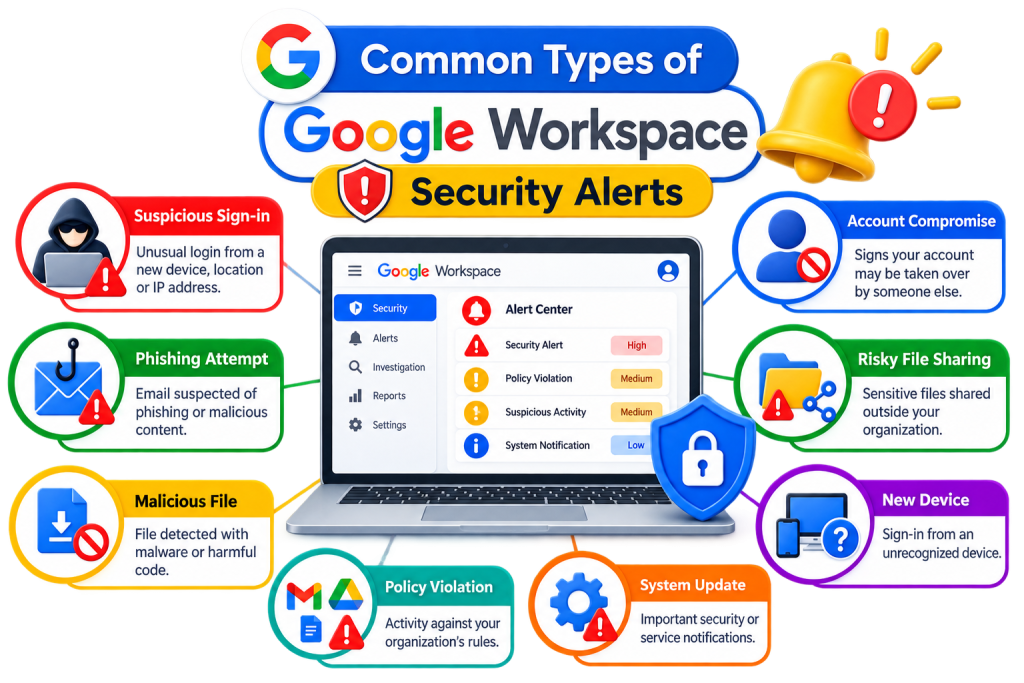
The Alert Center includes many types of alerts. The most relevant security-related categories include the following.
Suspicious Login Alerts
A suspicious-login alert indicates that Google detected sign-in activity that did not match expected behaviour or presented a potential security concern.
Depending on the situation, Google may challenge the user during sign-in. Certain unsuccessful or abandoned challenges can result in administrator alerts. (Google Workspace Admin Help)
When reviewing a suspicious-login alert, check:
- Which user was affected.
- When the activity occurred.
- The available IP address and location information.
- Whether the user recognises the activity.
- Whether related suspicious activity occurred.
For detailed guidance on login challenges and suspicious sign-ins, see Managing Login Challenges and Suspicious Sign-ins.
Administrator Activity Alerts
Administrative changes can have organisation-wide consequences.
Alerts related to administrator activity can help security teams identify unexpected changes made within the Google Admin console. This is particularly useful when multiple administrators manage the same Workspace environment.
If an administrator change is unexpected, verify who made it and whether the change was authorised.
Device-Related Alerts
Some Google Workspace security events relate to managed or potentially compromised devices.
When reviewing a device-related alert, identify the affected user and device and determine whether the event matches normal business activity.
Device security can involve separate controls and policies, so avoid turning this article into a full endpoint-security guide. Use the alert as the starting point for further investigation when necessary.
DLP and Data-Protection Alerts
Organisations using Google Workspace Data Loss Prevention can receive alerts when configured data protection rules are triggered.
For example, a rule may identify sensitive information in a Drive file that has been shared in a way that violates the organisation’s policy.
A DLP alert does not automatically mean that data was stolen. It indicates that a configured policy condition was triggered and should be reviewed.
The appropriate response depends on the rule, the information involved, and the organisation’s security policy.
How to Investigate a Google Workspace Security Alert
The best response to an alert is a structured investigation rather than an immediate assumption that something went wrong.
1. Identify the affected resource
Determine whether the alert concerns:
- A user
- Administrator
- Device
- Gmail activity
- Drive file
- Security rule
- Another Workspace service
2. Review the alert details
Check the available timestamp, IP address, actor, event description, severity, and other event-specific information.
3. Verify whether the activity was expected
When appropriate, confirm the event with the affected employee or administrator.
For example, a login from an unfamiliar location might initially appear suspicious but could be legitimate if an employee is travelling or working remotely.
4. Look for related activity
One alert may not tell the complete story.
Where supported by your Google Workspace edition, administrators can use the Investigation Tool to examine related events. Google allows administrators to start an investigation from certain Alert Center entries, with information from the alert used to help populate the investigation. (Google Workspace Admin Help)
This creates a useful distinction:
Alert Center = identify and triage
Investigation Tool = examine related activity
5. Take appropriate action
If the activity is legitimate, document the finding where appropriate.
If it appears unauthorised, follow your organisation’s security procedures. Depending on the event, this may involve securing the account, reviewing access, addressing a policy violation, or taking other corrective measures.
Do not apply the same response to every alert.
6. Document important findings
For significant events, record:
- What happened
- Which account or resource was affected
- When it happened
- What was investigated
- Whether the event was legitimate
- What action was taken
This creates a useful record for future security reviews.
Security Alert vs. Security Incident
One of the most important concepts for Google Workspace administrators is the difference between an alert and an incident.
Security Alert
A notification or signal indicating that an event deserves attention.
Security Investigation
The process of examining the alert and related activity to determine what happened.
Security Incident
A confirmed or strongly suspected security problem that requires a response.
The workflow can therefore be simplified as:
Alert → Investigation → Outcome
The outcome might be:
Legitimate activity
or
Potential/confirmed security incident
For example:
Alert: Suspicious sign-in detected.
Investigation: The employee confirms they were travelling and the login matches their activity.
Outcome: Legitimate activity.
Compare that with:
Alert: Suspicious sign-in detected.
Investigation: The employee does not recognise the login and additional unusual account activity is discovered.
Outcome: Potential account compromise requiring security action.
This distinction prevents administrators from treating every notification as a confirmed breach.
How to Reduce Google Workspace Security Alert Noise
A security monitoring system is only useful if administrators can identify important events among routine notifications.
Google Workspace allows administrators to use system-defined rules and create activity rules that generate alerts or notifications based on selected conditions. Supported editions can also provide thresholds and automated actions. (Google Workspace Admin Help)
Use Monitor Mode When Testing Rules
When introducing a new activity rule, testing it before applying an aggressive response can help identify false positives.
Google Workspace activity rules support Monitor status, allowing administrators to evaluate activity before making a rule active. (Google Workspace Admin Help)
This can be particularly useful when creating rules for a large organisation where normal business activity may vary significantly between departments.
Use Thresholds Where Appropriate
If a rule generates notifications for every individual occurrence, administrators may receive too many alerts.
Where supported, thresholds can help reduce repetitive notifications and make alerting more useful.
Review Notification Recipients
Make sure alerts go to administrators or security personnel who are actually responsible for reviewing them.
Sending every alert to a large group of people can create confusion and increase the chance that everyone assumes someone else is handling the issue.
Review Rules Periodically
As your organisation changes, some alert rules may become unnecessary while new monitoring requirements may emerge.
Review activity rules regularly and remove or adjust rules that create unnecessary noise.
Common Mistakes When Managing Security Alerts
Treating every alert as a security breach
An alert requires review. It does not automatically prove compromise.
Ignoring low-severity alerts
Low severity does not mean an alert has no value. Some events may become more meaningful when combined with other activity.
Creating overly broad alert rules
Rules that generate excessive notifications can cause important events to be overlooked.
Giving unnecessary administrator access
Security monitoring should use appropriate administrator roles rather than giving every person broad administrative privileges.
Closing alerts without understanding them
An alert should not simply be dismissed because the immediate activity looks harmless. Where appropriate, confirm the event and document the conclusion.
Focusing on one event without checking related activity
A single login or administrator change may look harmless in isolation. Related events can provide important context.
Best Practices for Managing Google Workspace Security Alerts
For businesses using Google Workspace, including organisations with teams across Dubai, Abu Dhabi, and other locations, a practical alert-management process should include:
- Review alerts regularly rather than waiting for a serious incident.
- Prioritise high-severity events while maintaining visibility into lower-severity activity.
- Verify suspicious activity with the affected user when appropriate.
- Use the Investigation Tool where your Workspace edition supports it.
- Avoid unnecessary alert rules that create excessive noise.
- Test new activity rules before relying on them for enforcement.
- Assign alert responsibilities clearly so important events do not go unanswered.
- Document significant investigations and corrective actions.
- Review alert rules periodically as the organisation and its security requirements change.
The objective is not to generate the maximum number of notifications. The objective is to make meaningful security events visible, understandable, and actionable.
What If a User Receives a Google Security Alert?
User-facing Google security notifications are different from administrator alerts shown in the Workspace Alert Center.
Google may notify users when it detects suspicious activity or an important account-security event. Users should review the information provided and determine whether they recognise the activity. If they do not, they should follow Google’s account-security guidance and notify their organisation’s administrator when appropriate. (Google Account Help)
Administrators should also encourage employees to report unfamiliar security notifications instead of ignoring them.