Enforcing Device Security Policies in Google Workspace
What Does Device Policy Enforcement Mean? Device security policies in Google Workspace let administrators set security requirements for devices accessing company data, and take action when those requirements aren’t met. That last part is what separates enforcement from simply writing a policy. If an employee’s phone or laptop syncs Gmail, Drive, or Calendar without a […]
What Does Device Policy Enforcement Mean?
Device security policies in Google Workspace let administrators set security requirements for devices accessing company data, and take action when those requirements aren’t met. That last part is what separates enforcement from simply writing a policy.
If an employee’s phone or laptop syncs Gmail, Drive, or Calendar without a passcode or encryption, that device becomes a direct route into company data if it’s lost or compromised. Through the Google Admin console, IT administrators can require every mobile phone, tablet, and computer to meet a defined security baseline before it’s allowed to sync — and configure what happens automatically when a device falls out of compliance. For businesses across Dubai, Abu Dhabi, and the wider UAE managing distributed or hybrid teams, this is one of the more practical steps toward protecting sensitive information without slowing employees down.
This article focuses specifically on how to enforce device security policies. It does not cover full endpoint deployment or mobile app management in depth — those are separate topics with their own dedicated guides.
What “Enforcing” Actually Means in Google Workspace
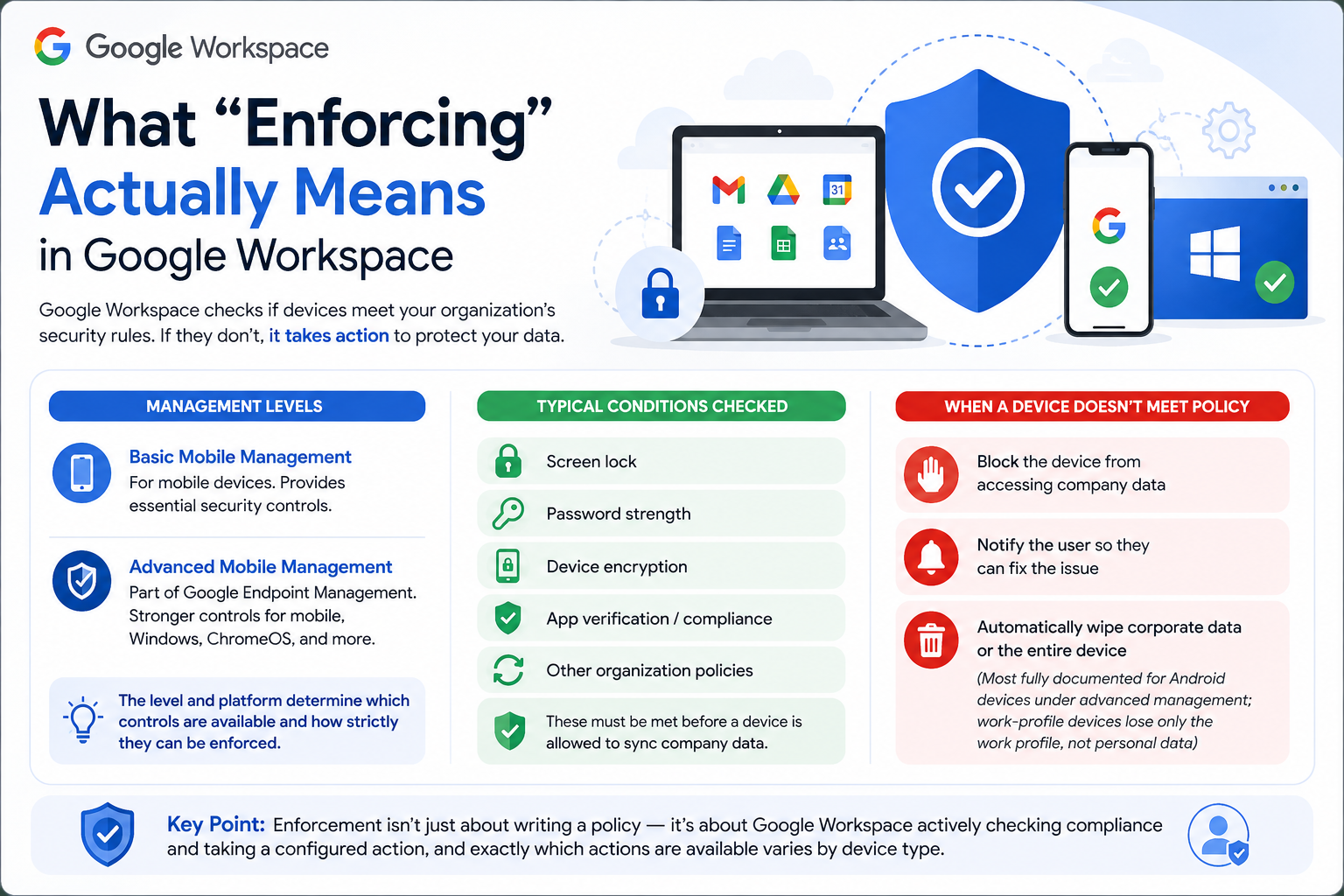
Google Workspace separates device management into levels — basic mobile management and advanced mobile management (part of Google Endpoint Management), with separate management options for Windows, ChromeOS, and other endpoint types. The level and platform you’re managing determines which controls are available and how strictly they can be enforced. Depending on the device platform and management configuration, administrators can typically require conditions such as screen locks, password strength, device encryption, or app-verification settings before a device is permitted to sync company data.
When a device doesn’t meet policy, the available remediation options also depend on platform and configuration, but commonly include:
- Blocking the device from accessing company data
- Notifying the user so they can fix the issue themselves
- Automatically wiping corporate data or the entire device (most fully documented for Android devices under advanced management; work-profile devices lose only the work profile, not personal data)
The key point is that enforcement isn’t just about writing a policy — it’s about Google Workspace actively checking compliance and taking a configured action, and exactly which actions are available varies by device type.
Requirements Before You Begin
Before enforcing device policies, confirm the following:
- You have Super Admin or a custom role with Mobile Management privileges in the Admin console
- Endpoint Management is enabled for your organization
- You know which organizational units (OUs) or groups need different policy levels (for example, finance may need stricter rules than general staff)
- Users have completed initial device enrollment, where required
Without these in place, enforcement rules may apply inconsistently or fail to trigger.
Step-by-Step: Enforcing Device Security Policies
1. Choose the Right Management Level
In the Admin console, go to Devices > Mobile & endpoints > Settings. Basic management gives you a device list, account-level wipe, and light controls. Advanced management adds stronger enforcement — password policy, encryption requirements, and automatic blocking or wiping of non-compliant devices. Neither level is tied strictly to device ownership: a company-owned device can be managed under either level, and a personal (BYOD) device can also be enrolled under advanced management if your organization needs the stronger controls it provides. Choose the level based on what security outcomes your organization actually needs, not on who owns the hardware.
Most UAE businesses handling client or financial data benefit from advanced management on at least their sensitive departments.
2. Set Password and Screen Lock Requirements
Navigate to Universal device settings or platform-specific settings (Android, iOS, Windows) and configure:
- Minimum password length and complexity
- Screen lock timeout duration
- Maximum failed login attempts before the device locks or wipes
These settings form the baseline of device security and should apply to every managed device, though exact options differ by platform.
3. Configure Available Device-Security Requirements
Beyond passwords, require encryption and other supported controls where the platform allows it. For Android devices under advanced management, Google Workspace can require encryption directly and automatically act on devices where it’s missing. For Windows devices enrolled in Windows device management, Google Workspace can configure and monitor BitLocker settings — but BitLocker itself must already be turned on for the policy to take effect; Google Workspace doesn’t remotely switch on encryption for Windows the way it can flag non-encrypted Android devices. Confirm encryption is enabled as part of your device setup process for Windows machines rather than relying on the policy alone.
4. Decide How to Handle Non-Compliant Devices
Under compliance settings (available with advanced management), configure the action Google Workspace should take when a device fails to meet policy — typically block access for higher-risk violations and a user notification for lower-risk issues, giving the employee a chance to fix the problem before access is cut off.
5. Apply Policies by Organizational Unit or Group
Rather than applying one blanket policy, structure enforcement around OUs or groups. This lets you apply stricter rules to admins, finance, or HR while keeping lighter rules for general staff, avoiding unnecessary friction.
6. Test Before Full Rollout
Apply new policies to a small test OU first. Confirm that compliant devices retain access and non-compliant ones are correctly blocked or flagged before enforcing organization-wide.
Common Device Security Controls at a Glance
| Security control | Purpose |
| Screen lock / password | Prevents unauthorized physical access to the device |
| Encryption | Protects locally stored data if the device is lost or stolen |
| Device approval | Controls which devices are allowed to access company data |
| Compliance requirements | Blocks or flags devices that don’t meet your policy |
| Device status review | Helps administrators spot devices that need attention |
How to Check Device Compliance
The Admin console’s device list shows each managed device’s status, including whether it currently meets your policy requirements. Reviewing this regularly — rather than waiting for an auto-block or user complaint — helps administrators catch issues like an out-of-date OS or a disabled screen lock before they become a bigger problem. What information is available and how quickly it updates can vary by platform and management level, so treat this as a starting point for investigation rather than a real-time guarantee.
Best Practices for Enforcement
- Communicate before enforcing. Notify employees before a policy goes live so they aren’t unexpectedly locked out.
- Segment policies by risk level. Not every department needs identical restrictions.
- Review the device list monthly. Check which devices are out of policy rather than waiting for enforcement to catch every case.
- Device security policies work best alongside broader Google Workspace security controls, such as 2-Step Verification and Context-Aware Access — worth reviewing separately once device enforcement is in place.
- Keep policies current. Revisit settings when Google updates Endpoint Management features or when your device fleet changes.
Common Mistakes to Avoid
- Applying the strictest policy to every user, causing unnecessary support tickets
- Forgetting to test policies on a small group before full rollout
- Leaving personally owned (BYOD) devices under the same rules as company-owned hardware
- Not reviewing the compliance dashboard, so non-compliant devices go unnoticed for weeks
- Assuming enforcement is a one-time setup rather than an ongoing process