How to Configure Context-Aware Access
Introduction If your team logs into Google Workspace from different offices, home networks, or personal devices, you’ve probably wondered how to control where and how they’re allowed to reach company data. That’s what Context-Aware Access is built for. This guide walks you through setting up Context-Aware Access step by step — creating access levels, configuring […]
Introduction
If your team logs into Google Workspace from different offices, home networks, or personal devices, you’ve probably wondered how to control where and how they’re allowed to reach company data. That’s what Context-Aware Access is built for.
This guide walks you through setting up Context-Aware Access step by step — creating access levels, configuring IP, device, and location conditions, assigning them to apps, and testing safely before enforcing them across your organization. It’s written for IT administrators managing eligible Google Workspace or Cloud Identity editions.

What Is Context-Aware Access?
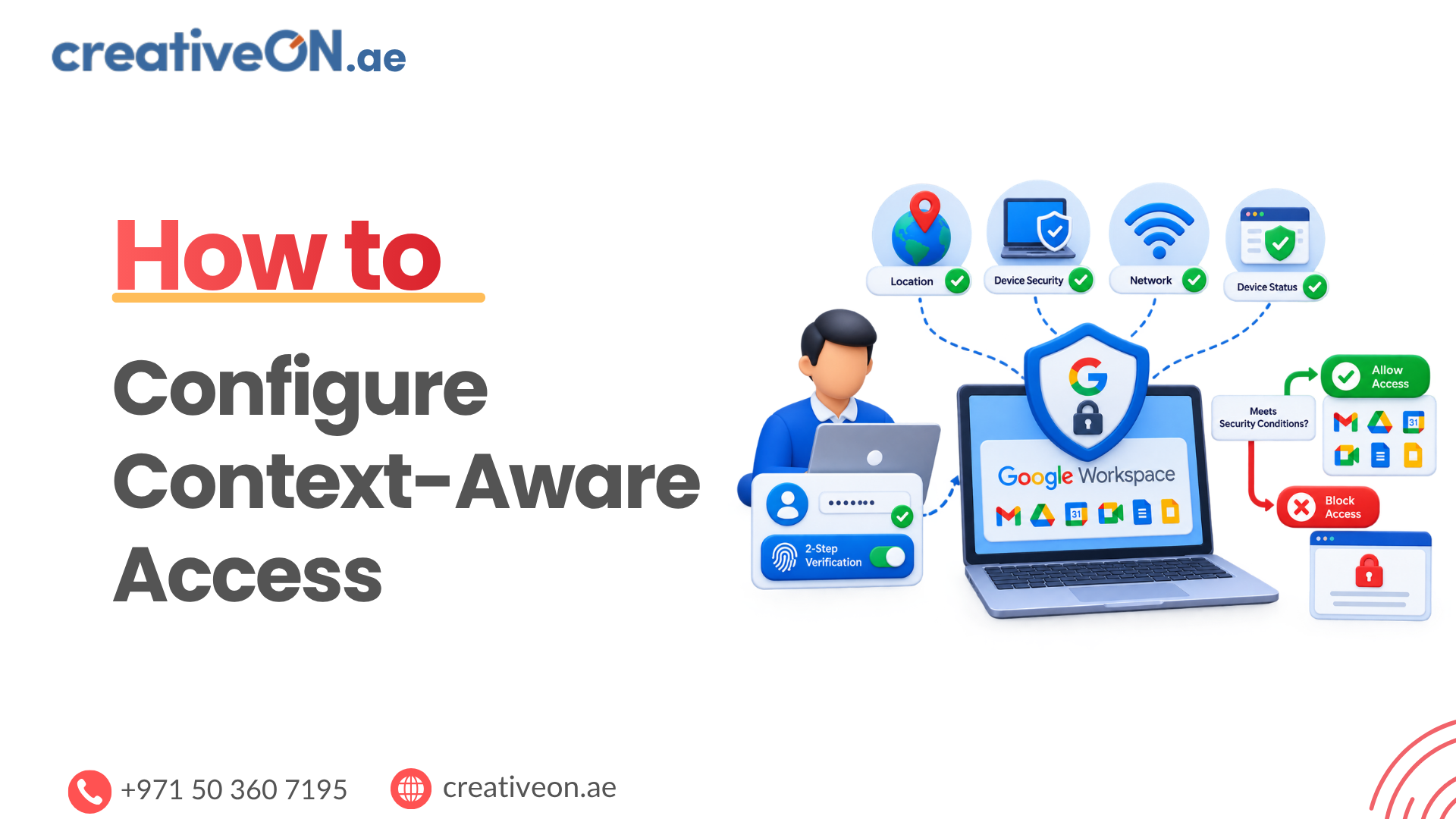
Context-Aware Access is a Google Workspace security feature that lets administrators control access to apps based on the context of a sign-in request — not just the user’s password. Instead of a single yes/no login decision, access is evaluated against conditions such as network, device security status, and geographic location.
It works alongside your existing identity controls. A user still needs valid credentials and, where enabled, 2-Step Verification. Context-Aware Access adds an additional layer that asks: does this specific request meet the conditions we’ve defined?
How Context-Aware Access Works
Context-Aware Access uses two building blocks:
- Access levels — the conditions you define, such as an approved IP range, a managed device, or an allowed region.
- Assignments — where those conditions are enforced, meaning which Google Workspace apps and which users, groups, or organizational units they apply to.
For core Google Workspace services, access is evaluated continuously, not just at sign-in. If a user is granted access from the office network and then moves to a coffee shop, the policy is rechecked. SAML apps behave slightly differently: those are evaluated when the user signs in, and rechecked only when that session ends.
Context-Aware Access Requirements
Before configuring Context-Aware Access, confirm the following:
- Edition and licensing. Context-Aware Access is available to users licensed under supported editions — currently this includes Enterprise Standard and Enterprise Plus, Education Standard and Education Plus, Frontline Standard and Frontline Plus, Enterprise Essentials Plus, and Cloud Identity Premium. It is not included with Business Starter, Business Standard, or Business Plus. Confirm current eligibility on Google’s Context-Aware Access overview before assuming a customer’s plan supports it, since Google periodically updates which editions include it.
- Users without a supported license aren’t affected. If you apply a policy to an organizational unit or group that includes users on an unsupported edition, those users can continue accessing apps as usual — the policy simply doesn’t apply to them.
- Admin privileges. You need Super Admin rights, or a custom admin role with access to security settings.
- Endpoint Verification, if you plan to use device-based conditions (see the next section).
Context-Aware Access vs. Endpoint Verification
These two features are often confused, so it’s worth separating them clearly:
- Context-Aware Access is the policy engine — it evaluates conditions and decides whether to allow or restrict access.
- Endpoint Verification is a Chrome browser extension that supplies the device information Context-Aware Access needs in order to evaluate device-based conditions, such as encryption status, screen lock, or OS version.
If you want to build an access level around device security, Endpoint Verification generally needs to be deployed first. It’s supported on ChromeOS, macOS (El Capitan or later), Windows 10/11, and Debian or Ubuntu Linux, but only through the Chrome browser (version 110 or later) — it isn’t supported on other Chromium-based browsers. Without Endpoint Verification installed and syncing, device-based access levels may not be able to evaluate a user’s device correctly, which can result in unexpected blocks.
How to Configure Context-Aware Access
Step 1: Open Context-Aware Access
Sign in to the Google Admin console and go to:
Security > Access and data control > Context-Aware Access
Google occasionally renames or relocates Admin console menu items. If you don’t see this option where expected, use the Admin console search bar and search for “Context-Aware Access.”
Step 2: Create an Access Level
Select Manage access levels, then Create access level. Give it a descriptive name, such as “UAE Office Network Only” or “Managed Devices Only,” so its purpose is clear to anyone reviewing it later.
Configure IP conditions Define approved IP subnetworks, such as your office or VPN exit ranges, to restrict access to known networks.
Configure device conditions Evaluate supported device attributes — for example, OS version, screen lock, or disk encryption — depending on your Endpoint Verification and device-management setup. Not every device attribute is available in every configuration, so confirm what your environment supports before building policies around it.
Configure location conditions Restrict or allow access based on supported geographic regions, useful if your organization only expects sign-ins from the UAE or a defined set of countries.
Combine conditions You can combine multiple conditions using AND/OR logic. For example:
Allow access when the user is connecting from the corporate network, OR the user is on an approved managed device.
Test the resulting logic carefully — combined conditions are where policies most often behave differently than expected.
Step 3: Assign the Access Level
Open Assignments and select the Google Workspace application you want to protect. Choose the users, groups, or organizational units in scope, then attach the access level and configure what happens when it isn’t satisfied. Different apps can have different access levels — for example, Gmail might allow broader access while Admin console sign-in is restricted to the office network.
Example: Restricting Access for a Hybrid UAE Team
A Dubai-based company with hybrid staff could create an access level that allows access when a user connects from an approved corporate IP range or from a managed device that meets the company’s security requirements. That access level could then be applied to sensitive apps like Gmail and Drive, allowing employees to work legitimately from home or while traveling within the UAE, while still keeping unmanaged or unrecognized connections out.
How to Test Context-Aware Access
Apply the new access level to a small pilot group first — your IT team is a good starting point. Review existing access patterns and identify legitimate remote or mobile workflows before testing, then confirm that:
- Legitimate access attempts succeed as expected
- Blocked attempts show the correct restriction message
- No essential business workflow is unintentionally disrupted
How to Roll Out the Policy Safely
Once testing confirms the policy behaves correctly, extend it to broader organizational units in phases — department by department rather than company-wide all at once. This limits the impact if a condition is misconfigured or a legitimate use case was missed during testing.
Common Configuration Mistakes
- Forgetting mobile and remote staff. A policy built only around one office IP range can unintentionally block field or sales staff.
- Skipping the pilot phase. Applying a new access level directly to the entire organization risks locking out a wide group of legitimate users at once.
- Building unnecessarily complex access-level logic. Stacking multiple conditions can make troubleshooting difficult, particularly when users belong to several groups or organizational units with different assignments.
- Not accounting for VPN IP changes, especially with dynamic or rotating VPN exit nodes.
- Assuming Context-Aware Access replaces 2-Step Verification. It’s a complementary layer, not a substitute for strong authentication.
Troubleshooting Context-Aware Access
Access level isn’t appearing or applying Check the user’s Workspace/Cloud Identity edition and license, confirm your admin privileges, and review the organizational unit or group scope of the assignment.
Managed device isn’t recognized Check that Endpoint Verification is installed and syncing, confirm the device meets supported OS and Chrome browser version requirements, and verify the device is enrolled and reporting correctly.
User is unexpectedly blocked Check the user’s current IP address and VPN status, review the access-level logic for conflicting conditions, confirm their group/OU assignment, and check device compliance status. Administrators can also review Context-Aware Access events in the Admin console’s investigation and audit tools to help identify why a specific request was evaluated the way it was.
Context-Aware Access vs. 2-Step Verification
These controls check different things and work best together, not as substitutes for one another.
Security control | What it checks |
Password | The user’s credential |
2-Step Verification | An additional authentication factor |
Context-Aware Access | The context surrounding the access request (network, location, device) |
Endpoint Verification | Device information and security state, used to support device-based policies |
Context-Aware Access vs. VPN
A VPN changes the network path, and often the apparent source IP, of a connection. Context-Aware Access evaluates access to supported Google apps against the conditions you’ve configured, which can include but aren’t limited to network origin. A VPN connection can be one input into a Context-Aware Access policy — for example, as part of an approved IP range — but it isn’t a replacement for it.
Best Practices for UAE Businesses
- Use groups, not individual users, when assigning access levels — it scales far better as your team grows.
- Pilot before enforcing broadly, especially for organizations with staff across multiple Emirates or remote teams.
- Treat geographic restrictions as one signal, not a boundary. Supported region-based conditions are useful, but should work alongside device and authentication controls rather than replace them.
- Document every access level you create, including its purpose, so future admins understand the reasoning behind it.
- Review policies quarterly, particularly after opening new offices or changing hybrid work arrangements.
- Verify screenshots and navigation paths immediately before publishing or training staff — the Admin console interface changes periodically.