How to Approve or Block Devices in Google Workspace
Google Workspace administrators can review managed devices and approve, block, or unblock them from the Google Admin console. This can help organizations control which devices are approved to access company resources and respond when a device should no longer be trusted. The exact options available depend on the device and how it is managed. How […]

Google Workspace administrators can review managed devices and approve, block, or unblock them from the Google Admin console. This can help organizations control which devices are approved to access company resources and respond when a device should no longer be trusted.
The exact options available depend on the device and how it is managed.
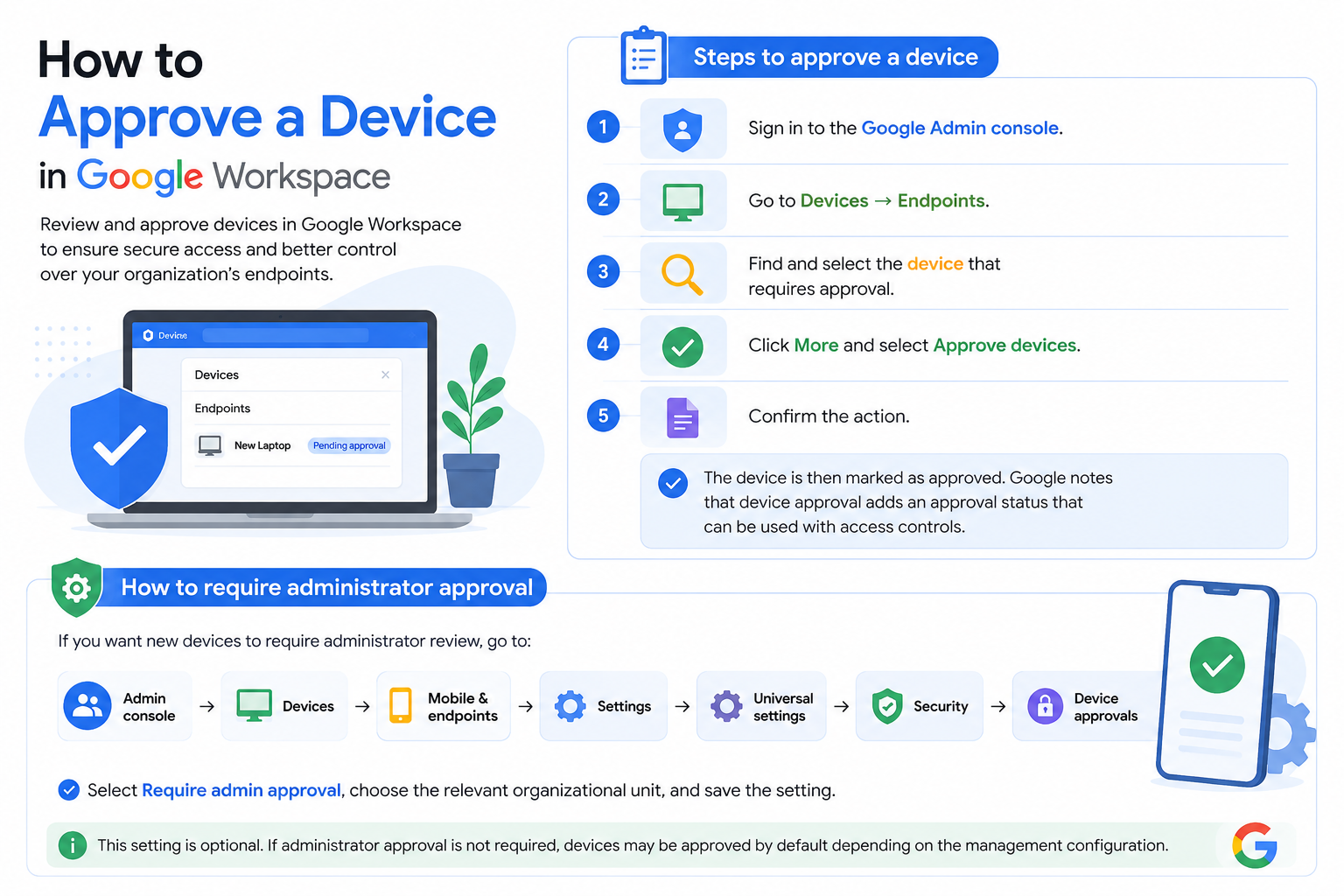
How to Approve a Device in Google Workspace
If administrator approval is required, devices can appear with a pending approval status. Administrators can then review and approve the appropriate devices.
Steps to approve a device
- Sign in to the Google Admin console.
- Go to Devices → Endpoints.
- Find and select the device that requires approval.
- Click More and select Approve devices.
- Confirm the action.
The device is then marked as approved. Google notes that device approval adds an approval status that can be used with access controls.
How to require administrator approval
If you want new devices to require administrator review, go to:
Admin console → Devices → Mobile & endpoints → Settings → Universal settings → Security → Device approvals
Select Require admin approval, choose the relevant organizational unit, and save the setting.
This setting is optional. If administrator approval is not required, devices may be approved by default depending on the management configuration.
How to Block a Device in Google Workspace
Administrators can block a device when it should no longer be allowed to access organizational resources—for example, when a device is lost, compromised, or no longer authorized for business use.
Steps to block a device
- Open the Google Admin console.
- Go to Devices → Endpoints.
- Select the device you want to block.
- Click Block Devices.
- Confirm the action.
The device is marked as blocked.
Important: Blocking a device does not automatically prevent data access in every Google Workspace configuration. Google states that approval or blocking adds a device-status tag. An appropriate access level may be required to enforce access restrictions based on that status.
How to Unblock a Device
If a device was blocked by mistake or is safe to use again, an administrator can unblock it.
- Go to Google Admin console → Devices → Endpoints.
- Select the blocked device.
- Click Unblock Devices.
- Confirm the action.
The device is then tagged as approved.
Approve, Block, or Delete a Device?
These actions serve different purposes:
Action | Purpose |
Approve | Mark a device as approved |
Block | Mark a device as blocked and, when configured with the appropriate access controls, prevent access |
Unblock | Remove the blocked status and mark the device as approved |
Delete | Remove the device from the device inventory |
Deleting a device is not the same as wiping its data. Google notes that deleting a device from the inventory generally does not delete the user’s data from the device.
Best Practices for Device Approval and Blocking
Before approving or blocking a device, check:
- The user: Confirm who is using the device.
- The device: Check its operating system and management status.
- The reason for the action: Be especially careful when blocking a device that may still be needed for business operations.
- Access policies: If blocking must prevent access to company data, verify that the required access controls are configured.
For organizations using Endpoint Verification, device approval can be incorporated into device-based access policies.