WordPress Git Deployment: A Beginner’s Guide
Git can make WordPress development and deployment more organized by keeping a history of your code changes. Instead of manually uploading theme or plugin files whenever you make an update, you can store your code in a Git repository and use it as part of a controlled deployment process. One important distinction is worth understanding […]
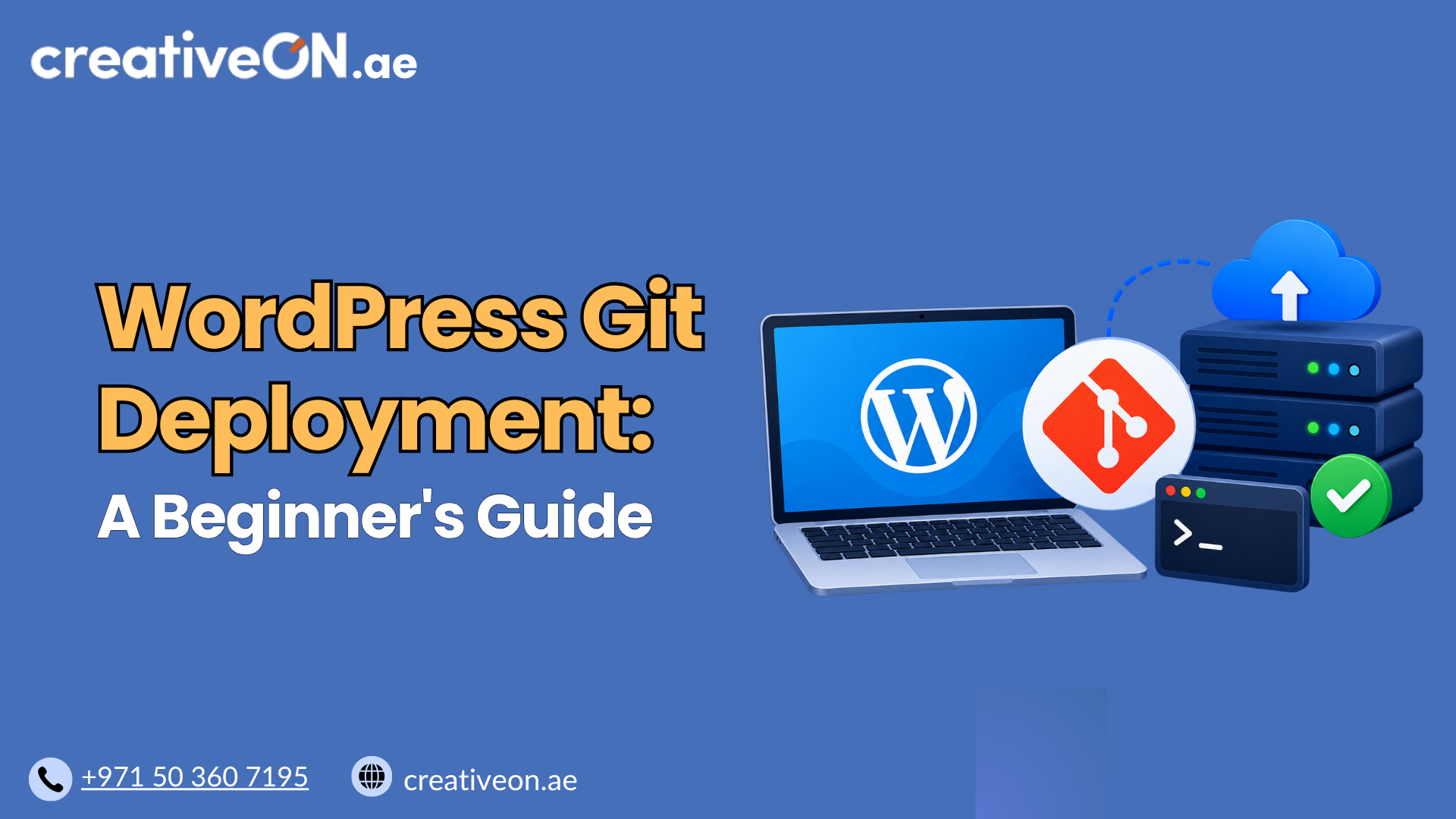
Git can make WordPress development and deployment more organized by keeping a history of your code changes. Instead of manually uploading theme or plugin files whenever you make an update, you can store your code in a Git repository and use it as part of a controlled deployment process.
One important distinction is worth understanding from the start:
Git manages versions of your code. Deployment is the process of releasing that code to your WordPress hosting environment.
Git can be part of the deployment process, but it does not automatically deploy your entire WordPress website, database, or media library.
What Is Git Deployment for WordPress?
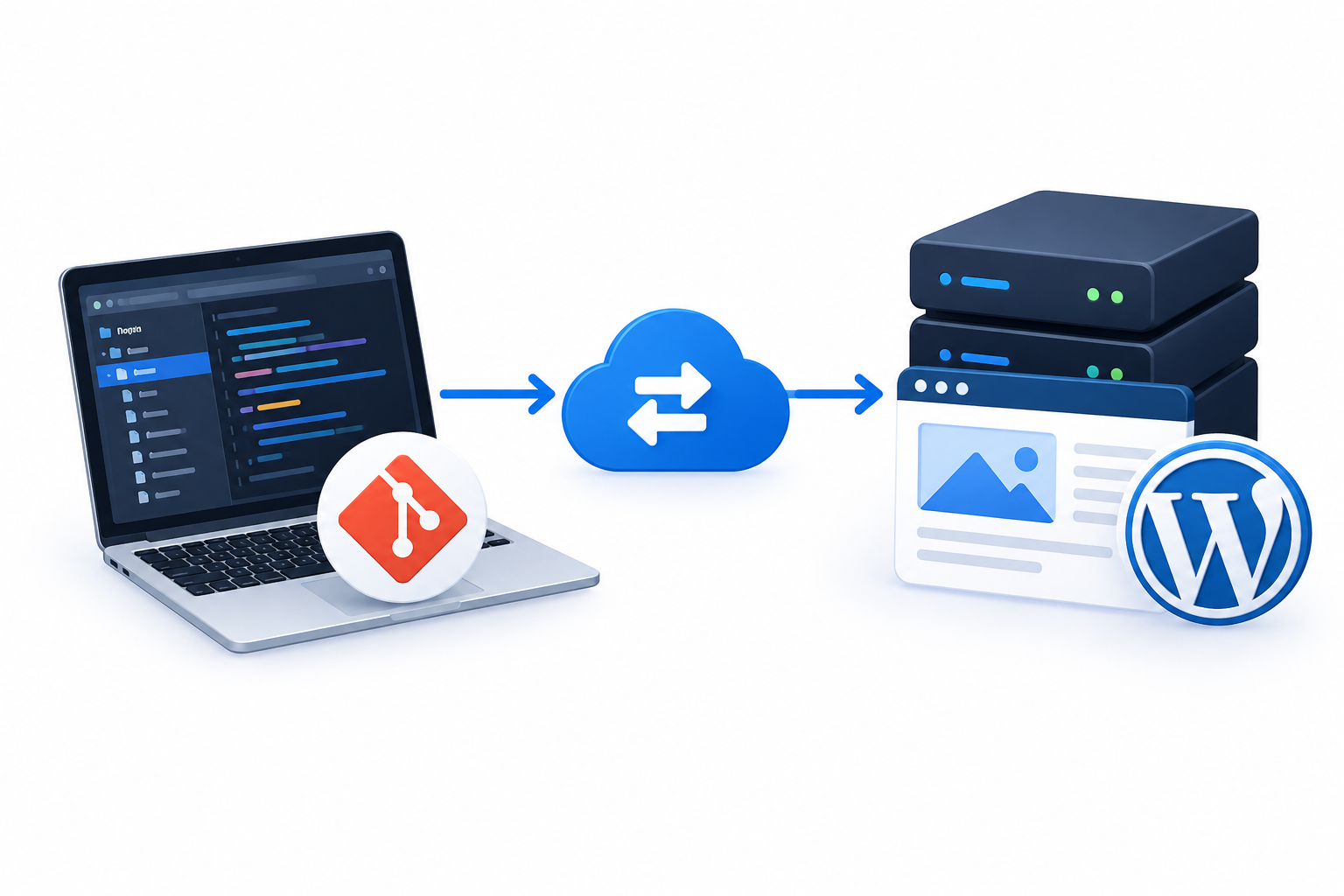
Git deployment for WordPress means using a Git repository to manage and release WordPress code, such as custom themes and plugins.
A simple workflow looks like this:
Local development
↓
Git repository
↓
Staging
↓
Testing
↓
Production
The exact deployment method depends on your hosting environment. Some servers allow developers to use SSH and Git directly, while others use deployment tools or CI/CD services.
For beginners, the important idea is simple: develop and test your code, commit the approved changes, and then deploy that version to the website.
Why Use Git for WordPress Deployment?
Git is particularly useful when you manage custom WordPress code or work with other developers.
Track changes
Git keeps a history of code changes, making it easier to see what was modified and when.
Work safely
Developers can work on separate branches for features or fixes without immediately changing production code.
Collaborate
Git provides a structured way for multiple developers to work on the same project.
Roll back code
If a new code release causes a problem, Git makes it easier to identify and revert the affected tracked code.
Keep in mind that reverting code is not the same as restoring an entire WordPress website. Database content and uploaded files may require separate recovery.
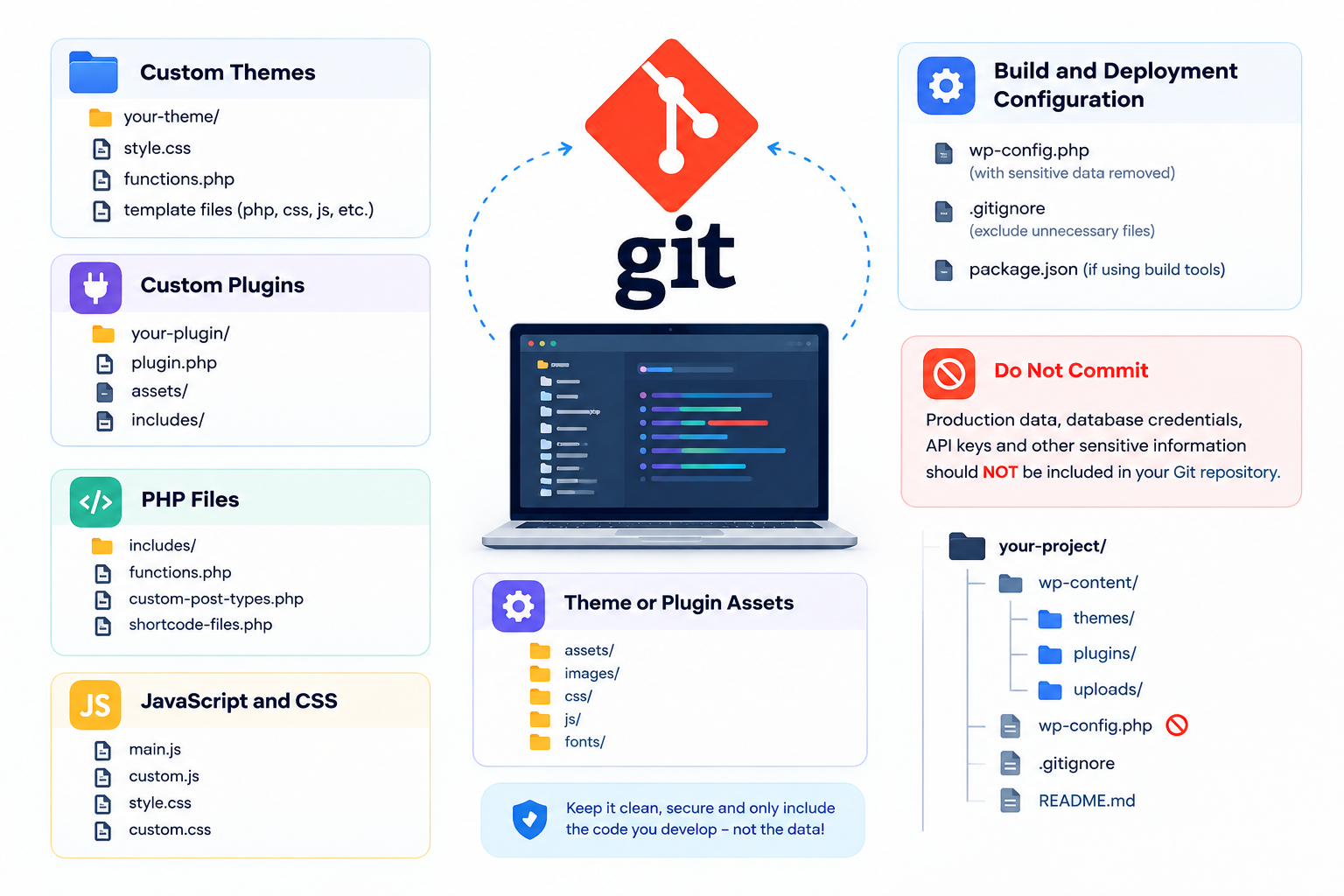
What Should You Put in Git?
For most WordPress projects, Git should primarily contain the code that you develop and maintain.
This can include:
- Custom themes
- Custom plugins
- PHP files
- JavaScript and CSS
- Theme or plugin assets
- Build and deployment configuration
You generally should not put production data and secrets into the repository.
Common exclusions include:
- wp-config.php containing production credentials
- Database backups
- wp-content/uploads/
- Cache files
- Temporary files
- API keys and passwords
WordPress identifies wp-config.php as an important configuration file containing database connection information, while uploaded files are part of the site’s files and should be backed up separately.
A .gitignore file can help prevent unnecessary or sensitive files from being committed:
wp-config.php
wp-content/uploads/
wp-content/cache/
.env
If a secret has already been committed to Git, adding it to .gitignore does not remove it from the repository’s history. The credential should be treated as exposed and replaced.
How Does WordPress Git Deployment Work?
A basic Git deployment workflow has a few steps.
1. Develop your code
Make changes to your custom WordPress theme or plugin in a local development environment.
Whenever possible, avoid developing directly on the live website.
2. Commit your changes
After testing the changes, record them in Git:
git add .
git commit -m “Update homepage layout”
The commit creates a version of your code that can be identified and deployed.
3. Push to your repository
Send the committed changes to your remote repository:
git push origin main
Git’s push command sends committed changes to the remote repository.
4. Deploy to staging
For an important website, deploy the code to a staging environment first.
Test important functions such as:
- Homepage
- Forms
- Navigation
- Custom functionality
- JavaScript
- Plugin integrations
This provides an opportunity to identify problems before they reach production.
Internal link: WordPress Staging Environment Guide
5. Deploy the approved version
After testing, deploy the approved code to the live WordPress hosting environment.
One simple server-side Git workflow might use:
git fetch origin
git checkout main
git pull –ff-only origin main
However, git pull is only one possible deployment method. Production environments may instead use deployment scripts, release tools, or CI/CD pipelines.
The correct approach depends on your hosting provider and project architecture.
What Does Your WordPress Hosting Need?
Not every WordPress hosting environment supports the same Git workflow.
Depending on your deployment method, you may need:
- SSH access
- Git support
- Repository access
- Appropriate file permissions
- Compatible PHP configuration
- Staging support
- Deployment or CI/CD integration
Some managed WordPress hosting environments restrict shell access or provide their own deployment tools.
Before choosing a Git-based workflow, check what your WordPress hosting provider actually supports.
Does Git Deploy the WordPress Database?
No.
This is one of the most important things beginners need to understand.
Git manages files, while WordPress also relies on a database containing information such as:
- Posts and pages
- Users
- Settings
- Comments
- Plugin data
- WooCommerce data
Running git push or git pull does not synchronize your WordPress database.
If a code update also requires a database change, that database change needs a separate migration or deployment process.
WordPress recommends backing up both the site’s files and database because both are needed for a complete site restoration.
Internal link: WordPress Backup Guide
What About WordPress Media Uploads?
Images, documents, and other files uploaded through WordPress are normally stored in:
wp-content/uploads/
These files are generally managed separately from Git because they are user-generated production data and can become large.
A useful way to think about it is:
Git
→ Custom code
Backups
→ Database + uploads + important site files
Keeping these responsibilities separate makes your WordPress deployment workflow easier to manage.
Internal link: WordPress Migration Guide
WordPress Git Deployment Security
Git deployment should be designed with security in mind.
Keep credentials out of Git
Never commit database passwords, API keys, private keys, or other production secrets.
Protect repository access
Use appropriate access controls for private or proprietary WordPress projects.
Secure SSH access
If your deployment uses SSH, protect private keys and restrict access to authorized users.
Keep independent backups
Git provides version history for tracked code. It is not a complete WordPress backup solution.
WordPress recommends maintaining backups of both files and the database.
Internal link: WordPress Security Best Practices Guide
Git Deployment vs SFTP
Both approaches can be useful.
Git-based deployment | SFTP |
Tracks code history | Usually manual |
Supports branches | No built-in branching |
Good for development teams | Good for simple file transfers |
Can support automated deployment | Usually requires manual uploads |
Easier rollback of tracked code | Requires previous files or backups |
For custom WordPress development, Git provides useful version-control capabilities.
For a small website where you occasionally need to replace a few files, SFTP may still be simpler.
The right choice depends on how your website is developed and maintained.
Common WordPress Git Deployment Mistakes
Avoid these common problems:
Deploying directly to production
Test important changes on staging before releasing them to the live site.
Assuming Git handles everything
Git manages tracked files. It does not automatically handle your database, uploads, backups, or every deployment dependency.
Committing passwords
Never store production credentials in a Git repository.
Editing Git-managed files directly on production
Manual production changes can cause the server’s files to differ from the repository, making future deployments harder to manage.
Treating Git as a backup
A Git repository containing your code does not replace backups of your WordPress database and production files.