WordPress Clone vs Migration: What’s the Difference?
If you manage a WordPress site, you’ve probably heard the terms “cloning” and “migrating” used almost interchangeably. They’re not the same thing, and mixing them up can lead to broken sites, lost data, or hours of unnecessary troubleshooting. Understanding WordPress clone vs migration is essential before you move a site, test a new plugin, or […]
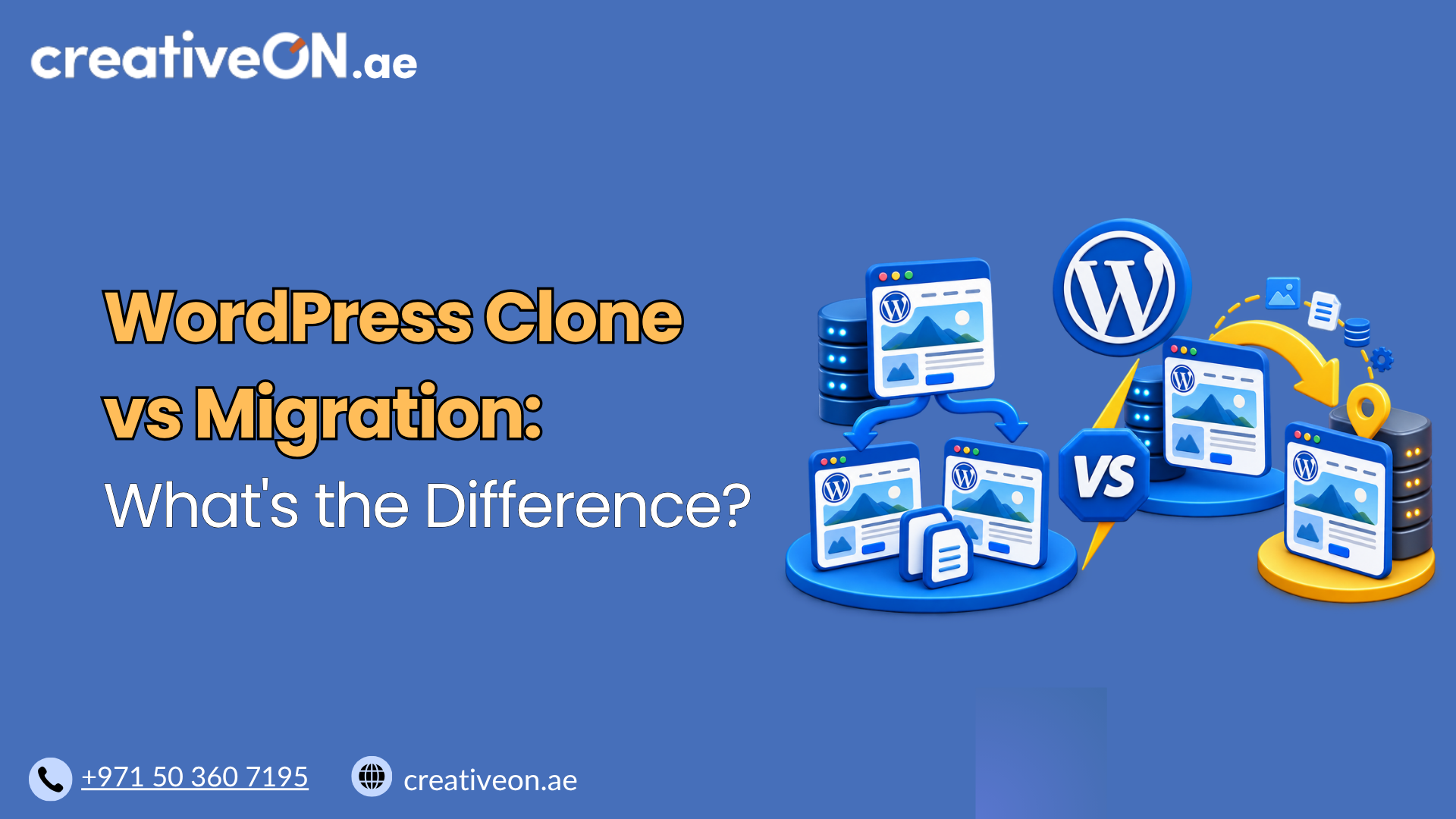
If you manage a WordPress site, you’ve probably heard the terms “cloning” and “migrating” used almost interchangeably. They’re not the same thing, and mixing them up can lead to broken sites, lost data, or hours of unnecessary troubleshooting.
Understanding WordPress clone vs migration is essential before you move a site, test a new plugin, or set up a staging environment. This guide breaks down what each process actually does, when to use one over the other, and how to avoid the most common mistakes.
WordPress Clone vs Migration: What’s the Difference?
The simplest way to separate the two:
- Cloning creates an additional copy of your site. The original keeps running, and the copy exists alongside it — usually for testing or development.
- Migration transfers your website’s operational home from one environment to another, with the new location eventually becoming the primary, live site.
That second point matters: migration doesn’t necessarily mean the old site disappears the moment you start. In a careful migration, the original site can stay online while the new copy is prepared and tested, and it’s often kept available for a while afterward as a rollback option. What changes is where the site officially lives, not whether a second copy briefly exists.
Aspect | Cloning | Migration |
Main purpose | Create a duplicate for testing or development | Move the site’s operational home to a new environment |
Original site | Stays live and unaffected | Usually kept temporarily as a rollback option |
Typical use case | Staging, debugging, development | Host change, server change, domain change |
DNS changes | Usually none | Often required |
End goal | Maintain a separate working copy | Make the new environment the primary, live site |
What Is WordPress Cloning?
Cloning creates a duplicate of your WordPress site — files, database, themes, and plugins — while the original keeps running normally. The clone typically lives in one of these places:
- A staging environment on the same hosting account
- A subdomain used for testing
- A local development environment on your computer
A clone can be temporary, or it can be maintained alongside the original for as long as it’s useful — as a permanent QA environment, for example, or a template for future sites.
Common Reasons to Clone a Site
- Testing a new theme or plugin before activating it live
- Debugging an issue without risking the production site
- Giving a developer a safe workspace
- Creating a sandbox for client approval before launch
One important distinction: a clone is not a backup. It’s a working copy meant for testing and development, not an archive you’d restore from if something went wrong. If you need reliable recovery in case of data loss, that’s a separate practice — see our WordPress Backup Best Practices guide for a dedicated backup workflow.
When cloning to a subdomain or staging URL, two things need attention: the clone’s URLs should point to its own location rather than the live domain, and search engines should be blocked from indexing the staging copy so it doesn’t create duplicate content.
What Is WordPress Migration?
Migration is the process of moving your WordPress site from one host, server, or domain to another, with the new location becoming your site’s permanent home. Typical scenarios include:
- Switching to a new hosting provider
- Moving from a staging site to production
- Changing domains
- Consolidating multiple sites onto a single server
Unlike cloning, migration isn’t meant to run two permanent copies in parallel — the goal is for the new environment to take over as the live site. But that transition doesn’t have to happen all at once. The old site can remain online while the new one is built and tested, and DNS is only switched once you’re confident everything works. If you’re planning a full transfer, our WordPress Migration Guide covers the step-by-step process in more depth.
Can You Clone a Site Before Migrating It?
Yes — and this is often the safest way to migrate. Cloning and migration aren’t competing techniques; they’re frequently two stages of the same project.
A typical safe migration path looks like this:
- Clone the live site onto the new hosting environment.
- Test the clone thoroughly — plugins, forms, checkout, and page load times.
- Fix any issues found during testing.
- Switch DNS once the clone is confirmed to work correctly.
- Keep the original site available briefly as a rollback, just in case.
Thinking of it this way — clone first, then migrate — removes a lot of the risk that makes site owners nervous about switching hosts.
When Should You Clone a WordPress Site?
- You want to test an update without touching the live site
- A developer needs a safe workspace to build changes
- You want to preview a design before publishing
- You’re setting up a recurring QA or staging process
When Should You Migrate a WordPress Site?
- You’re moving to a new WordPress hosting provider
- A finished staging site is ready to go live
- You’re changing domains or consolidating accounts
- Your current host can no longer support your site’s traffic or requirements
Best Practices for Cloning and Migration
- Back up first, every time. Even though a clone can be part of a migration plan, it’s not a substitute for a proper backup.
- Test in staging before going live. This is exactly what a staging environment is designed for.
- Check plugin compatibility. Some plugins hardcode URLs or file paths, which can break after cloning or migrating.
- Clear caching afterward. See our WordPress Caching Guide if cached pages are still showing old content after a move.
- Verify SSL certificates, especially after migration, when the server or domain changes.
- Choose hosting with the tools you’ll actually need. Reliable staging, backup, and migration support make both processes considerably safer — this guide to choosing WordPress hosting is a useful reference if you’re evaluating providers.
Common Mistakes to Avoid
- Treating a clone as a backup, rather than following a dedicated backup routine
- Forgetting to update the site URL after migration, causing broken links or missing images
- Not accounting for DNS caching, which can cause some visitors to briefly reach the old server while others reach the new one — not something you can simply “skip,” but something to plan around
- Not testing thoroughly before switching DNS, especially for WooCommerce stores where checkout functionality has to work flawlessly
- Leaving a clone publicly accessible and indexable, which can create duplicate content issues
Frequently Asked Questions
No. A clone is a working copy meant for testing and development, not a recovery archive. Backups should be automated and stored separately.
Often, yes — if the new environment is fully prepared and tested before DNS is switched. But zero downtime isn’t guaranteed; the result depends on the site, DNS configuration, database activity, and migration method used.
Basic cloning is often handled through one-click tools on managed WordPress hosting. Migration, especially between hosts or domains, usually benefits from more technical familiarity or professional support.
It can, if URLs, redirects, canonical settings, or HTTPS configuration are handled incorrectly. Careful planning typically preserves rankings.
Yes, the basic principles are the same, but live WooCommerce stores need extra care because orders and customer activity may continue during the migration.
Conclusion
Cloning and migration solve different problems, but they’re not opposites — cloning gives you a safe copy to test and build on, while migration moves your site’s operational home to a new environment, often using a clone as the first step. Knowing which one you need, and how they can work together, saves time and protects your site from unnecessary downtime or lost rankings.
If you’re planning a migration, choosing hosting with reliable staging, backup, and migration support makes the process considerably easier to manage safely.