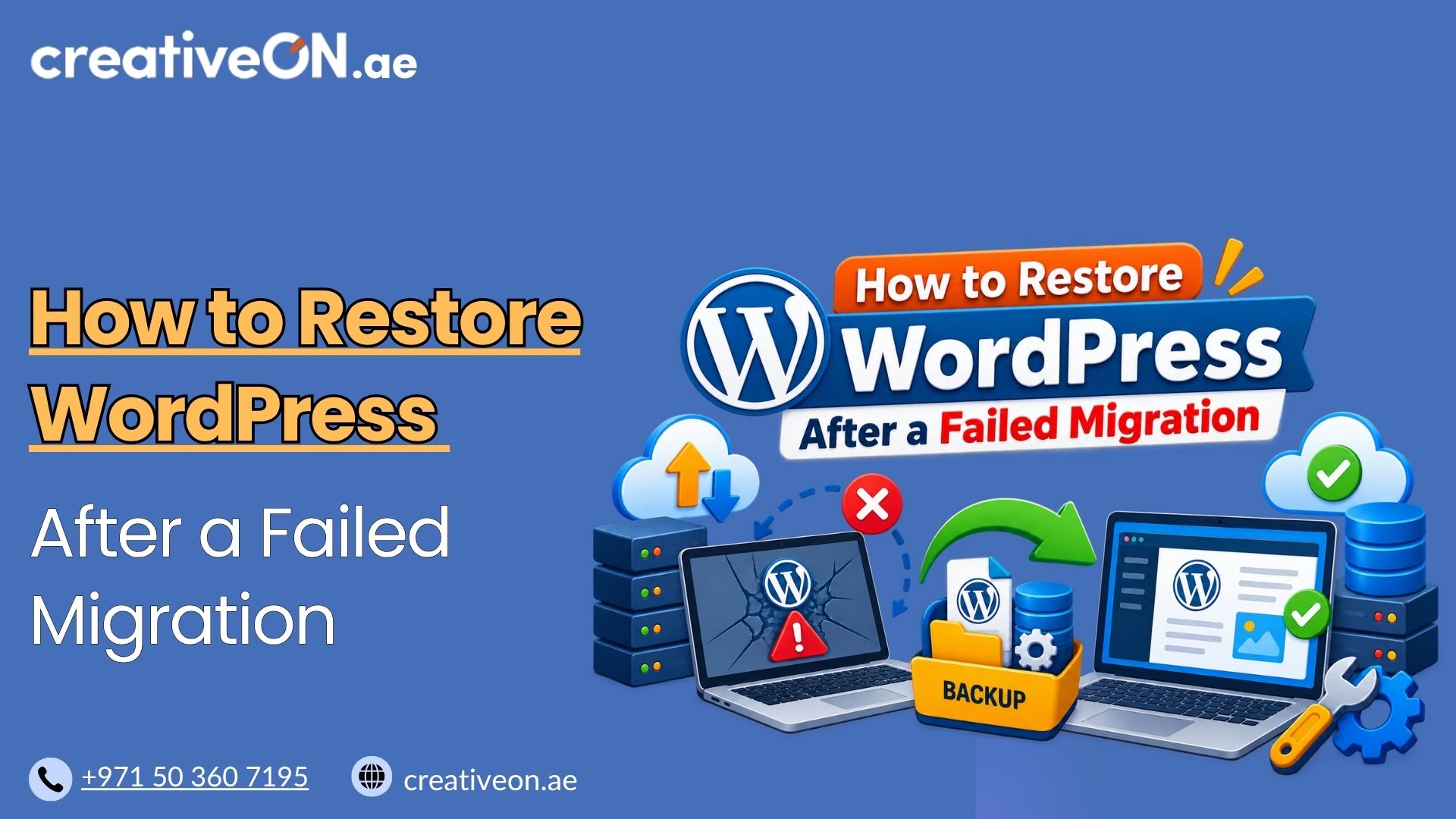
How to Restore WordPress After a Failed Migration
A failed WordPress migration can leave your site showing a database connection error, broken images, redirect loops, or a blank page. Before making more changes, protect the current site, identify what went wrong, and decide whether you need to repair the migration or restore your last working backup. Most failed migrations are fixable, and in […]
A failed WordPress migration can leave your site showing a database connection error, broken images, redirect loops, or a blank page. Before making more changes, protect the current site, identify what went wrong, and decide whether you need to repair the migration or restore your last working backup.
Most failed migrations are fixable, and in this guide we’ll walk through exactly how to restore WordPress after a failed migration — without the technical jargon.
Why W ordPress Migrations Fail
Most failed migrations come down to a handful of recurring causes: incomplete file transfers, database import problems, incorrect WordPress URLs, DNS still pointing to the old server, restrictive file permissions, or incorrect database credentials in wp-config.php. Knowing which of these applies to your situation will save time in the steps below.
Signs Your WordPress Migration Failed
A failed migration doesn’t always look the same. Common symptoms include:
- A white screen with no error message (the “White Screen of Death”).
- An “Error establishing a database connection” message.
- The site loads, but images, CSS, or menus are broken.
- You’re redirected to the old domain or hosting provider’s default page.
- The wp-admin dashboard is inaccessible even though the front end loads.
- Mixed content warnings or a site stuck loading over HTTP instead of HTTPS.
If the old site still works, don’t overwrite it yet. Leave it running while you troubleshoot the new one — it’s your safety net and your point of comparison.
Before You Restore Anything
It’s tempting to immediately restore a backup, but that can overwrite evidence you’ll need if the first attempt doesn’t fix things. Before changing anything:
- Leave the failed migration in place rather than deleting it.
- Take a fresh backup or snapshot of the current (broken) state, including the database.
- Keep the original hosting account and site untouched, if it’s still available.
Once the current state is preserved, you can troubleshoot freely without losing your ability to start over.
Repair or Restore: Which Approach Should You Use?
Not every failed migration needs a full restore. If the site is mostly intact and just misconfigured, repairing it is faster and safer than rolling back.
Problem | Repair or Restore? |
Wrong database credentials | Repair |
Wrong site URL | Repair |
DNS still pointing to old server | Repair |
Missing plugin or theme files | Repair |
Incomplete database import | Usually re-import, sometimes restore |
Corrupted database | Restore |
Large portions of the site missing | Restore |
No usable backup exists | Repair manually |
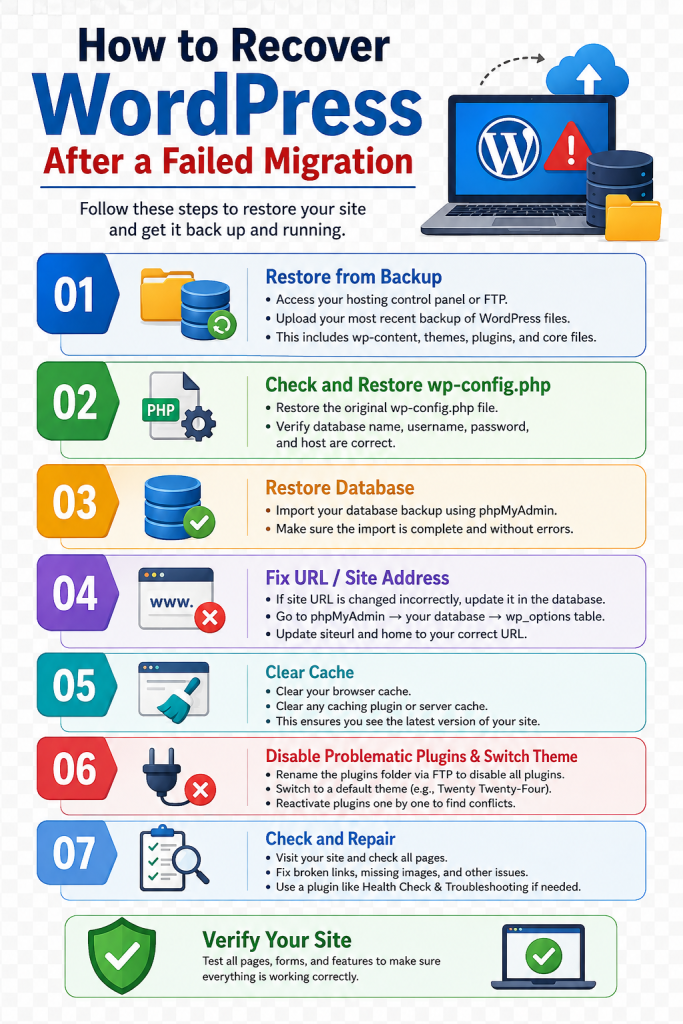
How to Recover WordPress After a Failed Migration
If the site is mostly there but misconfigured, work through these checks in order.
1. Check the Database Connection
An “Error establishing a database connection” almost always points to incorrect details in wp-config.php. Confirm DB_NAME, DB_USER, DB_PASSWORD, and DB_HOST match exactly what your new host provided. A single typo or outdated database host address is one of the most common causes of a broken migration, and usually a two-minute fix once spotted.
2. Verify the Database Import
Open your database via phpMyAdmin or your hosting control panel and confirm all expected tables are present, particularly wp_options, wp_posts, and wp_users. Then check that $table_prefix in wp-config.php matches the prefix actually used by those tables. The prefix doesn’t have to match the old server’s prefix — it just needs to point to the tables that exist in the restored database.
3. Fix Mismatched Site URLs
If the site loads but redirects to the old domain or shows broken links, the siteurl and home values in wp_options likely still reference the previous location. You can force the correct URLs temporarily with:
define(‘WP_HOME’,’https://yourdomain.com’);
define(‘WP_SITEURL’,’https://yourdomain.com’);
These constants override what WordPress uses at runtime, but they don’t change the values actually stored in the database. Update the database directly once you’ve confirmed the correct URLs, then remove these lines.
4. Check File Permissions and Ownership
Strict server configurations can block WordPress from reading certain files after a migration. As a common baseline, directories are often 755 and files 644, but the correct values depend on your server setup. If permissions look correct but WordPress still can’t read or write files, ask your host to check file ownership — a file can have the right permissions and still fail if it’s owned by the wrong user or group.
5. Check Plugins and Theme Files
If a plugin or theme appears to be causing the failure, deactivate it and test the site. If files are missing or corrupted, restore them from the original site or a trusted copy rather than reinstalling fresh — some plugins store configuration or custom files that a clean download won’t include.
6. Clear Caches and Confirm DNS
Clear any caching plugins, server-level cache, and browser cache. Then confirm your domain is actually resolving to the new server. If different networks or devices are seeing different versions of the site, DNS caching at the resolver level may still be catching up — this is a timing issue, not a broken migration.
Restoring From a Backup
If the migration is badly damaged — a corrupted database or large portions of the site missing — repairing individual pieces isn’t worth it. Restore instead:
- Choose where to restore. If your original hosting environment is still available, restoring there first is often the safest way to get a working site back while you troubleshoot the migration separately. If it’s no longer available, restore to a clean location on the new host or a temporary environment instead.
- Restore the files and database together, so they stay in sync with each other.
- Recheck wp-config.php against the environment you restored into, since credentials often differ between hosts.
- Test the site — homepage, a few inner pages, wp-admin login, and any forms or checkout flow — before pointing your live domain at it.
If no backup exists at all, you’ll need to work through the repair steps above manually rather than rolling back.
Best Practices to Prevent Future Migration Failures
- Always take a full backup — files and database — before starting any migration.
- Use a staging environment to test the migration before pointing your live domain to it.
- Keep the old site available until the new site has passed testing, rather than decommissioning it right away.
- Document your original wp-config.php details so you can compare them against the new environment quickly.
- If migrations are outside your technical comfort level, a managed WordPress hosting provider that offers migration assistance can reduce the amount of manual troubleshooting required.
Common Mistakes During Migration Recovery
- Restoring a backup over a partially working site without first checking what’s actually broken, overwriting recent changes unnecessarily.
- Editing the database directly without a backup of the database itself.
- Forgetting to update SSL settings after correcting the URLs, leaving the site stuck in a security warning loop.
- Assuming the issue is database-related when it’s actually a permissions or ownership problem.
- Not checking with the hosting provider before making major changes — many hosts can confirm within minutes whether the issue is server-side.