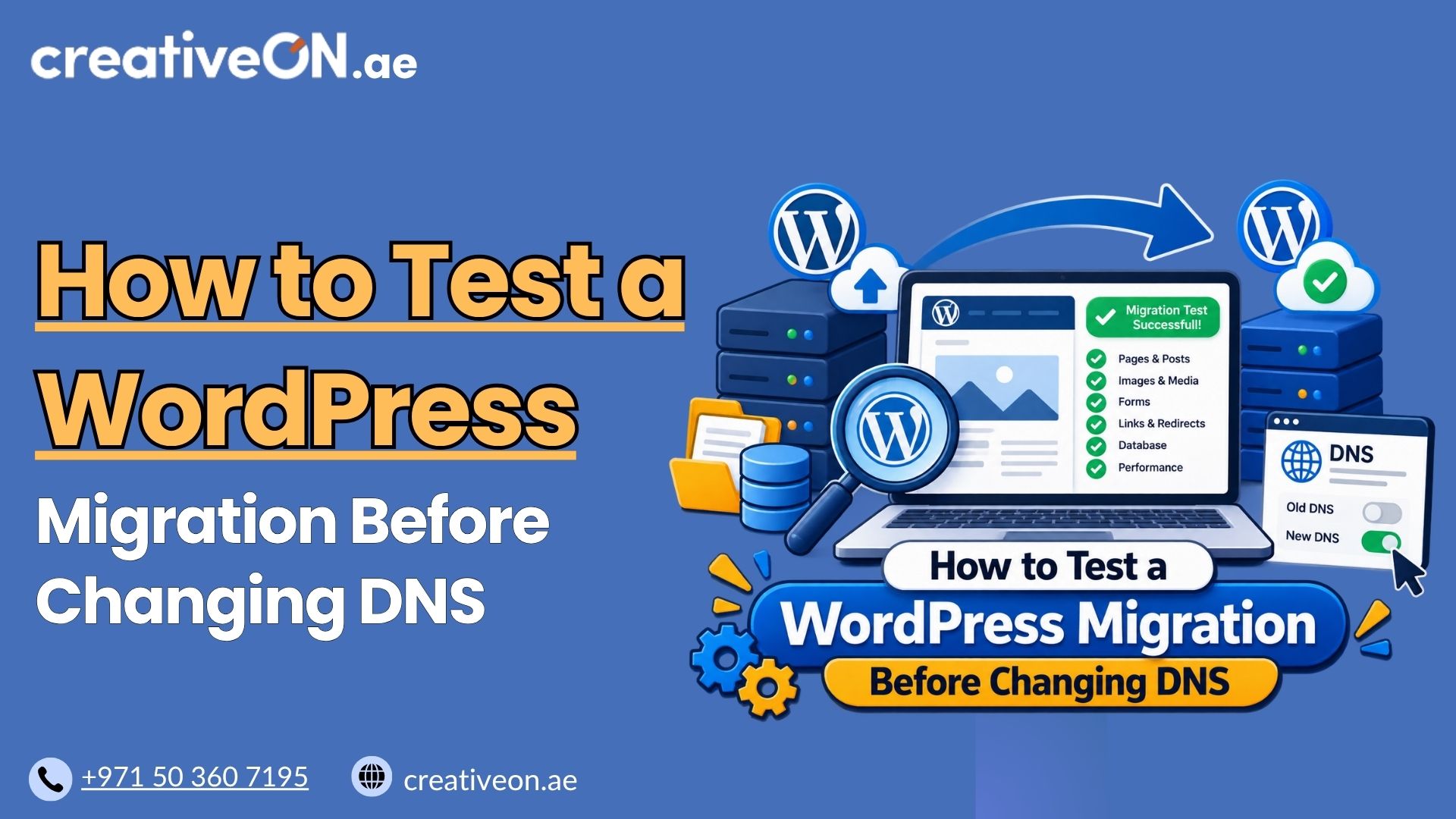
How to Test a WordPress Migration Before Changing DNS
Moving a WordPress site to a new host is only half the job. The other half—often skipped—is making sure everything works before you point your domain at the new server. If you test a WordPress migration before changing DNS, you catch broken links, missing plugins, and database errors while your live site is still safely […]
Moving a WordPress site to a new host is only half the job. The other half—often skipped—is making sure everything works before you point your domain at the new server. If you test a WordPress migration before changing DNS, you catch broken links, missing plugins, and database errors while your live site is still safely running on the old host.
This guide walks you through exactly how to preview and verify your migrated site on the new server, without any downtime or risk to your current visitors.
Why Testing Matters Before You Switch DNS
Changing your DNS records points your domain to a new server immediately (or within a few hours, depending on propagation). Once that happens, undoing a mistake isn’t instant. If something on the new host is broken—a missing database table, a misconfigured plugin, an SSL issue—your visitors will see it before you do.
Testing first means:
- Your live site keeps running normally on the old host while you check the new one.
- You can fix errors in a safe environment with zero visitor impact.
- You avoid emergency DNS rollbacks, which can take hours to fully propagate back.
- You confirm the migration actually worked before committing to it.
Skipping this step is one of the most common reasons WordPress migrations go wrong. A few extra minutes of testing can save an entire day of troubleshooting a live outage.
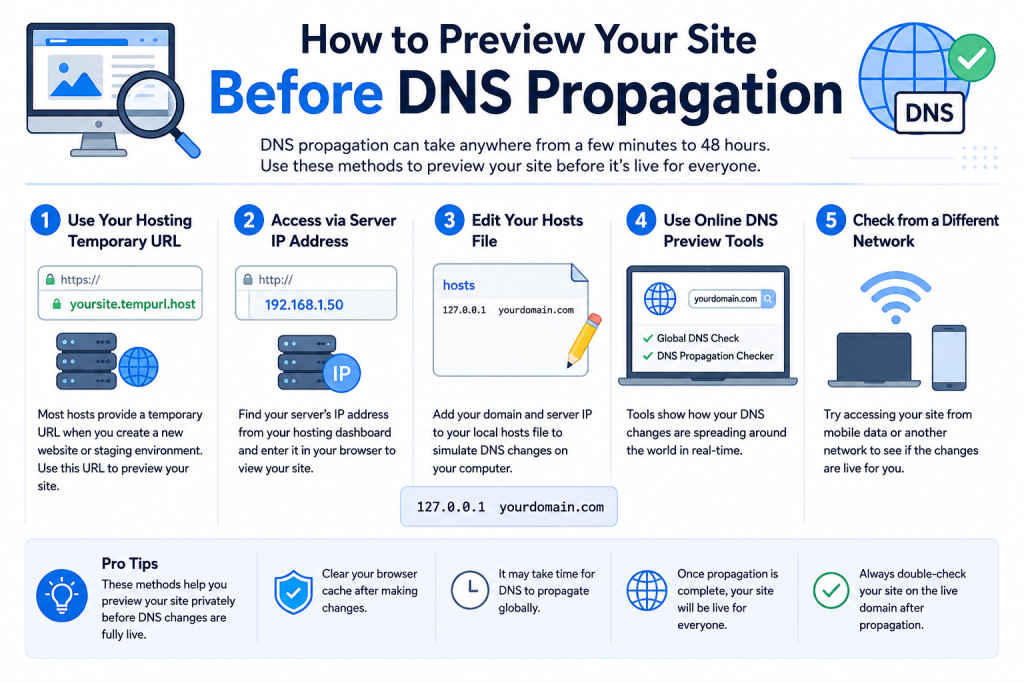
How to Preview Your Site Before DNS Propagation
The core idea is simple: trick your own computer into loading the new server for your domain, without changing anything that affects other visitors. There are two reliable ways to do this.
Method 1: Edit Your Local Hosts File
Your computer’s hosts file lets you manually map a domain name to a specific IP address, overriding public DNS just for your device.
Steps:
- Get the new server’s IP address from your hosting provider (most hosts show this in the account dashboard after migration).
- Open your hosts file:
- Windows: C:\Windows\System32\drivers\etc\hosts (edit with Notepad as Administrator)
- Mac/Linux: /etc/hosts (edit with sudo nano /etc/hosts)
Add a line at the bottom:
123.45.67.89 yourdomain.com123.45.67.89 www.yourdomain.com
- Save the file and, if the new version doesn’t load right away, flush your local DNS cache (ipconfig /flushdns on Windows, sudo dscacheutil -flushcache on Mac).
- Open your browser and visit yourdomain.com. You should now see the site loading from the new server—while everyone else still sees the old one.
This is the most accurate way to test, since you’re viewing the domain exactly as visitors eventually will, including cookies, redirects, and any domain-based logic in WordPress.
Method 2: Use a Temporary URL
Most hosts assign a temporary URL to a new account (something like tempurl.yourhost.com/~username) so you can view the site before DNS is updated.
This method is faster to set up but less reliable for WordPress specifically, since WordPress stores the site URL in its database. Pages, images, and links may not display correctly under a temporary URL unless you use a plugin to handle the URL substitution temporarily. For this reason, the hosts file method is generally the better choice for WordPress: it lets you test the migrated site under its real domain without changing anything visitors see.
What to Check During Testing
Once you can preview the site on the new server, work through this checklist before touching your DNS settings.
Website and content
- Homepage and key landing pages load without errors
- Navigation menus and internal links point to the right pages (not the old server)
- Recent posts, pages, and comments migrated correctly
- Images, videos, and media files display properly
- Search functionality returns accurate results
WordPress functionality
- WordPress dashboard loads and admin login works
- Media Library opens and posts/pages can be edited
- All active plugins are present, activated, and functioning
- Theme styling matches the original site
- Contact forms submit successfully and deliver emails
- Comment sections and any custom scripts work as expected
WooCommerce (if applicable)
- Product pages, categories, and pricing display correctly
- Cart and checkout flow completes without errors
- Payment gateway test transactions work correctly using the provider’s test/sandbox mode, where available
Technical checks
- No PHP errors or warnings appear on the page
- SSL certificate is installed and active on the new server
- No mixed content warnings (check for http:// references on an https:// site)
A migrated site can look fine to visitors while the WordPress backend has issues—especially if the PHP version, file permissions, or database configuration changed during migration. That’s why checking the dashboard and plugins matters just as much as checking the front end. If anything fails on this list, fix it on the new server now, while your live traffic is still safely on the old one.
Common Mistakes to Avoid
- Skipping the hosts file test and relying only on the temporary URL. WordPress‘s database-stored URLs often break under temporary domains, giving you a false sense that something is broken when it isn’t—or hiding real problems.
- Forgetting to test forms and checkout flows. These rely on server-side processing that static page checks won’t catch.
- Not clearing browser and DNS cache between tests. Old cached versions of the site can make you think changes haven’t taken effect.
- Changing DNS before confirming email routing. Updating your website’s A record doesn’t inherently mean email should move too. If email is hosted separately (common with Google Workspace or Microsoft 365), verify your MX records will be preserved before the switch.
- Testing on only one device. Check at least one desktop and mobile view to catch obvious rendering or script issues.
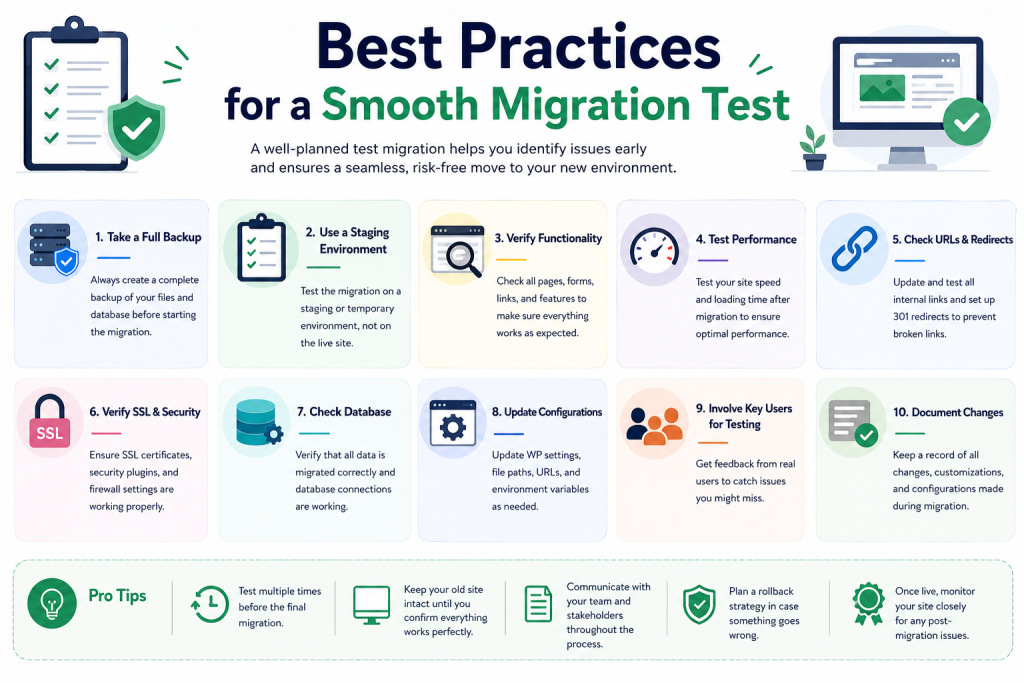
Best Practices for a Smooth Migration Test
- Keep the old site fully live and untouched until testing is complete and DNS has fully propagated.
- If possible, lower your DNS TTL (Time to Live) before the switch so cached records expire sooner once you make the change.
- Take a full backup of both the old and new site before making any changes, in case you need to roll back.
- Test during a low-traffic period so you have time to react if something needs fixing after DNS changes go live.
- For WooCommerce or membership sites in particular, plan the switch during off-peak hours to minimize the impact of any last-minute issues.
For UAE businesses running eCommerce or client-facing sites, testing checkout, forms, and email routing before the switch matters most—migration problems here can directly affect customer transactions.
When Is Your Migration Ready for DNS?
Before you change anything, you should be able to answer “yes” to all of these:
- Does the homepage and key content load correctly?
- Does the WordPress dashboard and admin login work?
- Do forms, plugins, and the theme all function normally?
- Does WooCommerce work, if applicable?
- Does HTTPS load without mixed content warnings?
- Are there no major PHP or database errors?
- Will email routing (MX records) be preserved?
If any of these is a “no,” fix it on the new server first. Only switch DNS once the answer is yes across the board.