Managing Login Challenges and Suspicious Sign-ins in Google Workspace
A user can’t log in. Or worse, they get an email saying someone just signed into their account from a country they’ve never visited. Both situations land on the same desk — usually an IT administrator’s — and both need a calm, structured response. The key is determining whether the login challenge is a normal […]
A user can’t log in. Or worse, they get an email saying someone just signed into their account from a country they’ve never visited. Both situations land on the same desk — usually an IT administrator’s — and both need a calm, structured response.
The key is determining whether the login challenge is a normal security check or evidence of unauthorized access. This guide covers how to make that distinction, how to investigate a Google Workspace suspicious sign-in, and how to reduce login friction before it turns into a security incident. It’s written for administrators and business owners managing Google Workspace across the UAE, where remote teams, travel, and multiple devices make login anomalies especially common.
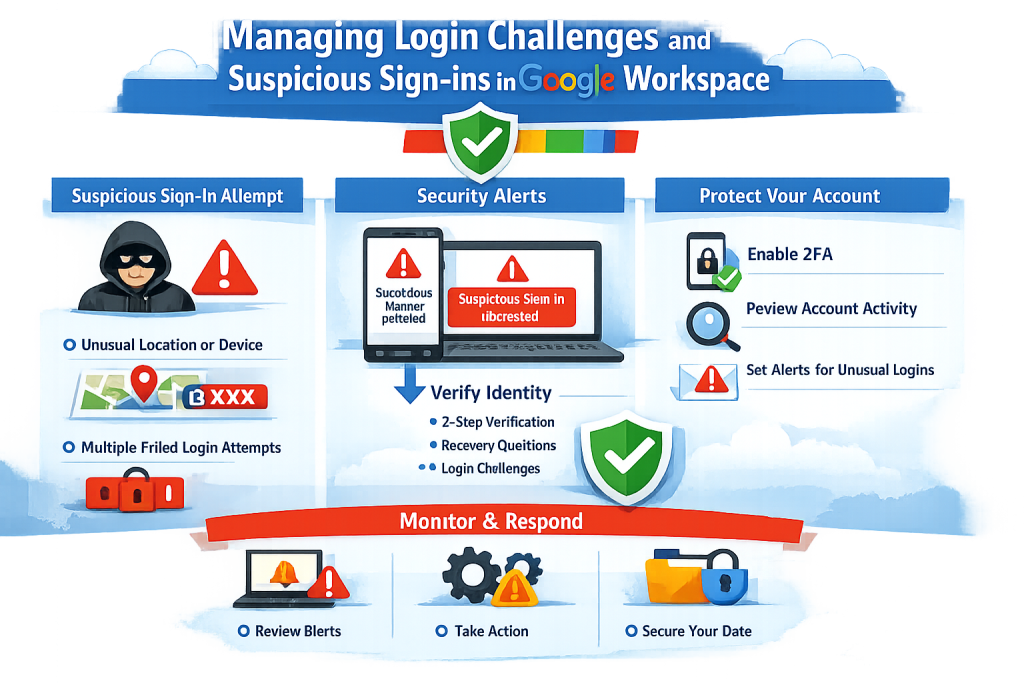
Login Challenge vs. Suspicious Sign-in
These two terms get used interchangeably, but they describe different situations.
A login challenge is primarily an access problem. Google asks a legitimate user for extra verification — a code, a prompt, a security question — before letting them in. Most of the time, this resolves the moment the user completes it.
A suspicious sign-in is primarily a security investigation problem. It means a sign-in attempt didn’t match the user’s normal pattern closely enough for Google to let it through without scrutiny, or an admin alert has flagged activity worth reviewing. The administrator’s job here isn’t just to help the user in — it’s to determine whether the access attempt was authorized at all.
Understanding which one you’re dealing with shapes everything that follows.
Common Login Challenges in Google Workspace
This guide focuses specifically on situations where a sign-in is blocked, challenged, or flagged as unusual for security reasons — not on every possible reason a user can’t log in. For context, the most common login-related issues include:
- Forgotten passwords
- 2-Step Verification problems (lost device, expired backup codes)
- Browser or cached-session conflicts
- Account lockouts after repeated failed attempts
- Suspicious sign-in alerts
The first four are typically resolved with a password reset or a cleared session and don’t require a security investigation. The rest of this article focuses on the last one.
What Counts as a Suspicious Sign-in
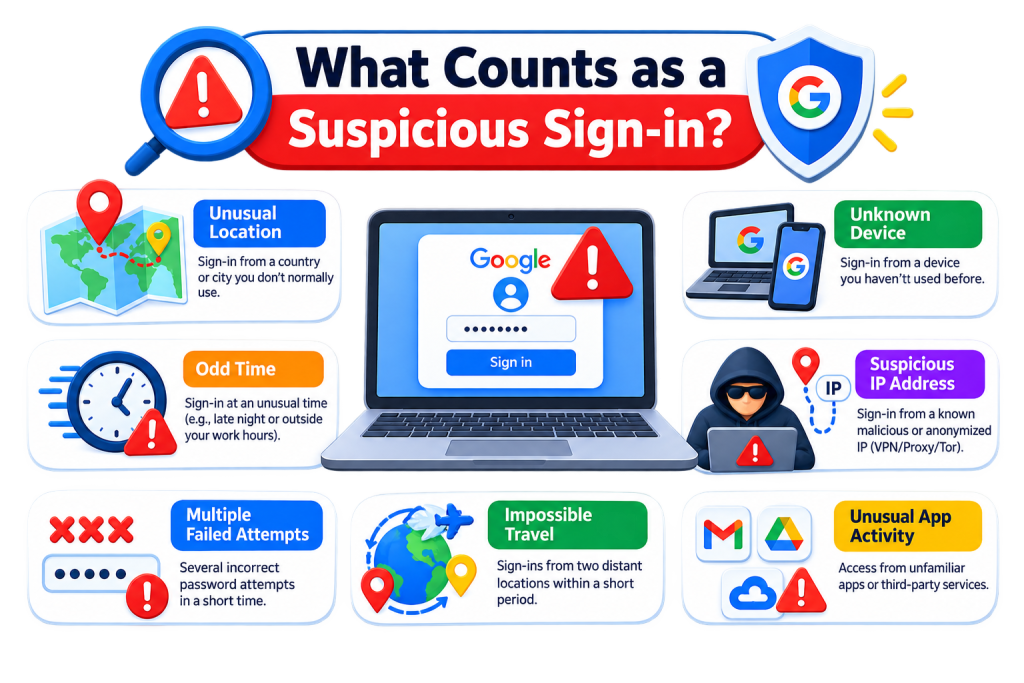
According to Google’s own documentation, Google considers a sign-in suspicious when it doesn’t match a user’s normal behavior — for example, an unfamiliar location, device, or sign-in pattern. Before an alert reaches an administrator, Google typically presents the user with an extra security challenge first. If the user fails or abandons that challenge, the event may be escalated to an admin alert.
This matters because a suspicious sign-in alert doesn’t always mean a breach occurred. Employees travelling for work, using a new laptop, or connecting through a VPN can trigger the same signals a genuine attacker would. The goal isn’t to panic — it’s to verify.
Why Suspicious Sign-ins Happen
Understanding the likely cause helps determine the right response. Common triggers include:
- Reused or compromised credentials — a password leaked elsewhere lets someone attempt access with a legitimate username and password.
- Phishing — a user unknowingly entered their credentials on a fake login page.
- Legitimate but unusual activity — travel, a new device, or a client site with an unfamiliar network.
- Missing 2-Step Verification — leaving an account reliant on a password alone.
How to Investigate a Suspicious Sign-in
Confirm the activity with the user
Ask whether they recently signed in from a new location, device, or network. Many alerts resolve immediately once this is confirmed.
Review the alert center
In the Google Admin console, go to Security > Alert Center to review flagged sign-in events and other security alerts for your domain. Note that the linked security investigation tool, which lets you dig deeper into a specific event, is available on Enterprise editions of Google Workspace — smaller plans have more limited investigation options within the alert itself.
Review sign-in activity
Admins can review a user’s recent sign-in history from their account page in the Admin console, including successful and failed attempts, to build a clearer picture of what happened.
Determine whether access was authorized
Weigh what the user has confirmed against what the logs show. If the two line up, treat it as legitimate. If they don’t — or the user doesn’t recognize the activity at all — treat it as unauthorized and move to containment.
Situation | Recommended response |
User recognizes the sign-in | Treat as legitimate; continue normal access |
User doesn’t recognize the sign-in | Investigate immediately |
Password may be compromised | Reset password and review session/access controls |
Multiple suspicious events appear | Escalate and investigate further |
User can’t complete verification | Follow the appropriate account-recovery process |
How to Respond When a Sign-in Is Unauthorized
Secure the account. If the user doesn’t recognize the activity and compromise is suspected, reset the password and use the available session controls in the Admin console to revoke existing access where appropriate.
Review connected access. Check third-party apps and OAuth grants connected to the account and revoke anything unrecognized.
Enable or verify 2-Step Verification. If it wasn’t already active for this user, this is the moment to turn it on — and consider enforcing it domain-wide.
Document the incident. Keep a short internal record of what happened and how it was resolved. This becomes useful if a pattern emerges across multiple accounts.
These steps can help contain unauthorized access while you investigate further — they’re a starting point, not a guarantee that every form of access (forwarding rules, delegated access, connected apps) has been addressed.
How to Reduce Future Login and Sign-in Problems
- Enforce 2-Step Verification domain-wide rather than leaving it optional per user.
- Consider stronger authentication methods, such as security keys, for administrators and users with access to sensitive financial, HR, or customer data.
- Review the alert center regularly, not just when something goes wrong.
- Educate staff on phishing recognition, since most credential theft starts there, not with a technical exploit.
Larger organizations may also apply Context-Aware Access to add sign-in conditions based on device or location — a more advanced control worth exploring separately once the basics above are in place.
What Not to Do When a Sign-in Looks Suspicious
- Don’t disable 2-Step Verification just to help a user sign in faster.
- Don’t ignore repeated alerts because the first one turned out to be legitimate.
- Don’t assume an unfamiliar IP automatically means compromise.
- Don’t ask users to send passwords or verification codes over email or chat.
- Don’t make broad security-policy changes to solve one user’s login problem.
Common Mistakes to Avoid
- Relying on passwords alone without 2-Step Verification.
- Delaying a password reset once compromise looks likely.
- Not reviewing third-party app access after securing an account.
- Treating suspicious sign-ins as an IT-only issue — users who know what an alert looks like report them faster.