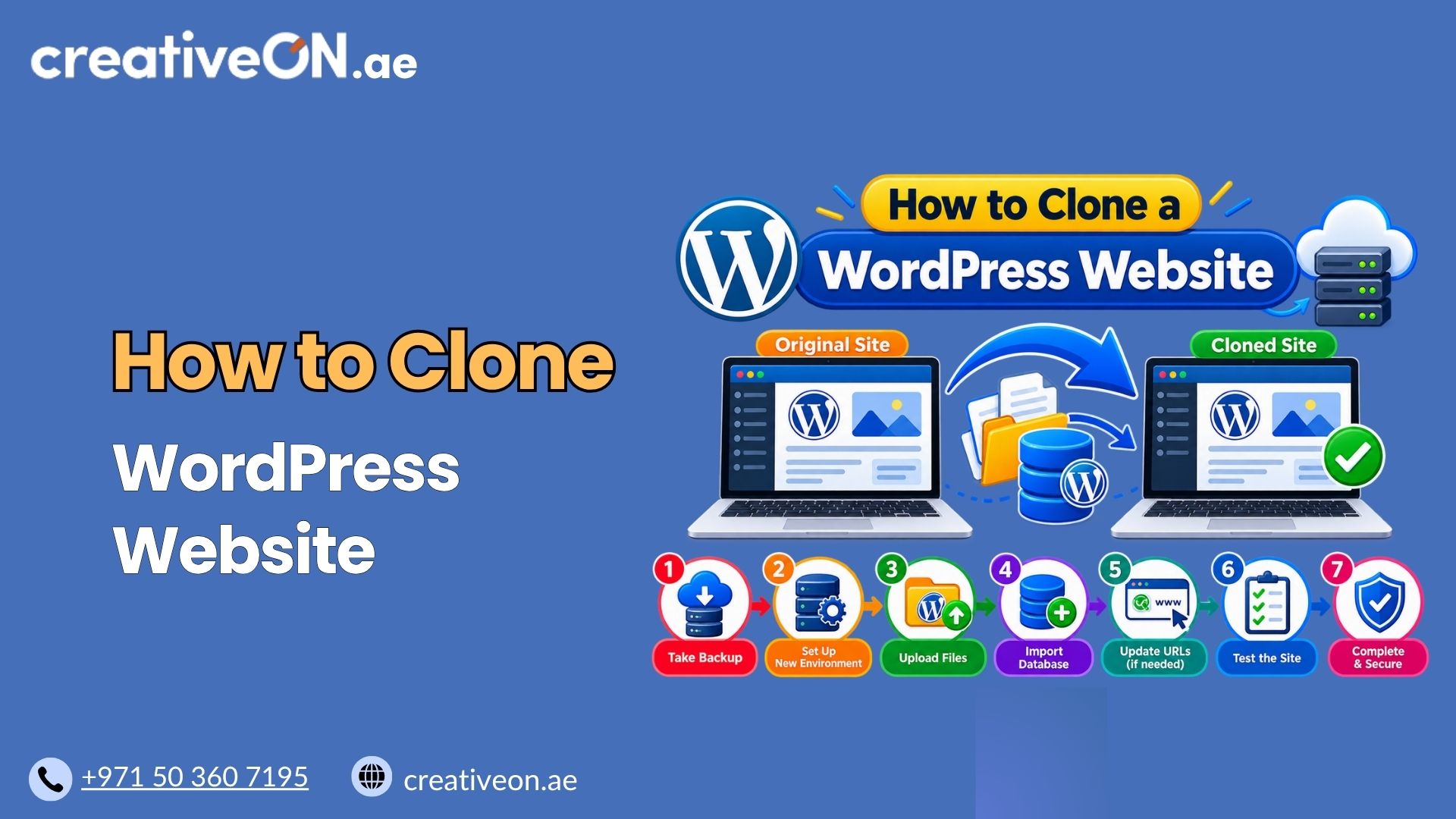
How to Clone a WordPress Website
If you’ve ever needed to test a big design change, move a site to a new host, or set up a duplicate for a client demo, you’ve probably run into the same question: how do you clone a WordPress website without breaking the live one? Cloning sounds technical, but with the right approach it’s a […]
If you’ve ever needed to test a big design change, move a site to a new host, or set up a duplicate for a client demo, you’ve probably run into the same question: how do you clone a WordPress website without breaking the live one? Cloning sounds technical, but with the right approach it’s a straightforward process that any WordPress site owner can handle.
This guide walks you through exactly how to clone a WordPress website, when you should do it, and what mistakes to avoid along the way.

What Does It Mean to Clone a WordPress Website?
Cloning a WordPress website means creating an exact copy of your site — files, database, themes, plugins, and content — and placing that copy somewhere else. That “somewhere else” could be:
- A subdomain or staging area on the same server
- A different domain entirely
- A local development environment on your computer
- A new hosting account during a migration
The clone behaves identically to the original site, which makes it useful for testing, backups, or moving hosts without touching your live audience.
Why You Might Need to Clone Your Site
There are a handful of practical reasons WordPress users clone their sites:
- Testing updates safely. Before updating a theme, plugin, or WordPress core, you can test the update on a clone to catch conflicts before they affect visitors.
- Migrating to a new host. Cloning is often the fastest way to move a site from one hosting provider to another with minimal downtime.
- Building a staging environment. Developers frequently clone a live site to create a staging version where changes can be reviewed before going public.
- Creating a template for multiple sites. Agencies building similar sites for different clients often clone a base setup instead of starting from scratch each time.
- Local development. Some developers clone a live site down to their local machine to work offline before pushing changes back up.
Whatever the reason, the underlying process stays the same: duplicate the files and database, then point the copy to its new location.
What You Need Before You Start
Before cloning, make sure you have:
- Full access to your WordPress admin dashboard
- FTP/SFTP or File Manager access to your hosting account
- Access to your site’s database (usually via phpMyAdmin)
- A destination ready to receive the clone (a new domain, subdomain, or local environment)
If your hosting plan includes a control panel like cPanel or a managed WordPress dashboard, cloning tools are often built in, which simplifies several of the steps below.
How to Clone a WordPress Website: Step-by-Step
There are two common approaches: using a plugin, or cloning manually. Most site owners are better off with a plugin, while developers and agencies sometimes prefer the manual method for more control.
Which Method Should You Use?
If you’re running a small to mid-sized site and just want a working copy without touching code, a plugin is the faster and safer choice — it handles most of the technical steps automatically. If you’re managing a large WooCommerce store, a site with heavy customization, or you need precise control over what gets moved, the manual method is worth the extra effort, since it lets you review every file and database change directly.
Method 1: Cloning with a Plugin
This is the simplest and most reliable option for non-developers.
- Install a reputable cloning/migration plugin from your WordPress dashboard under Plugins > Add New. Popular options include tools built specifically for duplication and migration.
- Create a backup package. The plugin will bundle your site’s files and database into a single exportable file.
- Set up the destination. If you’re cloning to a new domain or subdomain, install a fresh WordPress instance there first.
- Import the package into the new WordPress installation using the plugin’s import tool.
- Run the site URL search-and-replace. Most cloning plugins handle this automatically, but confirm that all internal links now point to the new domain instead of the original.
- Test the cloned site thoroughly — check pages, forms, images, and plugin functionality before treating it as live.
Method 2: Manual Cloning
This method gives you full control but requires more comfort with files and databases.
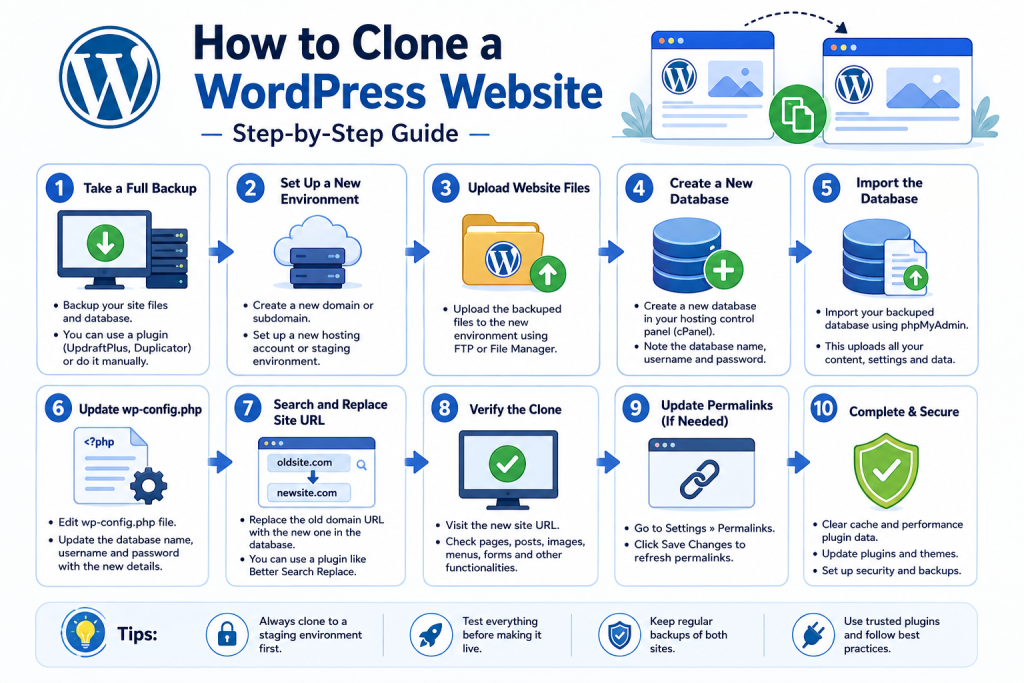
- Copy the site files. Use FTP/SFTP to download your entire WordPress directory, or use your host’s File Manager to create a compressed archive.
- Export the database. Log into phpMyAdmin, select your WordPress database, and export it as a .sql file.
- Upload the files to the destination location.
- Import the database into a new database on the destination server.
- Update wp-config.php with the new database name, username, password, and host details.
- Update the site URL in the database (typically in the wp_options table) so the clone doesn’t try to load assets from the original domain. Avoid doing this with a plain text find-and-replace tool. WordPress stores some data — widgets, theme settings, and certain plugin options — as serialized PHP data, and a raw text replacement will corrupt it because the string length no longer matches. Use a serialization-safe tool instead, such as WP-CLI’s search-replace command or a dedicated search-and-replace plugin.
- Restore your permalinks. After a manual move, pages and posts often return 404 errors until permalinks are reset. Copy over your original .htaccess file, or simply go to Settings > Permalinks in the new site’s dashboard and click Save to regenerate the rules.
- Test everything — links, media, forms, and plugin behavior — before making the clone live.
Best Practices When Cloning a WordPress Site
- Always back up first. Even though cloning is generally safe, take a full backup of the original site before starting, just in case something goes wrong. If you don’t already have a backup routine in place, it’s worth reviewing WordPress backup best practices before you begin.
- Use a staging environment when possible. Many hosting providers offer a built-in staging feature designed specifically for this kind of testing.
- Double-check the site URL replacement. This is the single most common source of broken clones. If URLs still point to the original domain, images, CSS, and links will fail.
- Disable indexing on the clone. If your clone lives on a public subdomain, block search engines from indexing it so you don’t create duplicate content issues.
- Clean up unused plugins after cloning. A clone doesn’t need every plugin the original has, especially caching or SEO plugins that reference the live domain.
- Re-check SSL settings. A cloned site needs its own SSL certificate if it’s hosted on a new domain, otherwise visitors may see security warnings.
- Watch for hardcoded URLs in page builders. Tools like Elementor or Divi sometimes store absolute URLs inside JSON data that a standard search-and-replace won’t catch. If images or layouts still point to the old domain after cloning, check your page builder’s own database tables or regenerate its cache.
- Check your email settings. Some clones keep the original site’s SMTP or email plugin configuration, which means the clone could send email through the live site’s mail service without you realizing it. Update or disable email settings on the clone until you’re ready to use it.
Common Mistakes to Avoid
- Skipping the database URL update. This causes broken images, missing styles, and login loops.
- Cloning onto an underpowered environment. A local or staging environment with insufficient resources can behave differently than production, giving you a false sense of how the site performs.
- Forgetting file permissions. After moving files manually, incorrect permissions can prevent WordPress from functioning properly.
- Leaving the clone publicly accessible and indexable. This can lead to duplicate content problems and confuse both visitors and search engines.
- Not testing before switching DNS. If you’re cloning as part of a migration, verify the clone works fully before pointing your domain to the new host.
Limitations of Cloning
Cloning duplicates your site exactly as it is — which means any existing issues, like slow-loading plugins or security vulnerabilities, get copied too. Cloning is not a substitute for proper site maintenance, security hardening, or performance optimization. It’s a tool for duplication and testing, not a fix for underlying problems.
If your goal is long-term reliability rather than a one-time copy, it’s worth pairing a clone with a proper staging workflow and a managed WordPress hosting setup that handles updates and security more consistently. If cloning is part of a larger move to a new host, our WordPress Migration Guide covers the rest of that process in more detail. And since a clone copies over any existing vulnerabilities along with the content, it’s worth reviewing our WordPress Security Guide once your new site is live.