How to Back Up WordPress Before Migration
Migrating a WordPress site is one of those tasks that feels simple until something goes wrong. A missing database table, a corrupted media file, or a plugin conflict can turn a routine move into hours of troubleshooting. The safest way to avoid that stress is to back up WordPress before migration, so you always have […]
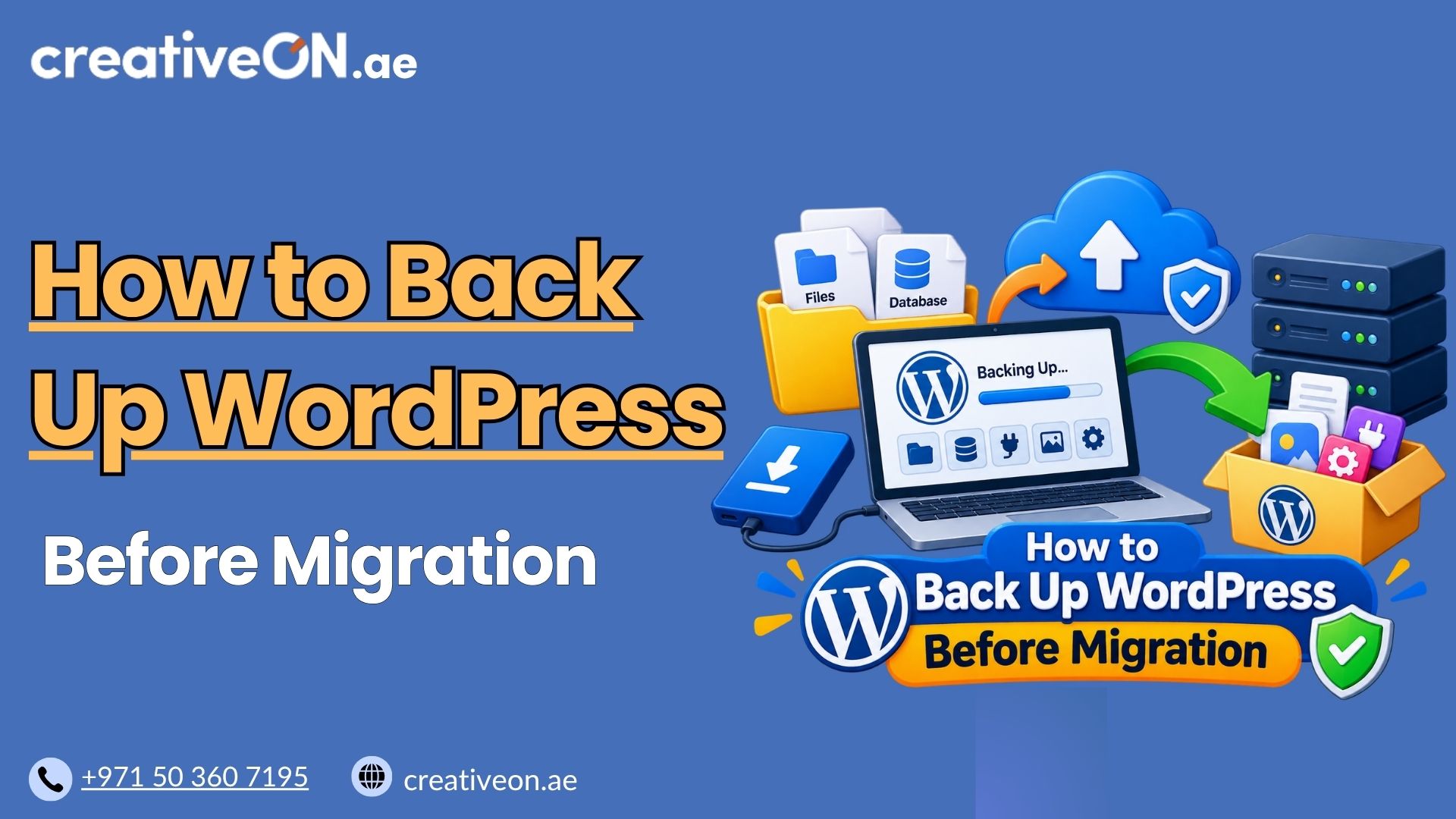
Migrating a WordPress site is one of those tasks that feels simple until something goes wrong. A missing database table, a corrupted media file, or a plugin conflict can turn a routine move into hours of troubleshooting. The safest way to avoid that stress is to back up WordPress before migration, so you always have a complete, restorable copy of your site if anything doesn’t go as planned.
This guide explains what to back up, how to create a reliable pre-migration backup, and the mistakes to avoid.
Why You Need a Backup Before Migration
A WordPress migration touches almost every part of your site: files, database, plugins, themes, and configuration settings. Even a well-planned move can run into issues like:
- Incomplete file transfers
- Database import errors
- Broken permalinks or missing media
- Plugin or theme incompatibilities on the new server
Without a reliable backup, recovering from these problems can be much more difficult and may require rebuilding or restoring the site from whatever sources are still available. With a proper backup, you can restore your site to its exact pre-migration state in minutes instead of piecing it back together from scratch.
What to Back Up Before a WordPress Migration
A complete WordPress backup has two core components, and missing either one leaves gaps in your safety net.
1. The WordPress Database
Your database stores posts, pages, comments, settings, and — depending on your setup — WooCommerce orders and customer data. This is the most critical piece to back up correctly, since even small errors in the database export can cause missing content after migration.
2. WordPress Files
This includes:
- wp-content/uploads – all your media files (images, PDFs, videos)
- wp-content/plugins – installed plugins and their configurations
- wp-content/themes – your active and inactive themes
- wp-config.php – core configuration file (handle carefully, as it contains sensitive credentials)
- .htaccess – server rewrite rules, especially important for permalinks
Skipping any of these can leave your migrated site missing images, broken formatting, or malfunctioning features.
How to Back Up WordPress Before Migration
There are three common approaches, depending on your comfort level and the tools available to you.
Method 1: Use a WordPress Backup Plugin
This is the most beginner-friendly option. Backup plugins automate the process and typically let you back up both files and the database in one package.
Steps:
- Install a reputable backup plugin from the WordPress plugin directory.
- Run a full backup (files + database), not a partial one.
- Store the backup file in an external location — not just on the same server you’re migrating away from.
- Verify the backup file downloaded correctly and isn’t corrupted or incomplete.
Backup plugins are ideal if you want a fast, low-technical-effort solution and don’t need granular control over the process.
Method 2: Manual Backup via phpMyAdmin and FTP
For more control, you can back up manually.
To back up the database:
- Log in to phpMyAdmin through your hosting control panel.
- Select your WordPress database. If you’re unsure which database belongs to your site, check the DB_NAME value in your wp-config.php file.
- Click Export, choose the “Quick” method and SQL format.
- Download and save the .sql file securely.
To back up your files:
- Connect to your server via FTP or SFTP.
- Download the complete WordPress installation directory, not just wp-content. At minimum, make sure wp-content, wp-config.php, .htaccess, and any custom files in the WordPress root are included — some sites have modified core files, custom scripts, or verification files that live outside wp-content.
- Store these files in a labeled, organized folder on your local machine or cloud storage.
This method takes more time but gives you precise visibility into exactly what’s being backed up — useful if your site has a large media library or custom configurations. If you’re moving to a new host entirely rather than just changing servers, CreativeON’s WordPress Migration Guide covers the steps that come after the backup is in place.
Method 3: Hosting-Level Backup Tools
Many managed WordPress hosting providers include built-in backup tools that can create full-site backups or restore points, and some let you download a copy directly from the control panel. If your host offers this, it’s worth using as an additional safeguard alongside a plugin or manual backup — not as a replacement, since you’ll want a copy stored outside your current hosting environment too.
Best Practices for Pre-Migration Backups
- Always create a fresh backup right before migrating — don’t rely on an older scheduled backup that may not reflect recent changes, especially for sites that receive orders, form submissions, comments, or frequent content updates.
- Store backups in at least two locations, such as local storage and a cloud drive, so a single point of failure doesn’t cost you your safety net.
- Verify the backup properly, not just by checking file size. Confirm the files are all present, the database export actually contains data, and — for important sites — consider restoring it to a staging environment or temporary location to confirm it works. CreativeON’s WordPress Staging Environment Guide covers how to set one up.
- Record your WordPress, PHP, plugin, and theme versions before migrating, so you can troubleshoot compatibility issues if the new environment behaves differently.
- Keep the backup until the migration is fully verified — don’t delete it the moment the new site goes live.
Common Mistakes to Avoid
- Backing up only the database and forgetting media files — this leads to broken images after migration.
- Relying on a single backup copy stored in one place, which can be lost or corrupted.
- Skipping verification and assuming the backup worked without checking file size or content.
- Migrating during peak traffic hours, which increases the risk of data changing between backup and migration.
- Forgetting to back up wp-config.php, which holds important configuration values you’ll need to reference on the new server.
Backup Before Migration vs. Ongoing Backup Strategy
It’s worth noting that a pre-migration backup serves a different purpose than routine, scheduled backups. A pre-migration backup is a point-in-time safety copy created specifically before a site move, meant to be used once and then retired. An ongoing backup strategy, by contrast, is designed to protect your website continuously against risks like accidental deletion, malware, or a failed update. If you don’t already have a regular backup routine in place, CreativeON’s WordPress Backup Guide covers how to set one up properly.
Yes. Even when a hosting provider manages the migration, having your own independent backup ensures you have a fallback if something is missed or configured differently than expected.
If your migration spans multiple days, create a new backup right before the final cutover to capture any content changes made during that window
Keep the pre-migration backup until you’ve fully tested the new site and confirmed that important content, media, forms, plugins, and other functionality work correctly. Once the migration is verified, retain the backup according to your normal backup policy rather than deleting it right away.
Use a location separate from your current hosting environment, such as cloud storage or a local drive, so the backup remains accessible even if the original server has issues.
A full backup includes both your files (themes, plugins, media) and your database, while a database-only backup covers just your content and settings — not your media or plugin files.