How WordPress Updates Work
WordPress updates replace outdated core files, plugins, themes, and translation files with newer versions. Understanding how WordPress updates work helps you keep a website secure, avoid compatibility problems, and know what to check when an update fails. Updates may be started manually from the WordPress dashboard, managed through a hosting control panel, or performed automatically […]
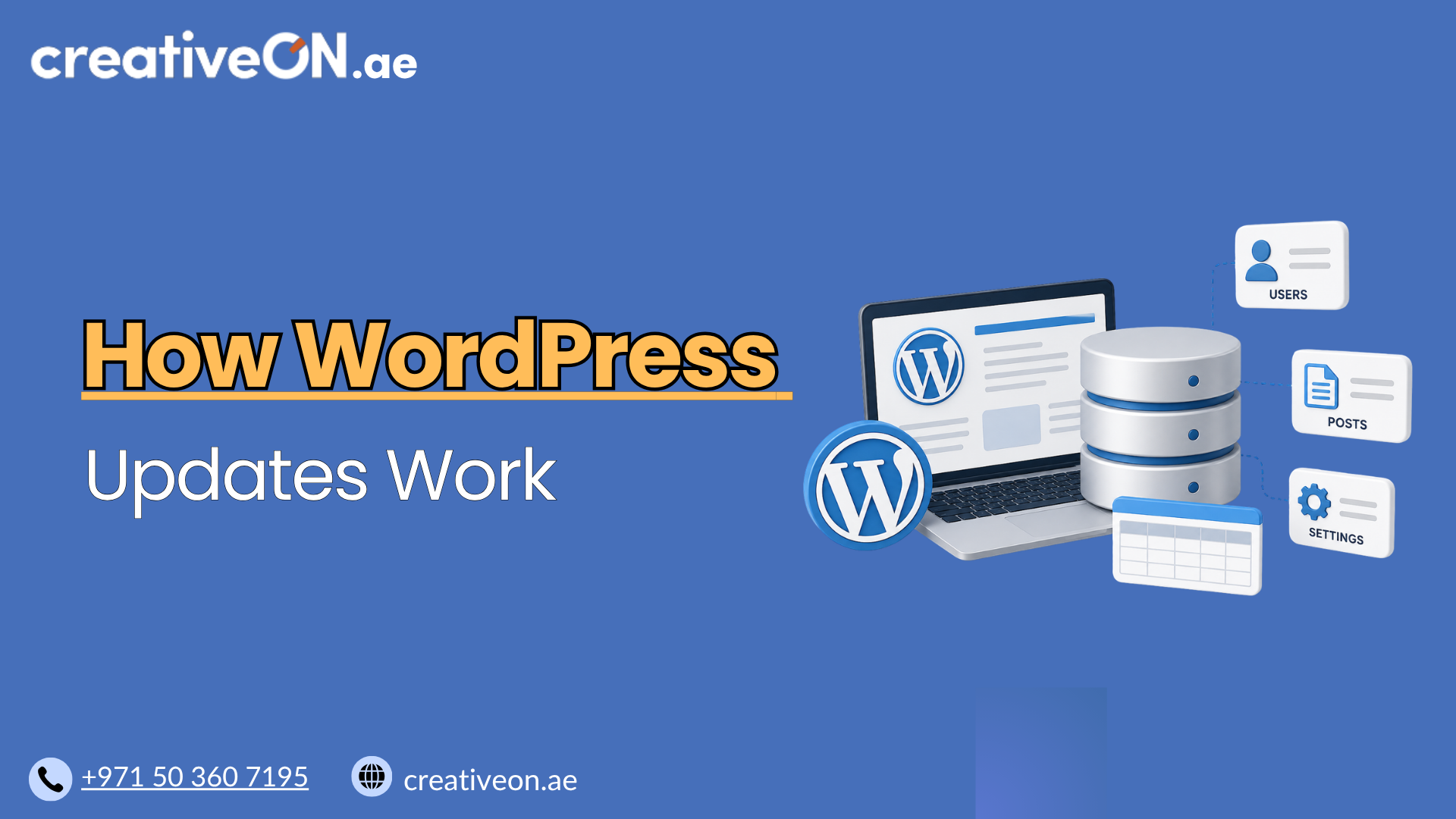
WordPress updates replace outdated core files, plugins, themes, and translation files with newer versions. Understanding how WordPress updates work helps you keep a website secure, avoid compatibility problems, and know what to check when an update fails.
Updates may be started manually from the WordPress dashboard, managed through a hosting control panel, or performed automatically in the background. The safest approach combines regular updates with reliable backups and post-update testing.
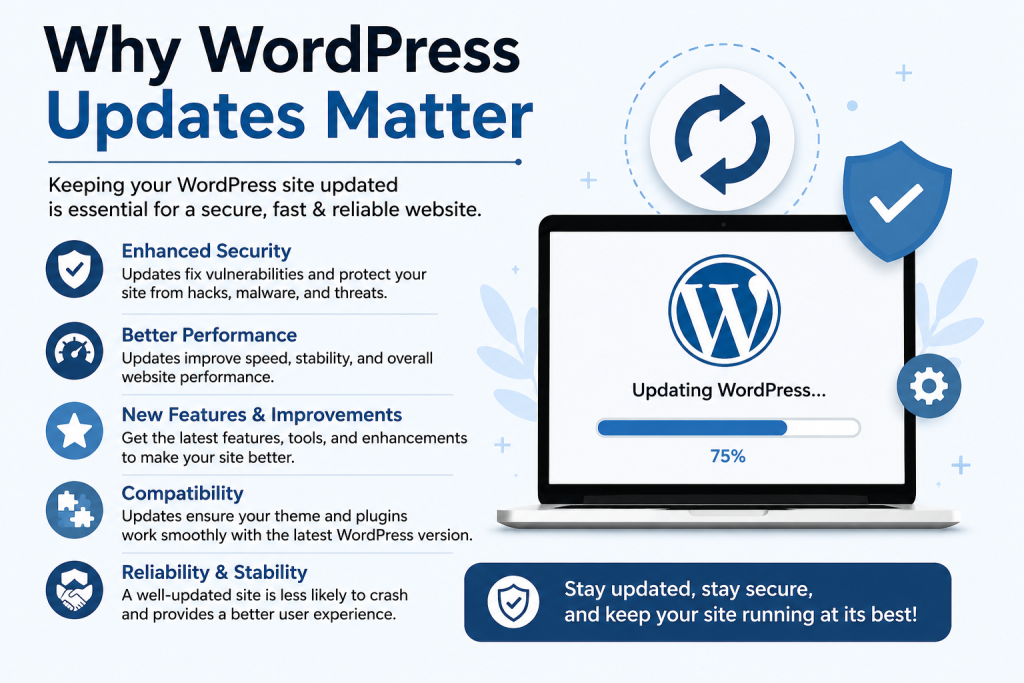
Why WordPress Updates Matter
WordPress updates are released for several reasons:
- Fixing security vulnerabilities.
- Correcting software bugs.
- Improving performance and stability.
- Adding new features.
- Maintaining compatibility with supported PHP and database environments.
- Updating translations and accessibility features.
Delaying updates can leave known vulnerabilities unpatched. However, installing every update without checking backups, plugin compatibility, or website functionality can also create problems. A good update process balances security with controlled implementation.
For broader protection measures, see the WordPress Security Guide and WordPress Backup Guide.
What Gets Updated?
A WordPress website contains several components that can receive updates.
WordPress core
The core is the main WordPress software. Core releases generally fall into three categories:
- Major releases: Introduce significant features and changes.
- Minor releases: Usually focus on maintenance, bug fixes, and security improvements.
- Development releases: Intended for testing rather than normal production websites.
WordPress automatically applies some core maintenance and security updates by default. The exact behavior depends on the installation, hosting configuration, and automatic update settings. Newer installations may also have major core updates enabled by default, while some existing sites may require an administrator to enable them.
Plugins
Plugins add functionality such as contact forms, payment processing, security tools, and page builders. Each plugin is maintained separately by its developer, so update schedules and quality can vary.
Since WordPress 5.5, administrators can enable automatic updates for individual plugins from the Plugins screen. Plugin auto-updates are not necessarily enabled for every plugin by default.
Themes
Themes control the visual design and, in some cases, important site functionality. Theme updates may include security patches, compatibility improvements, and design changes.
Automatic updates can be enabled separately for individual themes. Be careful with themes that contain direct file customizations because an update can overwrite those changes. A child theme is the safer option for custom theme modifications.
Translation files
WordPress can also update translation files for the core, plugins, and themes. These updates help keep dashboard labels and front-end text consistent with the latest software versions. Translation updates are generally handled automatically.
How WordPress Updates Work: The 7-Step Lifecycle
Whether an update is manual or automatic, WordPress follows a series of basic steps.
1. WordPress detects an available update
WordPress checks update information and displays notices in the dashboard. Available updates appear under Dashboard > Updates, while plugin and theme notices also appear on their respective administration screens.
The update information typically identifies:
- The component requiring an update.
- The installed version.
- The available version.
- Links to release information or compatibility details.
- Whether automatic updates are enabled.
2. WordPress downloads the package
When you select an update, WordPress downloads the relevant package from the official WordPress update service or the plugin or theme provider.
A failed download may result from:
- Insufficient server storage.
- File permission problems.
- Network or DNS connectivity issues.
- Restrictions imposed by the hosting environment.
- An interrupted update request.
If your hosting provider manages updates through a control panel, the package may be downloaded through that interface instead of the WordPress dashboard.
3. WordPress verifies and unpacks the files
After downloading, WordPress unpacks the update and verifies the package before installation. This helps ensure the files can be processed correctly.
For a core update, WordPress replaces the relevant core files while preserving your website’s content, configuration, media uploads, plugins, and themes. It does not normally delete your posts, pages, or media library.
4. Maintenance mode is enabled
During many updates, WordPress briefly enables maintenance mode. Visitors may see a temporary maintenance message while files are being replaced.
Most updates take only a short time. If an update is interrupted, the maintenance file may remain in the site’s root directory, causing the website to continue displaying a maintenance message. In that situation, the file may need to be removed carefully through the hosting file manager or another server access method.
5. Files are installed
WordPress installs the new files and removes or replaces the previous version of the component being updated.
For plugins and themes, WordPress updates the selected items individually or in a group. You can update both active and inactive plugins and themes from the Updates screen.
6. The database may be upgraded
Some WordPress releases require changes to the database structure. After the files are installed, WordPress may run a database upgrade routine to make the existing database compatible with the new software.
This process is normally automatic, but it is one reason to create a complete backup before updating. A backup should include both:
- The WordPress database.
- Website files, including uploads, themes, plugins, and configuration files.
The official WordPress upgrade guidance recommends backing up the database and files before an upgrade.
7. Maintenance mode is disabled
After a successful update, WordPress disables maintenance mode and returns the site to normal operation. The dashboard then reports whether the update was successful or failed.
Automatic updates generally send email notifications after successful or unsuccessful plugin and theme update attempts.

Manual and Automatic Updates
Manual updates
A manual update is started by an administrator from the WordPress dashboard.
To update safely:
- Create and verify a recent backup.
- Review the update details and changelog.
- Confirm that the website’s hosting environment meets the software requirements.
- Update one important plugin or theme at a time when compatibility risk is high.
- Check the website after each update.
- Clear relevant caches if the changes do not appear immediately.
For most websites, the normal process is:
Dashboard > Updates > select the component > Update
One-click WordPress updates are supported on most hosting servers. File permission problems are a common reason they fail.
Automatic updates
Automatic updates allow WordPress to install selected updates without requiring an administrator to click the update button.
For plugins and themes, automatic updates can be enabled individually from the Plugins and Themes screens. By default, WordPress runs scheduled plugin and theme auto-update checks approximately twice per day when eligible updates are available.
Automatic updates are useful for:
- Small business websites without daily maintenance.
- Sites managed by a reliable WordPress hosting provider.
- Security-sensitive plugins that are regularly maintained.
- Websites with tested backups and monitoring.
They require more caution for:
- WooCommerce stores.
- Membership websites.
- Sites using page builders or custom plugins.
- Websites with extensive custom code.
- High-traffic business websites where downtime is costly.
For these sites, updates should ideally be tested in a staging environment before being applied to production. A WordPress Staging Environment Guide can explain that workflow without repeating it here.
Safe WordPress Update Workflow
A reliable update routine does not need to be complicated.
Before updating
- Confirm that a recent backup exists.
- Check that the backup can actually be restored.
- Review the plugin or theme changelog.
- Confirm that the component is actively maintained.
- Check compatibility with your WordPress and PHP versions.
- Avoid updating during a critical sales campaign or website launch.
- Use staging for high-risk or business-critical changes.
During updating
- Avoid closing the browser while a dashboard update is running.
- Do not start multiple update processes at the same time.
- Avoid updating through the dashboard while another person or hosting tool is changing the same site.
- Record which components were updated.
After updating
Test the parts of the site that matter most:
- Homepage and key landing pages.
- WordPress login and dashboard.
- Contact forms.
- Navigation menus.
- Search and filtering.
- User registration or login.
- Checkout and payment processing for WooCommerce.
- Email notifications.
- Mobile layout.
- Caching and performance.
If a visual change does not appear, clear the website cache and browser cache. Caching is a separate performance topic, so refer to the WordPress Caching Guide for detailed cache management.
Common Update Problems
The site shows a maintenance message
An interrupted update can leave WordPress in maintenance mode. Check the site’s root directory for a .maintenance file and remove it only after confirming that no update is still running.
The site displays a critical error
A plugin or theme may be incompatible with the updated WordPress core or with another component. If you can access the dashboard, deactivate the suspected component. If you cannot, use the hosting file manager or contact your hosting provider to disable the plugin temporarily.
After access is restored, identify a compatible version or replace the unsupported component.
The update fails repeatedly
Check:
- Available disk space.
- File and directory permissions.
- PHP version and server limits.
- WordPress Site Health warnings.
- Hosting firewall or security restrictions.
- Whether the plugin or theme update package is still available.
WordPress plugin and theme auto-updates rely on scheduled WordPress Cron tasks. If scheduled tasks are not running correctly, automatic updates may not work as expected. Site Health can help identify related errors.
The website looks different after a theme update
A theme update may change templates, styles, or settings. Direct edits to the theme files may also have been overwritten. Restore the customization through a child theme or custom code rather than editing the updated parent theme again.
Should You Enable Automatic Updates?
Automatic updates are not a substitute for backups or monitoring, but they can reduce the time a site remains exposed to known vulnerabilities.
For a simple business website, enabling automatic updates for well-maintained plugins and themes may be appropriate. For a WooCommerce store, membership site, or heavily customized website, use staging, scheduled maintenance, backups, and post-update checks.
Your WordPress hosting provider may also manage updates at the server or account level. Check whether hosting-level updates overlap with WordPress dashboard updates, because running two separate update systems without coordination can make troubleshooting more difficult.
Why Hosting Matters for WordPress Updates
WordPress updates do not happen in isolation. They depend on the hosting environment where your site runs.
- PHP compatibility: If your hosting account uses an outdated or unsupported PHP version, updates may fail or cause errors.
- Server resources: Low disk space, memory limits, or CPU restrictions can interrupt downloads, file unpacking, or database upgrades.
- File permissions: Incorrect permissions on WordPress directories can prevent updates from writing new files.
- Backups and staging: Reliable hosting should support easy backups and staging environments, making it safer to test and roll back updates.
- Security layers: Firewalls or security modules on the server can block update requests if they are misconfigured.
A well-configured WordPress hosting environment reduces update failures and makes recovery easier when something goes wrong.