How to Change WordPress URLs After Changing Domains
If you’ve moved your WordPress website to a new domain, you also need to update the URLs stored inside WordPress. Simply pointing the new domain to your hosting account does not automatically replace references to the old domain in WordPress. If those references remain unchanged, you may encounter broken links, missing images, incorrect redirects, login […]
If you’ve moved your WordPress website to a new domain, you also need to update the URLs stored inside WordPress. Simply pointing the new domain to your hosting account does not automatically replace references to the old domain in WordPress.
If those references remain unchanged, you may encounter broken links, missing images, incorrect redirects, login problems, or pages that continue loading resources from the old domain.
This guide explains how to change WordPress URLs after changing domains, including the safest ways to update the main WordPress URL settings and replace old-domain references in the database.

Why You Need to Change WordPress URLs
WordPress uses two important URL settings:
- WordPress Address (URL) — the address where the WordPress installation is located.
- Site Address (URL) — the public address visitors use to access the website.
These values are stored as the siteurl and home options in the WordPress database.
However, changing these two settings does not necessarily replace every occurrence of your old domain. Old URLs can also exist in:
- Post and page content
- Image and media URLs
- Widgets
- Theme settings
- Plugin configuration
- Custom fields
- Page builder data
- Other database records
WordPress’s migration documentation specifically warns that references to an old domain can remain in the database after a domain change.
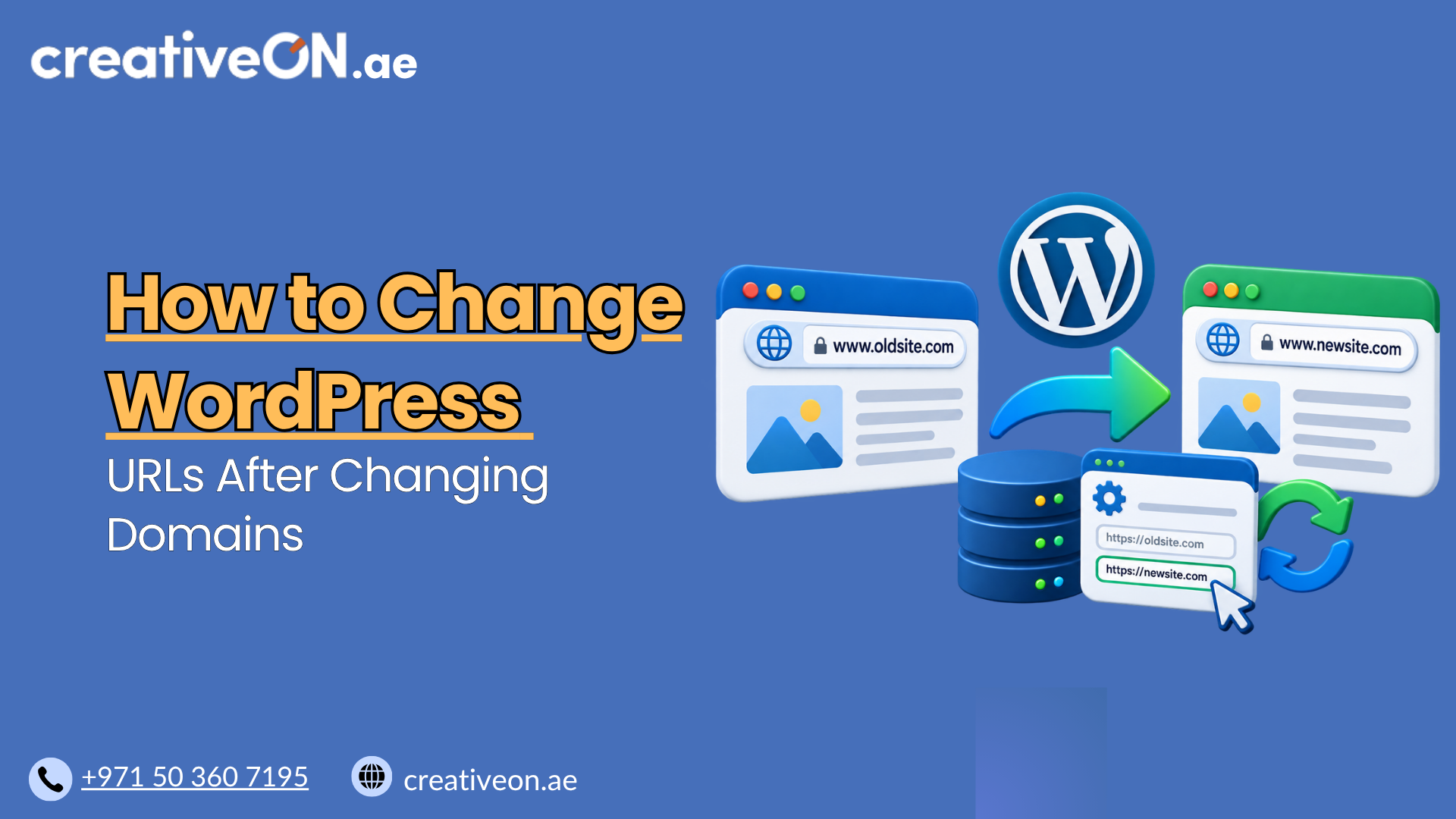
For example, if your site changes from:
https://olddomain.com
to:
https://newdomain.com
both the main WordPress URL settings and other stored references may need to be updated.
Before Changing Your WordPress URLs
Create a complete backup before making changes.
Ideally, keep:
- A full WordPress database backup
- A backup of your WordPress files
- Access to the WordPress dashboard
- Hosting File Manager or FTP/SFTP access
- Database access through phpMyAdmin if required
- WP-CLI access if your hosting environment provides it
If your hosting plan includes staging, testing the URL replacement there first is a good additional precaution.
You do not necessarily need every method described below. Choose the method that matches the access you have.

Method 1: Change WordPress URLs From the Dashboard
If you can still access WordPress, this is the simplest method.
Go to:
Settings → General
You’ll find:
WordPress Address (URL)
and:
Site Address (URL)
Replace the old domain with the new one.
For example:
WordPress Address:
https://newdomain.com
Site Address:
https://newdomain.com
Then click Save Changes.
WordPress may log you out because your login session is associated with the previous site address. Open the new domain and log in again.
Important
Changing these settings updates the primary WordPress URLs, but it does not automatically replace old-domain references inside post content, media URLs, plugin settings, or other database data.
If those references still exist, continue with a database search-and-replace.
Method 2: Change WordPress URLs Using wp-config.php
If you cannot access the WordPress dashboard because the site keeps redirecting to the old domain, you can temporarily override the URL settings through wp-config.php.
Connect to your hosting account using File Manager or FTP/SFTP and open:
wp-config.php
Add the following before the line that says:
/* That’s all, stop editing! Happy publishing. */
Use:
define( ‘WP_HOME’, ‘https://newdomain.com’ );
define( ‘WP_SITEURL’, ‘https://newdomain.com’ );
Save the file and test the website.
These constants override the corresponding URL values while they are defined. They do not, by themselves, rewrite the stored database values.
Once you regain access, update the database properly and remove the temporary constants if they are no longer required.
Method 3: Replace the Old Domain in the WordPress Database
Changing siteurl and home is only part of a domain change.
Your old domain may also appear in:
- wp_posts
- wp_postmeta
- wp_options
- Widget configuration
- Theme settings
- Plugin data
- Page builder content
This is why a proper search-and-replace operation is usually required for a complete domain change.
Be Careful With Serialized Data
This is one of the most important technical considerations.
Some WordPress themes, plugins, widgets, and page builders store information as serialized PHP data. Serialized data includes information about the length of stored strings.
For example, changing:
https://olddomain.com
to:
https://newdomain.com
changes the string length.
A basic database replacement that does not understand serialization can leave incorrect length information behind and corrupt the stored data.
WordPress specifically warns about this risk when changing domains.
Do Not Blindly Run SQL Across the Entire Database
A query such as:
UPDATE wp_options
SET option_value = REPLACE(option_value, ‘https://olddomain.com’, ‘https://newdomain.com’);
should not be treated as a universal solution.
Although direct SQL can be appropriate for experienced database administrators in carefully controlled situations, broad replacements can damage serialized values.
For most WordPress site owners, use a serialization-aware search-and-replace method instead.
Method 4: Use WP-CLI for Search and Replace
If your hosting account provides WP-CLI, it is one of the best options for replacing URLs throughout a WordPress database.
First, run a dry run:
wp search-replace ‘https://olddomain.com’ ‘https://newdomain.com’ –dry-run
A dry run reports what would be changed without actually modifying the database. WP-CLI’s search-replace command is designed to handle PHP serialized data intelligently.
After reviewing the results, run:
wp search-replace ‘https://olddomain.com’ ‘https://newdomain.com’
If you have a specific reason to include tables outside the normal WordPress database tables, WP-CLI provides options such as –all-tables, but this should be used carefully rather than automatically on every installation.
What If the Old Site Used HTTP?
Check which URL formats exist in your database.
For example, your site may contain:
http://olddomain.com
as well as:
https://olddomain.com
Replacing only one version may leave old references behind.
The same applies if you changed from www to a non-www domain:
https://www.olddomain.com
to:
https://newdomain.com
Use the actual URL format stored by your website rather than assuming there is only one variation.
Method 5: Use a Search-and-Replace Plugin
If you do not have WP-CLI access, a reputable WordPress search-and-replace plugin can provide a simpler interface.
Look for a tool that:
- Handles serialized data safely
- Supports a dry run
- Shows the number of replacements
- Allows you to select tables
- Is actively maintained
WordPress’s own migration documentation lists search-and-replace plugins as one option for handling domain changes safely.
Always create a database backup before running a replacement.
Should You Change WordPress GUIDs?
Generally, do not change published WordPress GUIDs simply because you changed domains.
A GUID is intended to provide a persistent identifier for a WordPress item rather than simply representing its current public URL.
WP-CLI even provides an option to skip the guid column during search-and-replace operations, illustrating why administrators should treat it differently from ordinary URL fields.
Unless you have a specific technical reason and understand the consequences, leave existing GUIDs unchanged.
Don’t Forget Redirects From the Old Domain
Changing URLs inside WordPress does not automatically redirect visitors from your old domain.
If the old domain has existing traffic, backlinks, or indexed URLs, configure permanent redirects from the old URLs to their corresponding new URLs.
For example:
https://olddomain.com/about/
should ideally redirect directly to:
https://newdomain.com/about/
rather than sending every old URL to the homepage.
The redirect should be implemented at the hosting, web-server, CDN, or another HTTP redirect layer—not through DNS itself.
Google recommends permanent redirects as part of a domain move and recommends keeping the old site’s redirects in place for an appropriate period while the move is processed.
What About Google Search Console?
If you are moving the entire website from one domain to another, Google provides a Change of Address tool for eligible domain-level moves.
It should be used after the new site is working and redirects are in place. Google specifically says not to use this tool for an HTTP-to-HTTPS change or a simple www/non-www change within the same domain.
The complete SEO and Search Console process belongs in a broader WordPress migration guide rather than this URL-specific article.
How to Check for Old WordPress URLs
After the replacement, test the website rather than assuming the process worked.
Check:
- Homepage
- Important pages
- Blog posts
- WordPress login
- WordPress dashboard
- Images
- Featured images
- CSS and JavaScript
- Navigation menus
- Internal links
- Contact forms
- WooCommerce pages, if applicable
- HTTPS
- Redirects from the old domain
You should also search the database for the old domain if you have the necessary access.
If old references remain, determine where they occur before running another replacement.
Common Problems After Changing WordPress URLs
WordPress Still Redirects to the Old Domain
Check the home and siteurl values and make sure WP_HOME or WP_SITEURL in wp-config.php are not still pointing to the old domain.
Also check your hosting or server-level redirects.
Images Are Broken
The image URLs may still contain the old domain.
Run a serialization-aware search-and-replace and then test images on several pages.
WordPress Login Keeps Redirecting
Incorrect home or siteurl values can cause login and redirect problems.
Check both values and any temporary URL constants in wp-config.php.
Some Pages Still Use the Old Domain
The old URL may exist inside:
- Page content
- Widgets
- Theme settings
- Plugins
- Page builders
- Custom code
Search for the old domain rather than assuming the problem is limited to the WordPress General Settings.
The Website Redirects Repeatedly Between HTTP and HTTPS
Check that the new domain has a valid SSL configuration and that WordPress, your hosting environment, CDN, and redirect rules agree on the intended HTTPS URL.
Avoid creating multiple redirect steps when one direct redirect can accomplish the same result.
Common Mistakes to Avoid
1. Changing Only Settings → General
This changes the primary WordPress URL values but may leave old URLs elsewhere in the database.
2. Running Blind SQL Replacements
A simple REPLACE() operation can damage serialized data.
Use a serialization-aware method instead.
3. Skipping the Backup
Always create a database backup before making large-scale replacements.
4. Ignoring HTTP, HTTPS, or www Variations
Your database may contain more than one version of the old domain.
Check the actual formats used by your website.
5. Removing the Old Domain Too Quickly
Keep control of the old domain while redirects are still needed.
6. Forgetting Custom Code
Hardcoded URLs in theme files, custom plugins, scripts, or configuration files may not be changed by a database search-and-replace.
WordPress URL Change Checklist
Use this checklist after changing domains:
- Back up the WordPress database and files
- Update WordPress Address (URL)
- Update Site Address (URL)
- Check WP_HOME and WP_SITEURL if wp-config.php was modified
- Search and replace old-domain references safely
- Account for HTTP/HTTPS and www/non-www variations
- Leave published GUIDs unchanged unless there is a specific reason to modify them
- Clear WordPress, hosting, and CDN caches
- Test pages, images, forms, and login
- Configure 301 redirects from the old domain
- Update the XML sitemap if required
- Verify both domains in Google Search Console when applicable
- Monitor the site for crawl and redirect issues
FAQ